
Clinical Encounters & SOAP Notes
Start clinical visits, write SOAP notes, utilize keyboard slash commands, add clinical resources, sign off charts, and append addendums.
An Encounter represents an active clinical consultation between a patient and healthcare providers. It serves as the primary workspace where physicians and nurses document history, record vital signs, assess diagnoses, prescribe medications, and finalize clinical notes.
This guide walks you through navigating the encounters list, documenting visits with the Encounter Workbench, using slash commands for rapid data entry, signing off charts, and managing amendments.
The Encounters Directory
To view all clinic visits:
- Click Encounters in the left sidebar navigation (
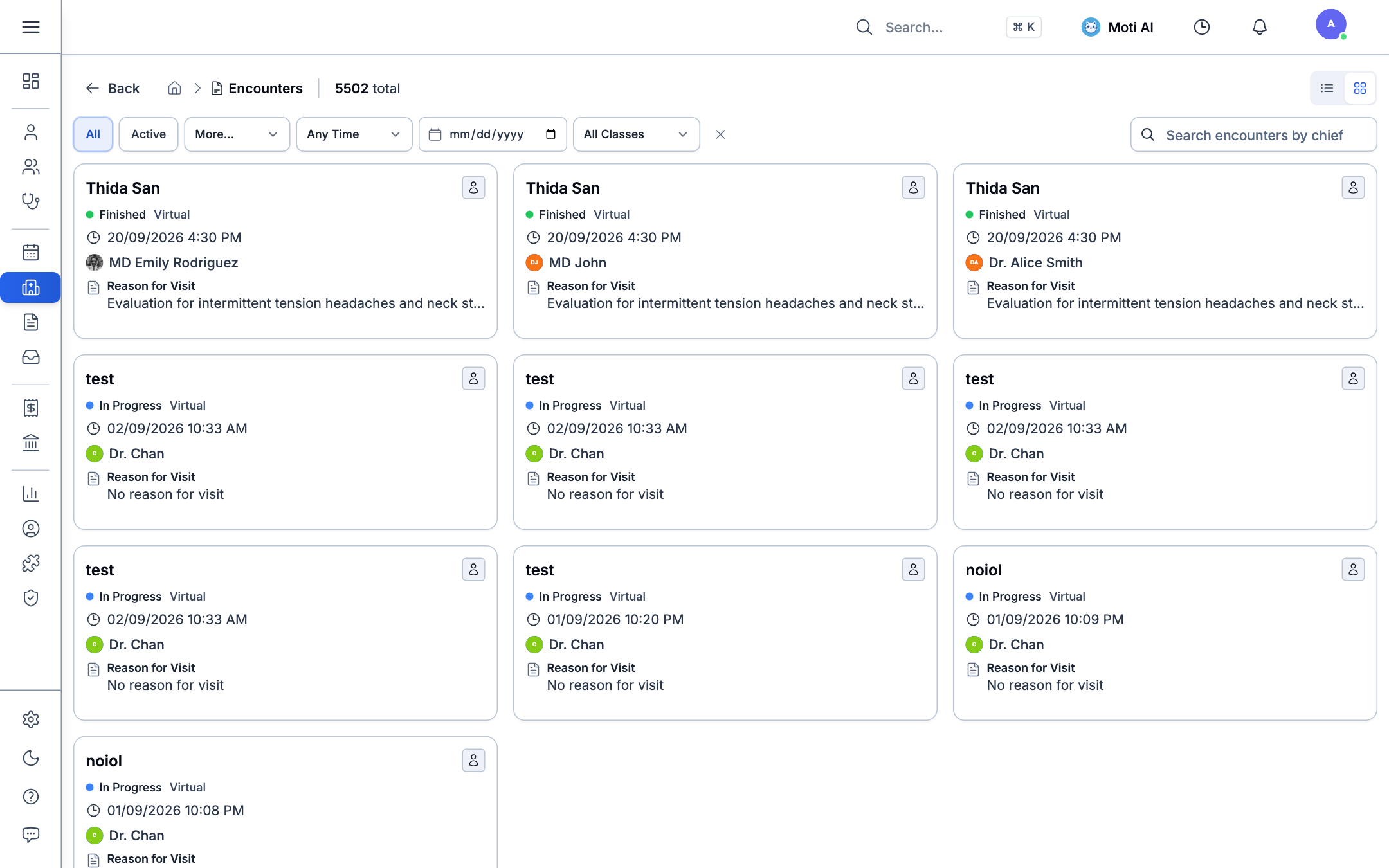
/encounters). - The directory displays all patient consultations across your clinic:
Searching & Filtering Visits
- Status Filters: Switch between Active (drafts in progress), Finished (finalized and signed notes), In Review, or All.
- Date Presets: Quickly narrow visits to Today, Last 7 Days, Last 30 Days, or select Any Time to view historical records.
- Encounter Class: Filter by care setting (Ambulatory Outpatient, Emergency, Inpatient, or Virtual Telehealth).
- Search Bar: Search by patient name (e.g., "Alex Morgan", "Sarah Chen"), patient chart number, or attending doctor.
Starting a New Encounter
You can begin documenting a visit from three convenient locations:
- From Appointments: In the Appointments Board, open an arrived patient card and click Start Encounter. This automatically links the appointment's chief complaint to your note draft.
- From Patient Profile: On any patient file, navigate to the Encounters tab and click + New Encounter.
- From Encounters Page: Click the New Encounter button in the top right corner and select your patient.
The Encounter Workbench
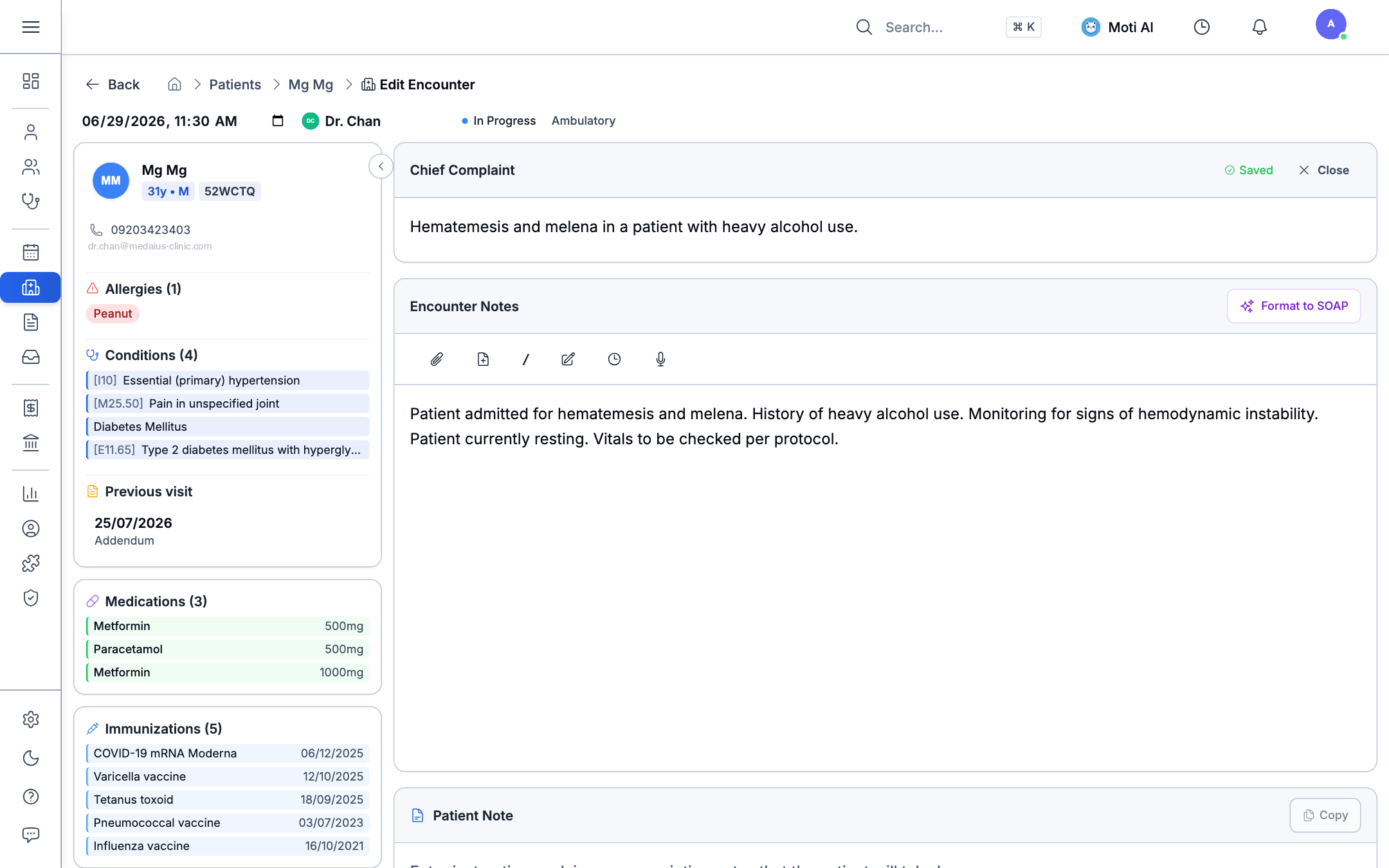
Once an encounter opens, you enter the Encounter Workbench—a unified split-screen documentation console designed for fast charting:
1. Patient Context Header
The top banner keeps vital patient safety information in view at all times:
- Patient Demographics: Patient legal name, native script name (e.g., Alex Morgan / Sarah Chen), age, and gender.
- Allergy Alert Badge: Active drug and food allergies appear highlighted with severity indicators (Red for severe, Amber for moderate, and Teal for NKDA).
- Active Problem Count: Quick tally of ongoing chronic conditions.
- Encounter Metadata: Displays visit classification (Ambulatory Visit), attending specialty (Cardiology), and note type (Progress Note).
2. Clinical Notes Editor (Multi-Note System)
Medaius supports collaborative documentation where multiple providers can contribute notes to the same visit:
- Note Types:
- Progress Note (SOAP): Standard Subjective, Objective, Assessment, and Plan notes for general consultations.
- Triage Note: Quick intake and vital screening recorded by nursing staff.
- Nursing Note: Shift observations, bedside care, and medication administration records.
- Procedure Note: Minor surgical interventions, wound dressing, or catheterization.
- Consultation Note: Specialist opinions and referral feedback.
- Format to SOAP: Click Format to SOAP to automatically organize unstructured text into clean Subjective, Objective, Assessment, and Plan headings.
- Background Autosave: Changes automatically save in the background, indicated by the green Saved badge.
Rapid Charting with Slash Commands (/)
To speed up documentation without lifting your hands from the keyboard, Medaius features an intelligent Slash Command Engine:
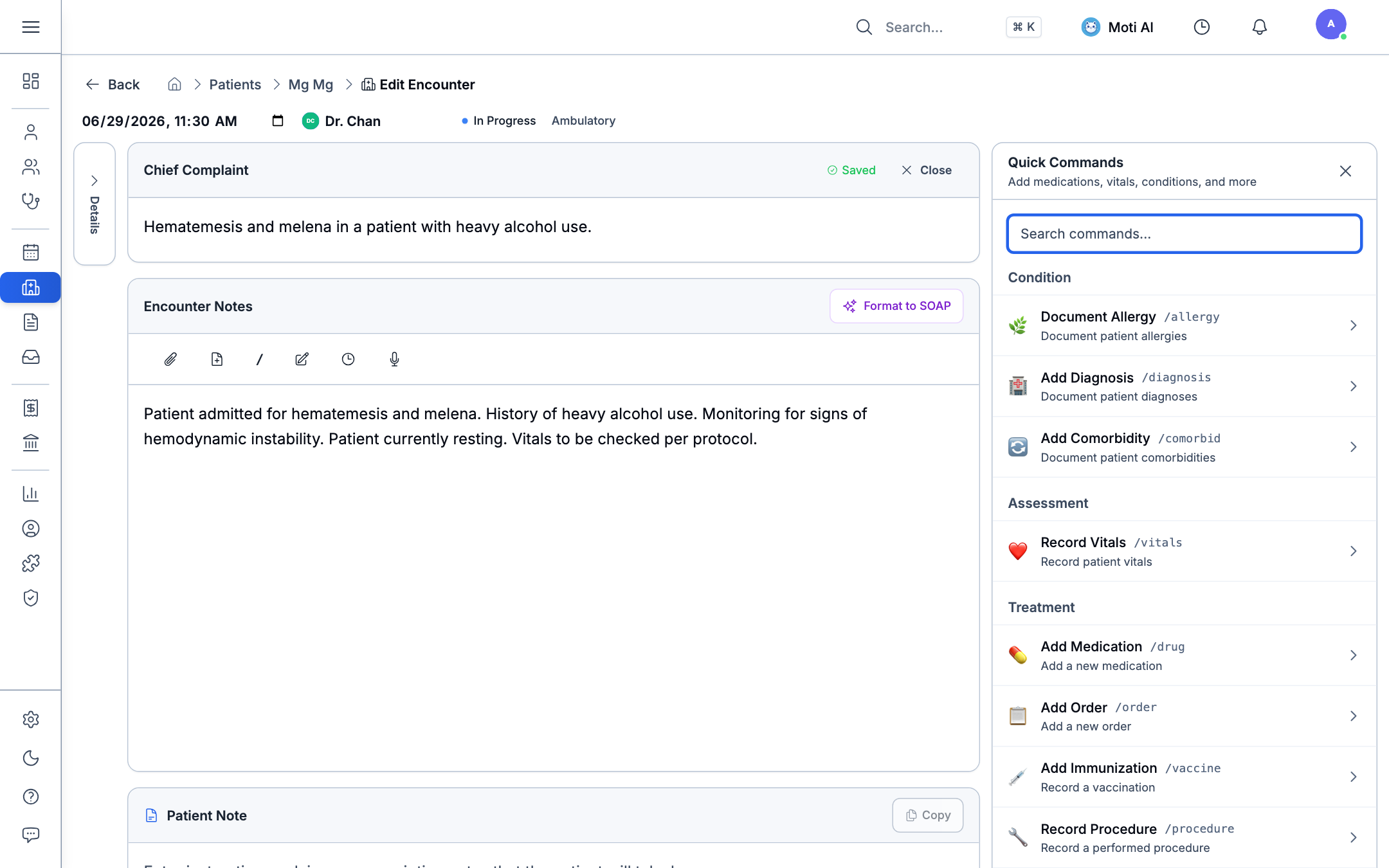
- Click into the note editor and type
/(or click the/button on the editor toolbar). - The shortcut menu slides open with instant clinical actions:
- /vitals: Inserts structured vital signs baseline.
- /soap: Inserts standard SOAP section headers.
- /rx: Opens the medication prescribing modal directly.
- /dx: Opens the condition and ICD-10 diagnostic search.
- /plan: Inserts a structured follow-up care plan checklist.
- Select any command to immediately populate templates or launch clinical data entry.
Ambient Voice & Audio Recording
For hands-free documentation during consultations:
- Click the Microphone icon on the editor toolbar to begin recording the doctor-patient dialogue.
- When the consultation concludes, click Stop.
- Listen to the audio preview or click Transcribe to generate draft clinical notes automatically using Medaius Clinical AI.
Structured Clinical Resources
While drafting notes, you can log structured clinical resources using the action buttons:
- Vitals: Record Blood Pressure (Systolic/Diastolic), Heart Rate, Temperature, Respiratory Rate, Oxygen Saturation (SpO2), Height, and Weight. The system automatically calculates Body Mass Index (BMI).
- Conditions & Diagnoses: Search standardized ICD-10 diagnostic codes and set clinical status (Active, Resolved, Remission).
- Medications & Prescriptions: Select medications from your clinic formulary, define dosage instructions, frequency, route of administration, and duration.
- Custom Forms: Attach specialty intake questionnaires, PHQ-9 depression screening, or surgical checklists directly into the visit.
- Billing & Service Items: Review clinic consultation fees and procedural charges linked to the encounter.
Reviewing Encounter Details & Summary
Opening an existing visit presents a comprehensive clinical summary:
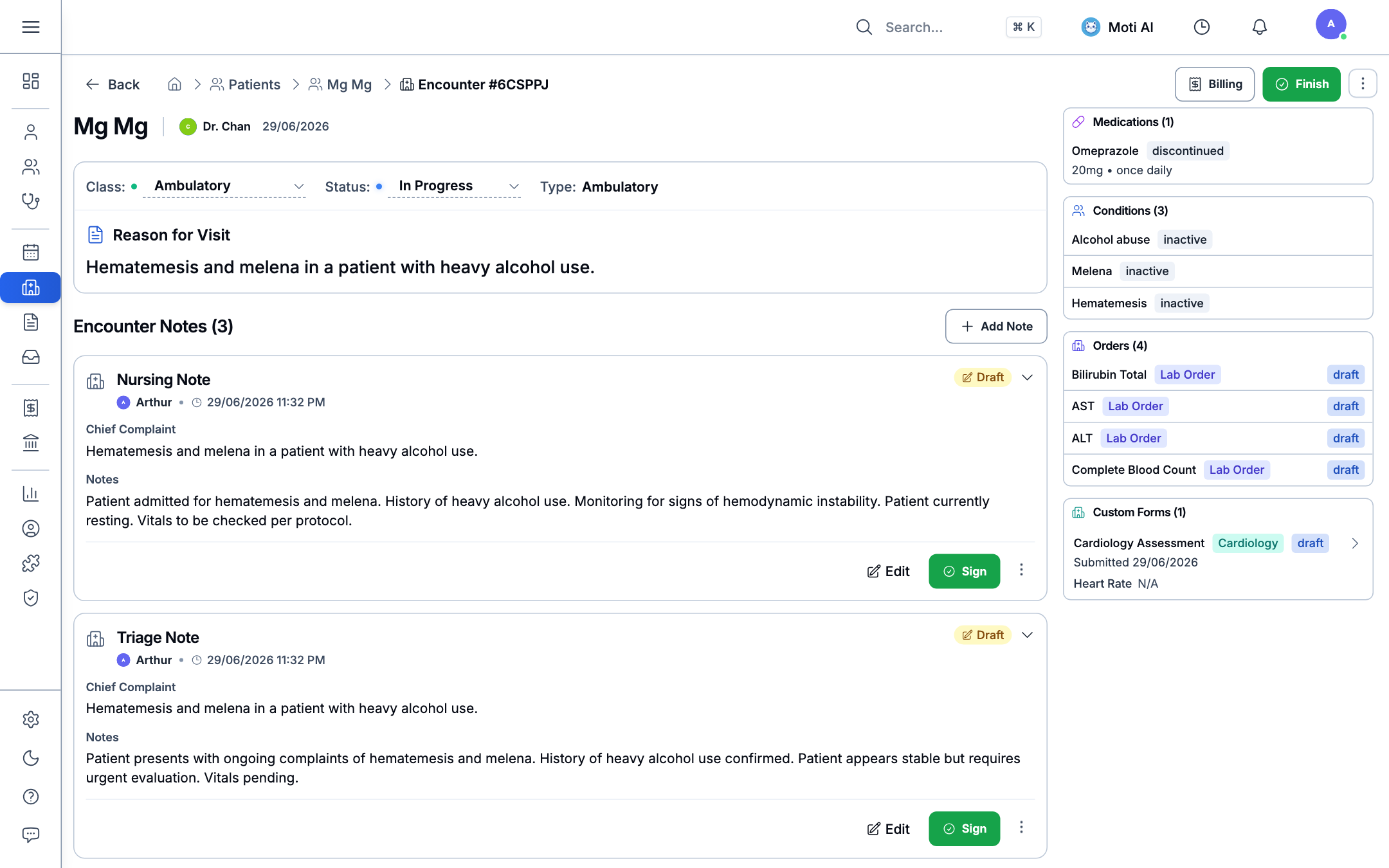
- Review all notes authored by participating clinicians.
- Inspect structured vitals taken during the visit.
- Verify linked prescriptions and diagnostic tests ordered.
Signing & Finalizing Notes (Locking the Chart)
To complete the visit and satisfy medical record compliance:
- Sign Note: When your note is finished, click Sign at the bottom of your note.
- The note is cryptographically stamped with your practitioner signature, timestamp, and credentials.
- The note status transitions to Finalized.
- Finish / Finalize Encounter:
- Once all required notes are signed, click the Finish button in the top header.
- Finalizing locks the entire encounter from further modification.
- Service fees, medication line items, and lab charges are automatically compiled and queued as a draft invoice under the Billing module.
[!WARNING] Legal Immutability: Finalized clinical notes cannot be deleted or directly edited. This ensures legal integrity for clinical documentation and medical audits.
Adding an Addendum (Post-Finalization Amendments)
If you need to append supplementary findings or correct information after an encounter is finalized:
- Open the finalized encounter page.
- Locate the signed note and click Add Addendum.
- Enter your updated clinical observations or correction notes.
- Click Submit Addendum.
- The amendment displays beneath the original note with its own author signature and exact date-time stamp, preserving the historical integrity of the medical record.
In-Encounter Billing Drawer & Invoicing
Medaius allows clinicians or billing coordinators to review, manage, and finalize charges directly within the active encounter workbench without leaving the consultation view:
1. Opening the Billing Drawer
- In the encounter header or side panel, click the Billing button.
- A sticky slide-over drawer expands on the right side of the screen, displaying the live invoice state for the visit.
2. Billable Service Items & Inventory Sync
- Consultation Fees: Automatically applied based on the provider specialty and appointment type.
- Procedures & Clinical Tests: Search and attach clinical services (e.g., wound dressing, ECG, ultrasound, nebulization) directly from your clinic price catalog.
- Medications: Prescriptions logged during the encounter automatically sync to the billing item list with formulary unit prices and dispensed quantities.
3. Applying Sponsor Codes & Subsidies
If the patient is covered under an insurance plan, corporate partner, donor fund, or NGO health sponsor:
- In the Billing Drawer, enter or select the Sponsor Code (e.g., GLOBAL-CARE-2026, UNHCR-AID).
- The system recalculates line item totals, deducting sponsored amounts and displaying the net patient out-of-pocket balance.
- Click Create / Update Invoice to lock the charge sheet or collect payment immediately.
Related Guides & Next Steps
Billing & Invoicing
Learn how finalized encounter charges flow into the clinic cashier desk, POS payments, and financial ledgers.
Sponsor Management
Configure corporate sponsors, third-party payers, insurance benefit tiers, and coverage rules.
Moti AI Clinical Copilot
Use the Moti AI sidebar to draft structured clinical notes, verify drug dosages, and check clinical guidelines.
Was this page helpful?
Help us improve our clinical documentation with your quick feedback.
Public Online Booking & Timetable
Allow patients to discover doctors, explore published schedules, select available slots, and book visits online via the public patient portal.
Observation Charts & Vitals Trending
Track longitudinal vital signs, view Blood Pressure and Heart Rate trends, monitor BMI curves, and analyze diagnostic panels.