
Organization Configuration & Access Control
Configure clinic branding, patient access control modes, appointment queues, security policies, and personal user settings.
Medaius provides a robust administration suite designed to separate System-Wide Organization Configuration (controlled exclusively by Clinic Administrators) from Personal User Settings (managed individually by each staff member).
1. Organization Administration Dashboard
Navigate to Admin (/admin) to access the centralized governance hub:
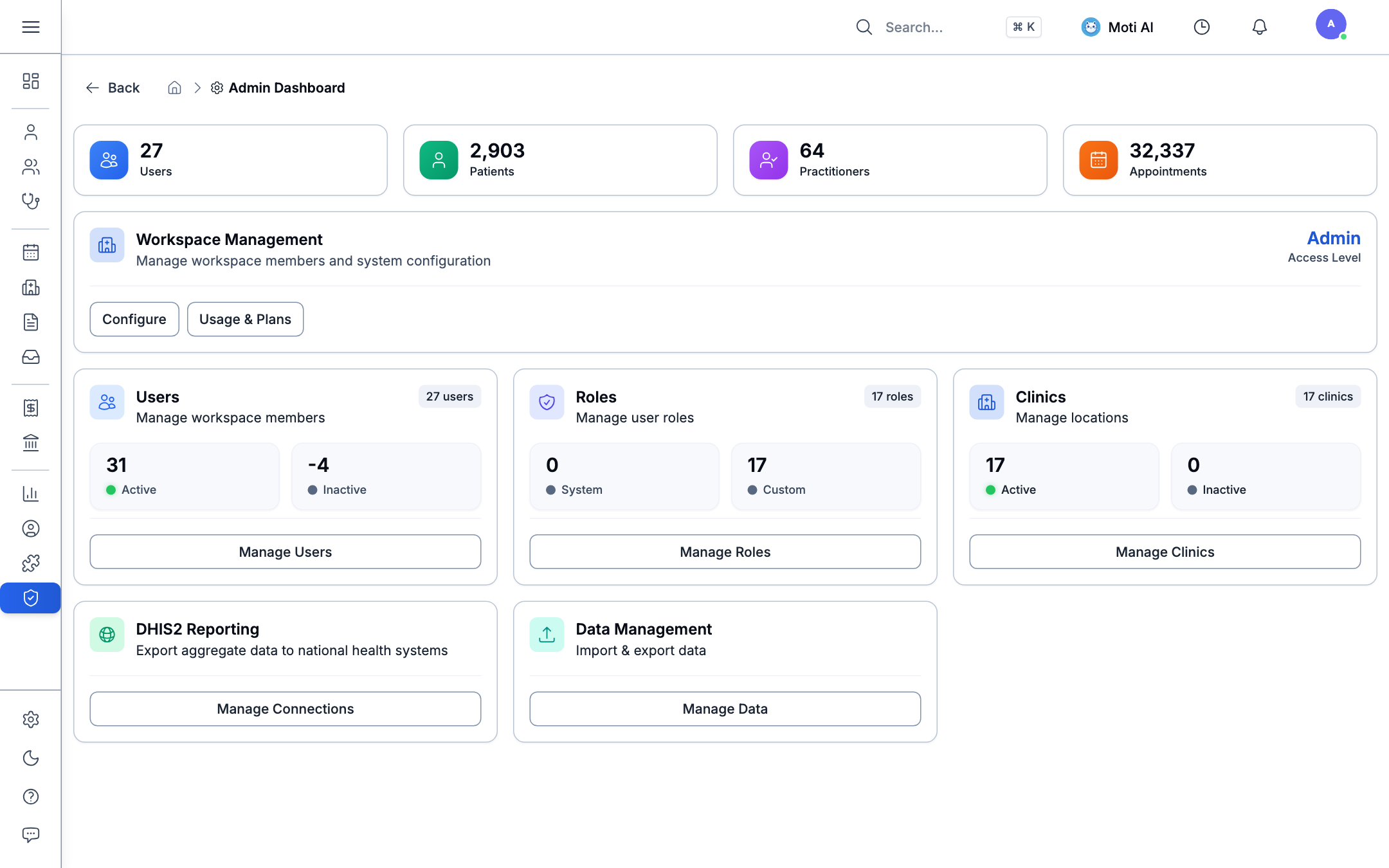
Key Metrics & Administrative Hubs:
- Core Clinic Metrics: Real-time totals of Users (27), Patients (2,903), Practitioners (64), and Scheduled Appointments (32,337).
- Workspace Management: Manage workspace members, subscription tiers, and system configuration.
- Dedicated Sub-Managers:
- Users: Invite, activate, or deactivate staff accounts.
- Roles: Manage operational roles and permission matrices.
- Clinics: Multi-branch location and department configurations.
- DHIS2 Reporting: Export aggregate statistics to national health systems.
- Data Management: Bulk CSV patient data import and export pipelines.
2. Patient Access Control & ACL Enforcement
Click Configure under Workspace Management and select Access Control (/admin?section=config&tab=access_control) to govern who can view patient medical records:
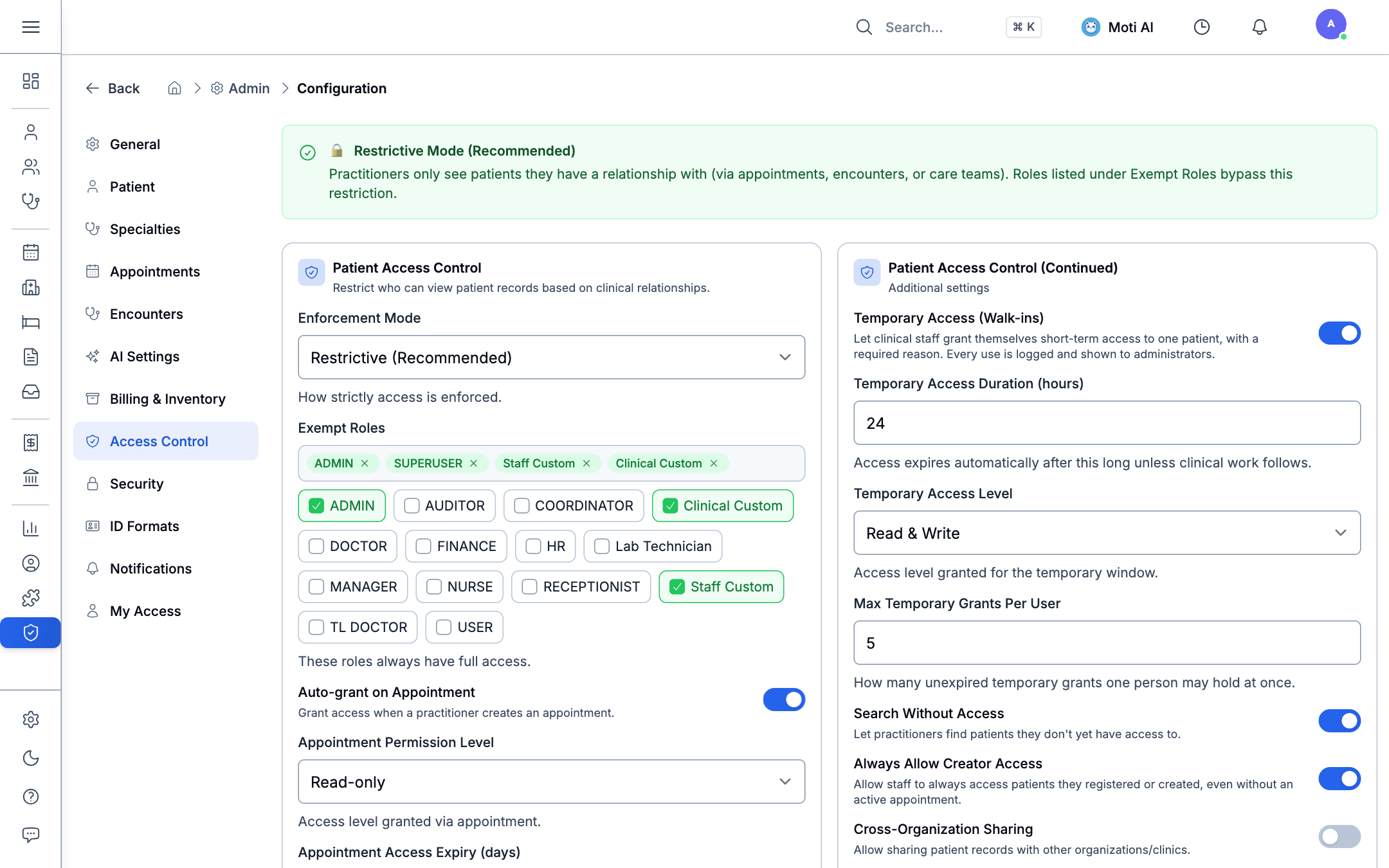
Access Enforcement Modes:
- Disabled (🔓): All practitioners can see all patients in the clinic. Access is governed solely by broad role permissions.
- Permissive (🔓): Access control lists (ACL) grant additional patient visibility on top of role permissions. Useful for cross-department consults without restricting standard clinic access.
- Restrictive (Recommended) (🔒): Practitioners only see patients with whom they have an active clinical relationship (via booked appointments, initiated encounters, or care team assignments). Roles listed under Exempt Roles bypass this restriction.
- Strict Mode — No Exceptions (🔐): Only explicit ACL grants permit patient chart access. Role-based exemptions are completely disabled — every user, including organization admins, must hold an explicit grant for each patient.
Security Controls & Emergency Break-Glass:
- Exempt Roles: Specific operational roles (such as
ADMIN,SUPERUSER, or clinical coordinators) granted universal record access. - Auto-Grant on Appointment: When enabled, scheduling an appointment automatically grants the attending doctor specified permissions (
Read-onlyorRead & Write) with automated expiration rules. - Temporary Access (Walk-ins / Break-Glass): Allows clinical staff to grant themselves short-term access (e.g., 24 hours, capped at 5 simultaneous grants) to treat unscheduled walk-in patients. Every break-glass activation requires a clinical rationale and is permanently logged in the audit trail.
- Search Without Access: Allows practitioners to look up basic demographic info for unregistered walk-ins without unlocking their historical clinical encounters.
- Always Allow Creator Access: Ensures healthcare workers can always review records of patients they personally registered.
3. Appointment Configuration & Waiting Room Queue
Under Admin → Configuration → Appointments (/admin?section=config&tab=appointments), administrators configure operational clinic flow:
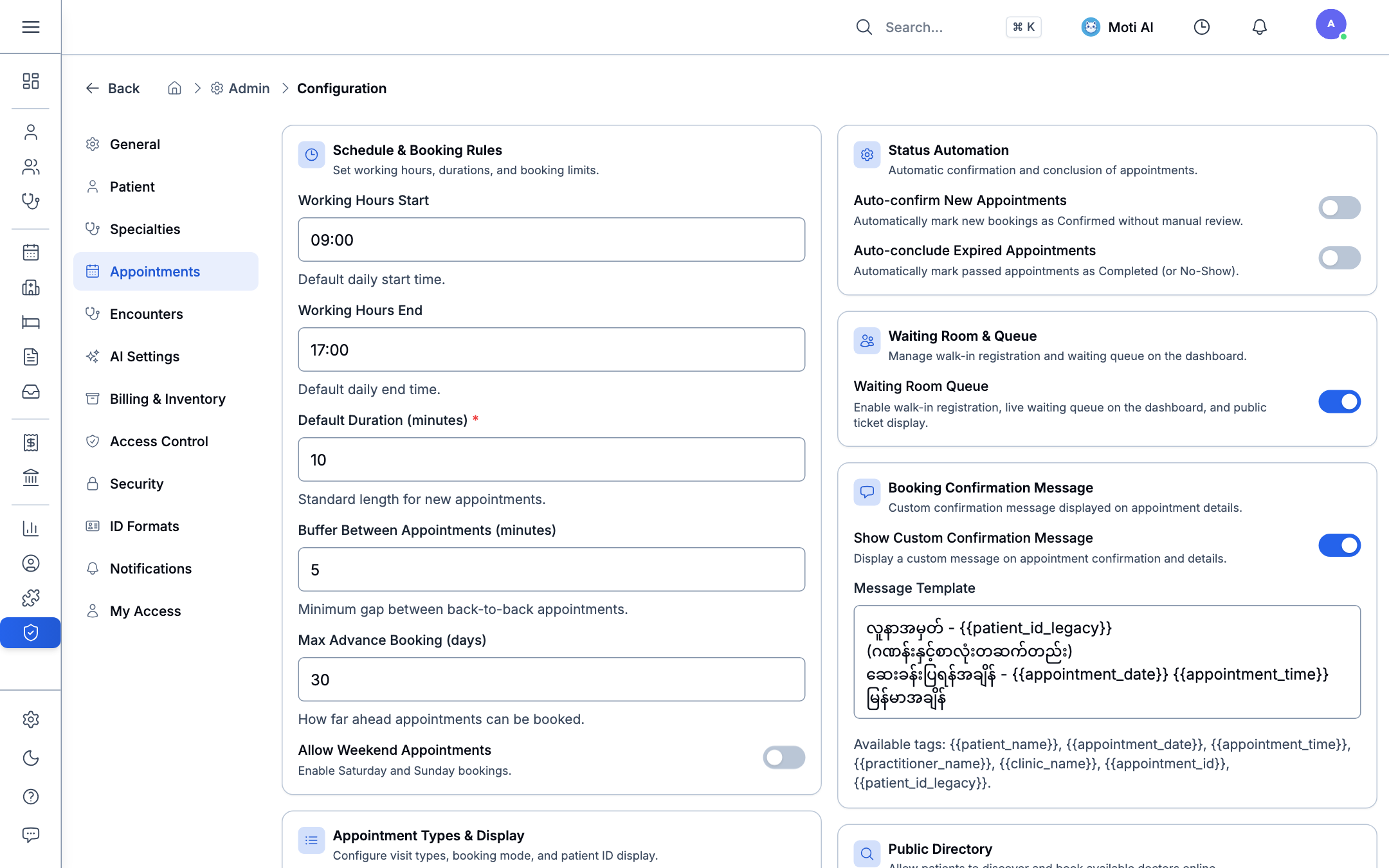
Key Configuration Sections:
- Schedule & Booking Rules: Define default clinic opening and closing hours (e.g.,
09:00to17:00), standard appointment duration (e.g.,10 minutes), minimum buffer between bookings (5 minutes), and advance booking horizons (30 days). - Waiting Room & Queue (Walk-in Management):
- Toggle Waiting Room Queue: Enabling this switch activates walk-in registration, the live waiting queue on the dashboard, and public ticket display boards across the clinic.
- Status Automation: Automatically mark new bookings as Confirmed, and auto-conclude expired appointments as Completed or No-Show.
- Booking Confirmation Messages: Standardize patient SMS/Viber confirmation templates using dynamic tags like
{{patient_name}},{{appointment_date}},{{appointment_time}}, and{{clinic_name}}.
4. User Settings vs. Organization Configuration
Medaius enforces a strict architectural boundary between organizational settings and personal user accounts:
[!IMPORTANT] Key Distinction:
- Organization Configuration (
/admin?section=config): Controlled exclusively by Organization Administrators. Sets global clinic rules, branding, access control modes, appointment queues, and clinical templates for all staff members.- User Settings (
/settings): Controlled individually by each logged-in user. Manages personal profile details, account passwords, two-factor authentication, active browser sessions, and workspace switching.
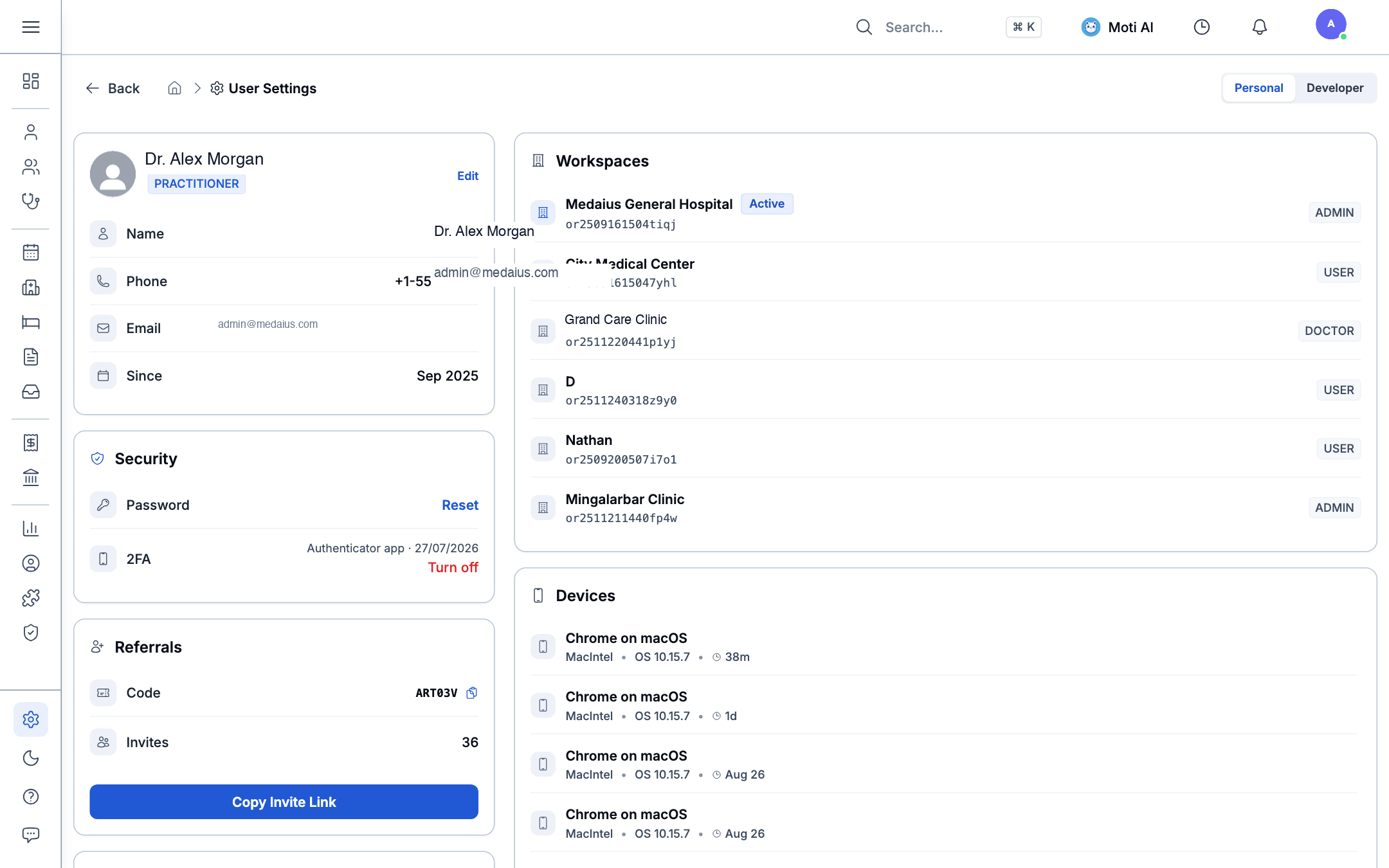
Personal User Settings Capabilities (/settings):
- Personal Profile: Update your practitioner display name, phone number, and avatar photo.
- Security & 2FA: Change your login password and toggle Time-based One-Time Password (TOTP) Authenticator app 2FA.
- Multi-Workspace Hub: Seamlessly switch between healthcare facilities (e.g., Medaius General Hospital, City Medical Center, Mingalarbar Clinic) using a single credential.
- Active Device Management: Inspect active desktop and mobile sessions with device details and last active timestamps, with instant one-click session revocation.
- Referral Code: Share your personal invitation code with colleagues.
Was this page helpful?
Help us improve our clinical documentation with your quick feedback.
Clinic Locations, Practitioner Profiles & Rosters
Configure multi-branch clinics, update practitioner profiles, customize working hours and timetables, and manage clinic-wide duty rosters.
Roles, Permissions & Access Control
Configure multi-tiered role levels (L1–L9), manage granular functional permissions via the Role Form Modal, restore role snapshots, and inspect RBAC audit trails.