
Data Export & Clinical Data Management
Comprehensive guide to exporting clinical, operational, and financial records from Medaius with entity filtering, format options, and audit trails.
Medaius features a structured Data Management & Export Engine (/data-import?tab=export) that enables healthcare organizations, clinic networks, and clinical administrators to extract clinical and administrative data safely and portably.
1. Running an Export — the 3-Step Wizard
The export interface (/data-import?tab=export) walks you through picking a dataset, configuring it, and downloading it:
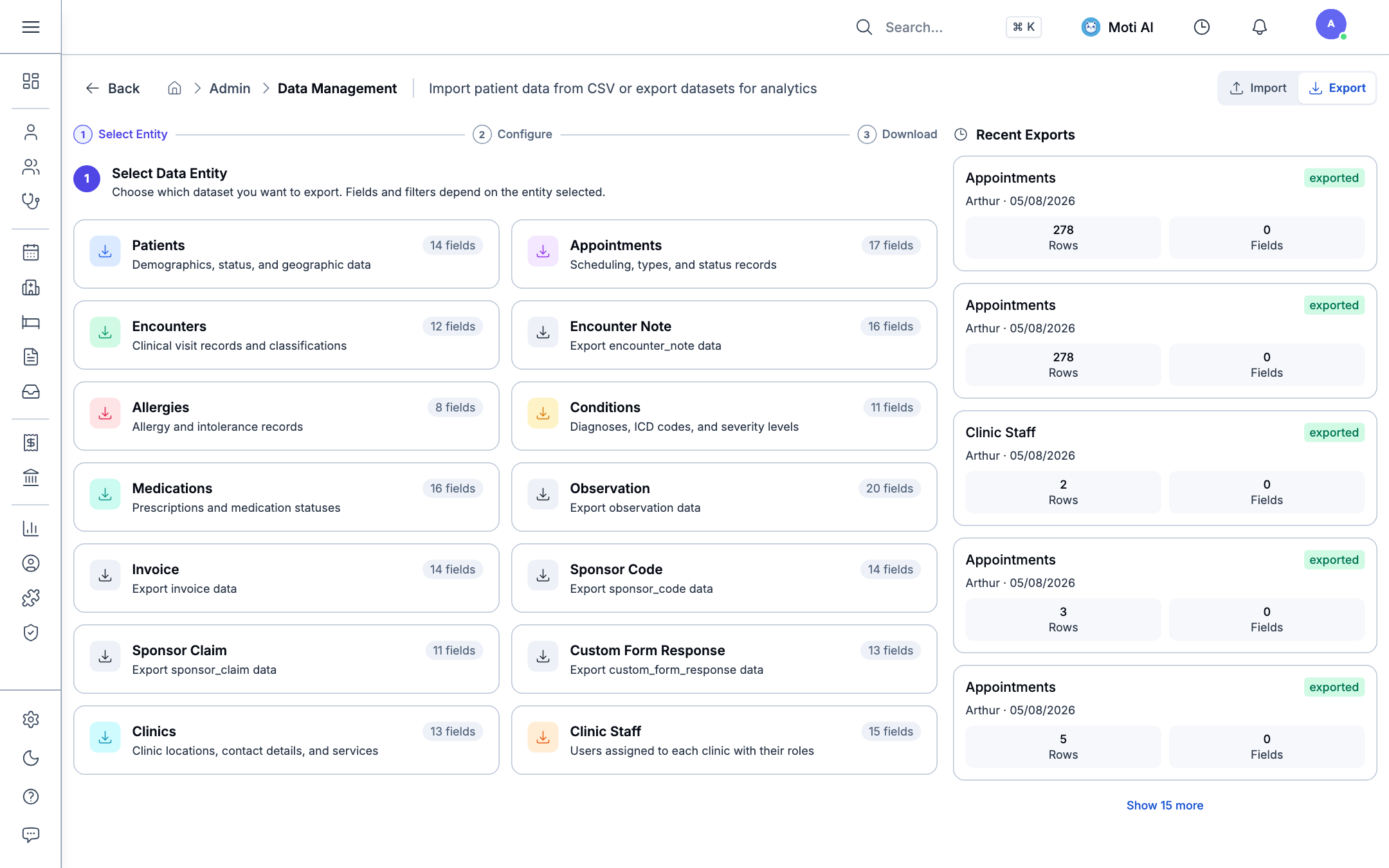
- Select Data Entity — click a dataset card to export. Confirmed entity types include Patients, Appointments, Encounters, Allergies, Conditions, Medications, Clinics, and Clinic Staff. ⚠️ The exact list is served from the backend schema and can grow — check the live picker for the current, complete set rather than treating this as final.
- Configure the export:
- Fields to Export — every field is selected by default; uncheck any you don't need, or use Select All / Deselect All.
- Date Range — use a quick shortcut (1 Month, 6 Months, 1 Year) or pick explicit Start Date / End Date values for a custom range.
- Filters — any filterable field on the entity (varies by entity) gets its own dropdown here.
- Format — toggle CSV or JSON.
- Row Limit — up to 50,000 rows per export.
- Privacy — toggle between Anonymized (IDs hashed, dates generalized — the default) and Raw data (real IDs included; handle with care).
- Click Generate & Download [CSV/JSON]. The file downloads directly to your device, and an audit log entry is recorded automatically (fields, filters, and row count included).
Click Export Another Dataset on the confirmation screen to start a new export without leaving the page.
2. Reviewing Export History
Every export you generate is logged automatically in the Recent Exports panel next to the wizard — a running audit trail of who exported what:
- Look at the entity name, the staff member who ran the export, and the date, shown on each entry.
- Check the Rows and Fields counts to see exactly how much data that export contained.
- Click Show N more to expand the list beyond the most recent 5 entries.
This log is for audit visibility, not re-download — the file itself is downloaded once, directly to the device that generated it, and isn't stored for later retrieval. If you need the same export again, re-run the wizard.
3. Related Guides & Next Steps
Role Permissions Matrix
Configure granular L1–L9 export and clinical administrative permissions.
Clinical Analytics & KPIs
Visualize clinic performance, disease trends, and revenue metrics.
In-Encounter Billing Drawer
Review how invoice line items and sponsor codes are applied during consultations.
Was this page helpful?
Help us improve our clinical documentation with your quick feedback.
Team Announcements & Communications
Coordinate clinic staff with real-time newsfeeds, pinned notices, urgent alerts, threaded discussions, and clinical activity widgets.
Security, Access Control & Audit Logs
Understand Medaius enterprise security standards, clinic workspace isolation, role-based access control, session protection, and compliance audit logging.