
Longitudinal Patient Clinical Records
Review comprehensive clinical sub-records for patient care: allergies, chronic problem lists, active medications, immunization ledgers, surgical procedures, and diagnostic orders.
Medaius provides specialized, longitudinal clinical workspaces inside every patient profile. Practitioners can drill down into granular clinical sub-records to make informed medical decisions without sifting through disorganized paper charts.
1. Allergies & Adverse Reactions Ledger
- Open the patient's chart and go to the Allergies tab.
- Filter the list by severity — All, Severe, Moderate, or Mild — to scan for what matters first.
- To record a new allergy, click + Add and enter the allergen, reaction category (food, drug, environmental), onset date, and verification status.
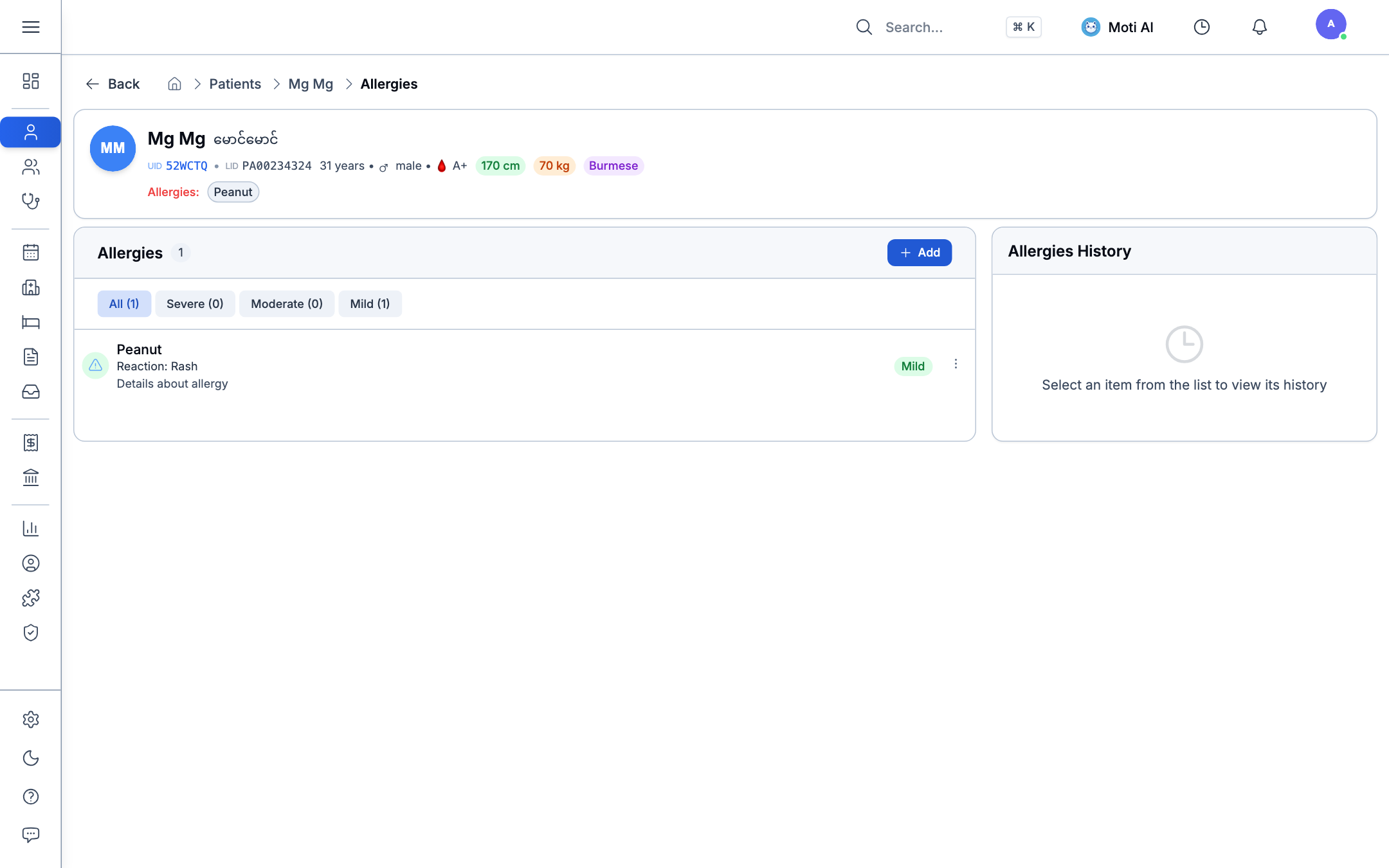
A confirmed severe or moderate allergy triggers a red warning banner across the patient header and at prescription checkout, so it can't be missed when ordering a medication.
2. Chronic Conditions & Problem List
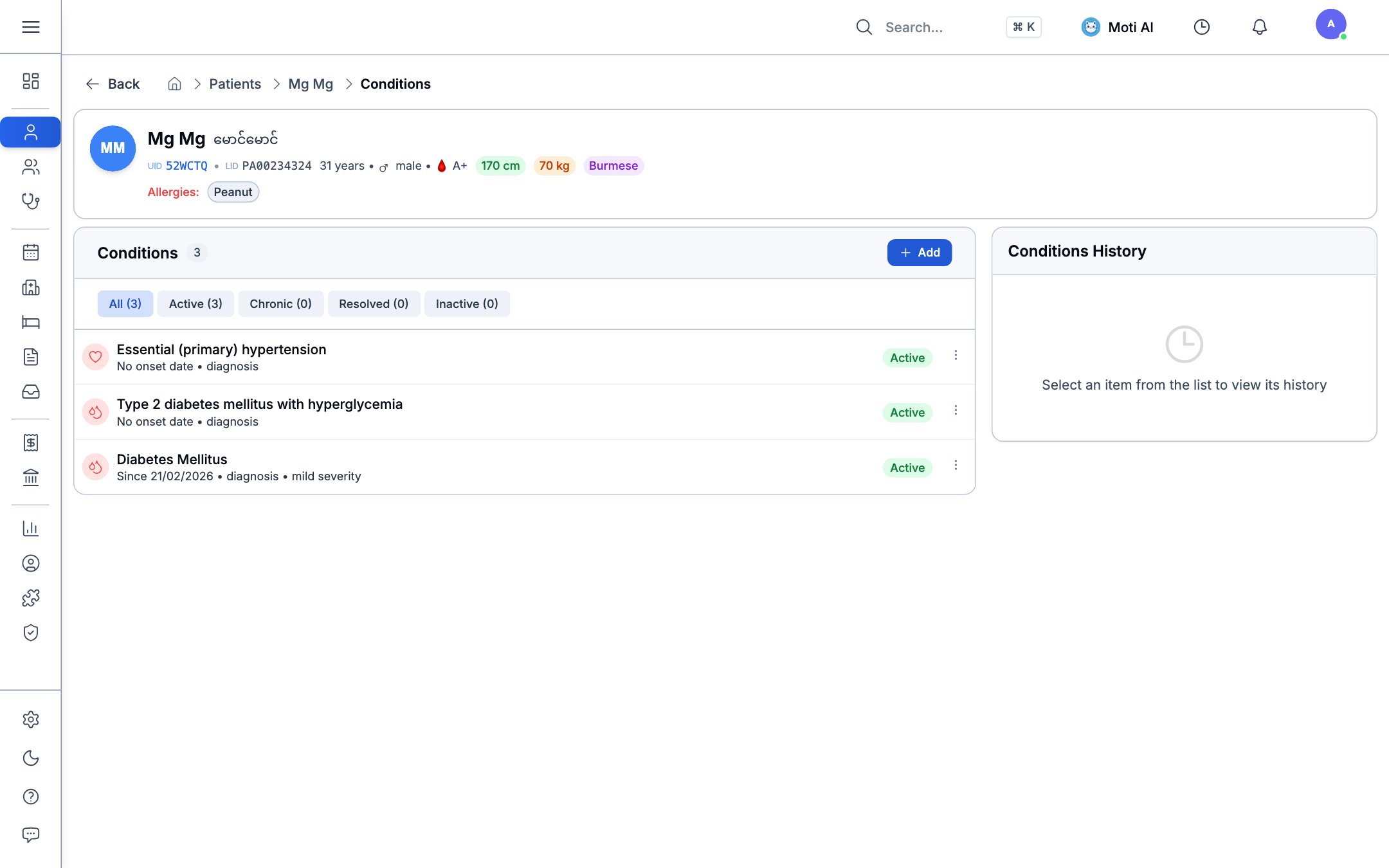
- Go to the Conditions tab on the patient's chart.
- Toggle between Active, Chronic, Resolved, and Inactive to focus on the problem states that matter for this visit.
- Open any entry to see when it was first diagnosed, its severity, and the coded ICD-10 term (e.g., Diabetes Mellitus · Since 21/02/2026 · Mild severity · Active).
3. Medications & Active Prescriptions
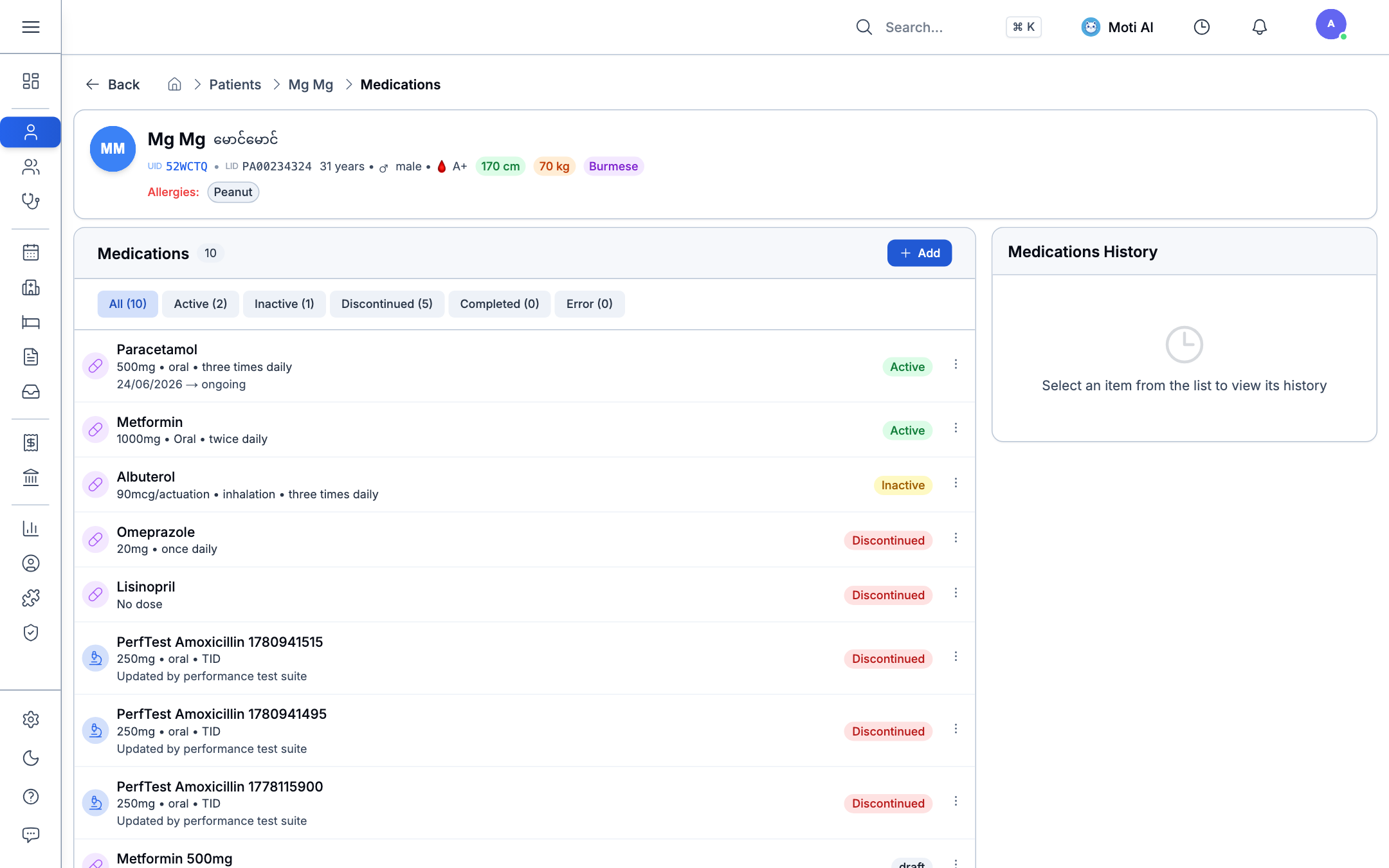
- Go to the Medications tab.
- Filter by lifecycle status — Active, Inactive, Discontinued, or Completed — to see the current regimen or the full prescribing history.
- Open an entry to see the dosage and administration instructions (e.g., Paracetamol 500mg · oral · three times daily · ongoing), and — for anything discontinued — who stopped it and why.
4. Immunization & Vaccine Ledger
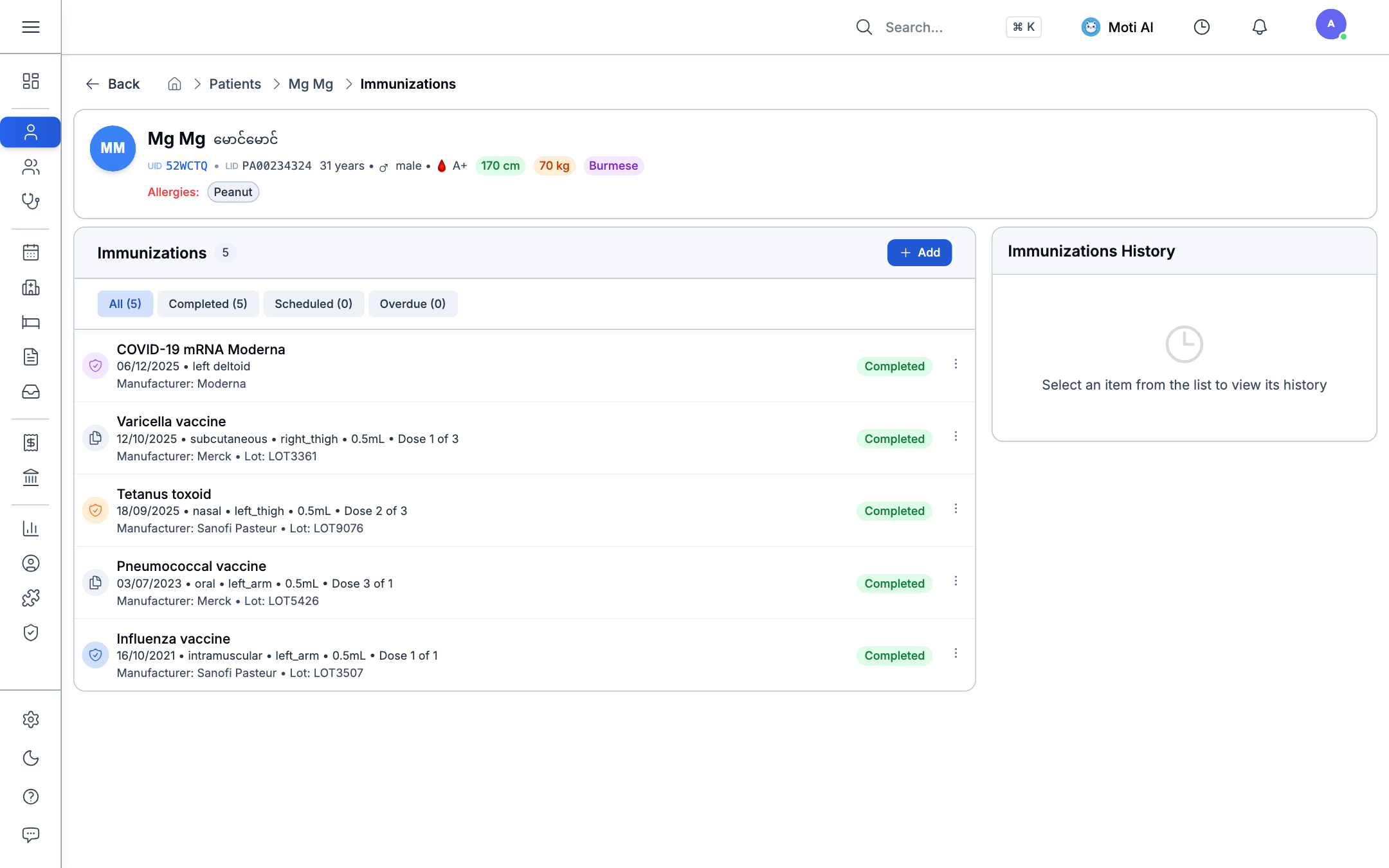
- Go to the Immunizations tab to see the patient's complete vaccine history.
- Open any entry for the manufacturer, lot number, dose sequence, and administration site/route (e.g., subcutaneous · right thigh · 0.5mL · Dose 1 of 3).
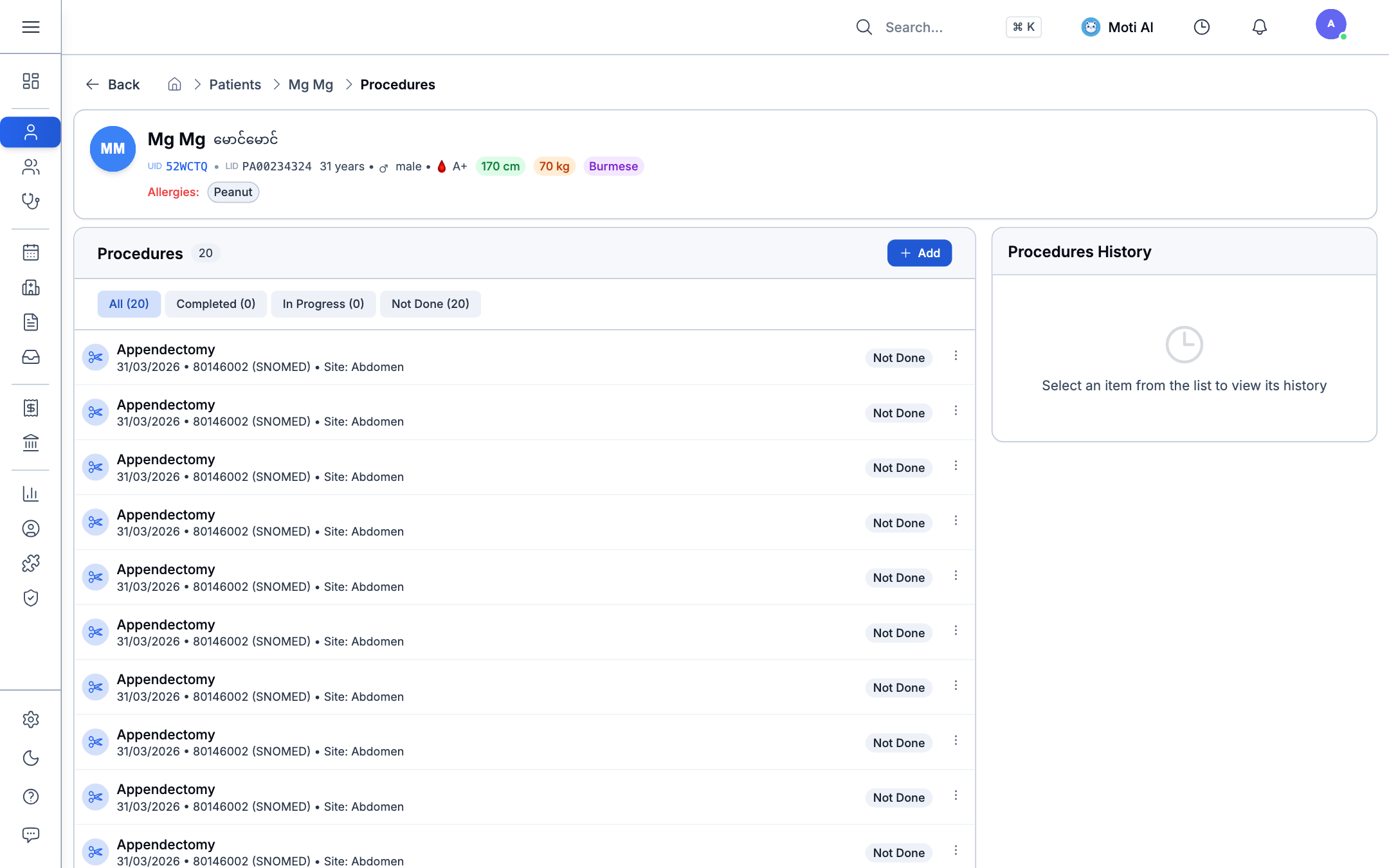
5. Surgical & Clinical Procedures
- Go to the Procedures tab.
- Filter by status — Completed, In Progress, or Not Done.
- Click any entry to open the full surgical summary: SNOMED-CT coded procedure, site, operating surgeon, and anesthesia details.
6. Diagnostic Orders & Specialist Referrals
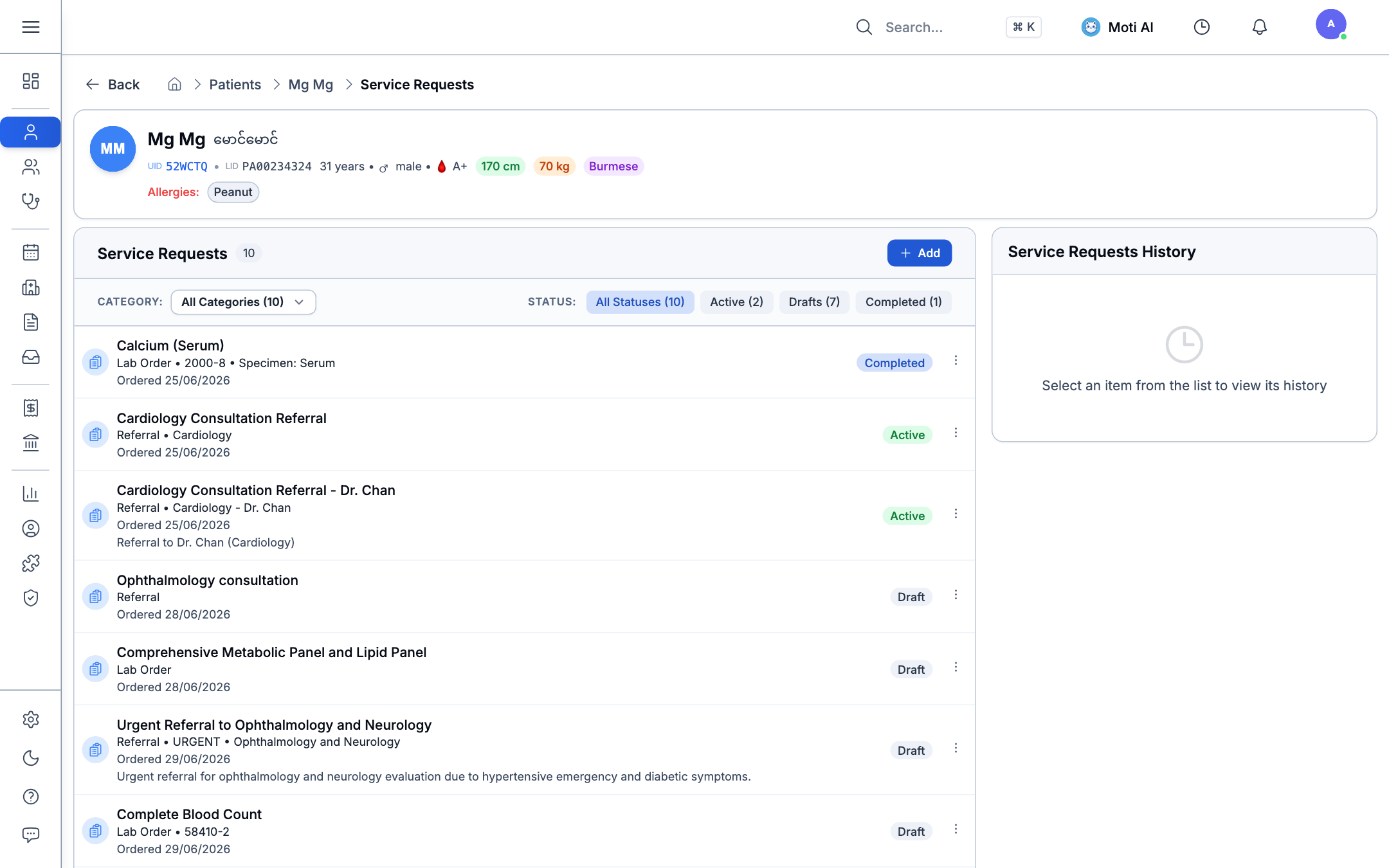
- Go to the Service Requests tab.
- Filter by workflow state — Active, Drafts, or Completed — to see what's pending vs. resolved.
- Open an entry to see the coded lab order (LOINC) or the referral details (specialty, referred-to physician, urgency).
7. Longitudinal Vitals & Observations Trending
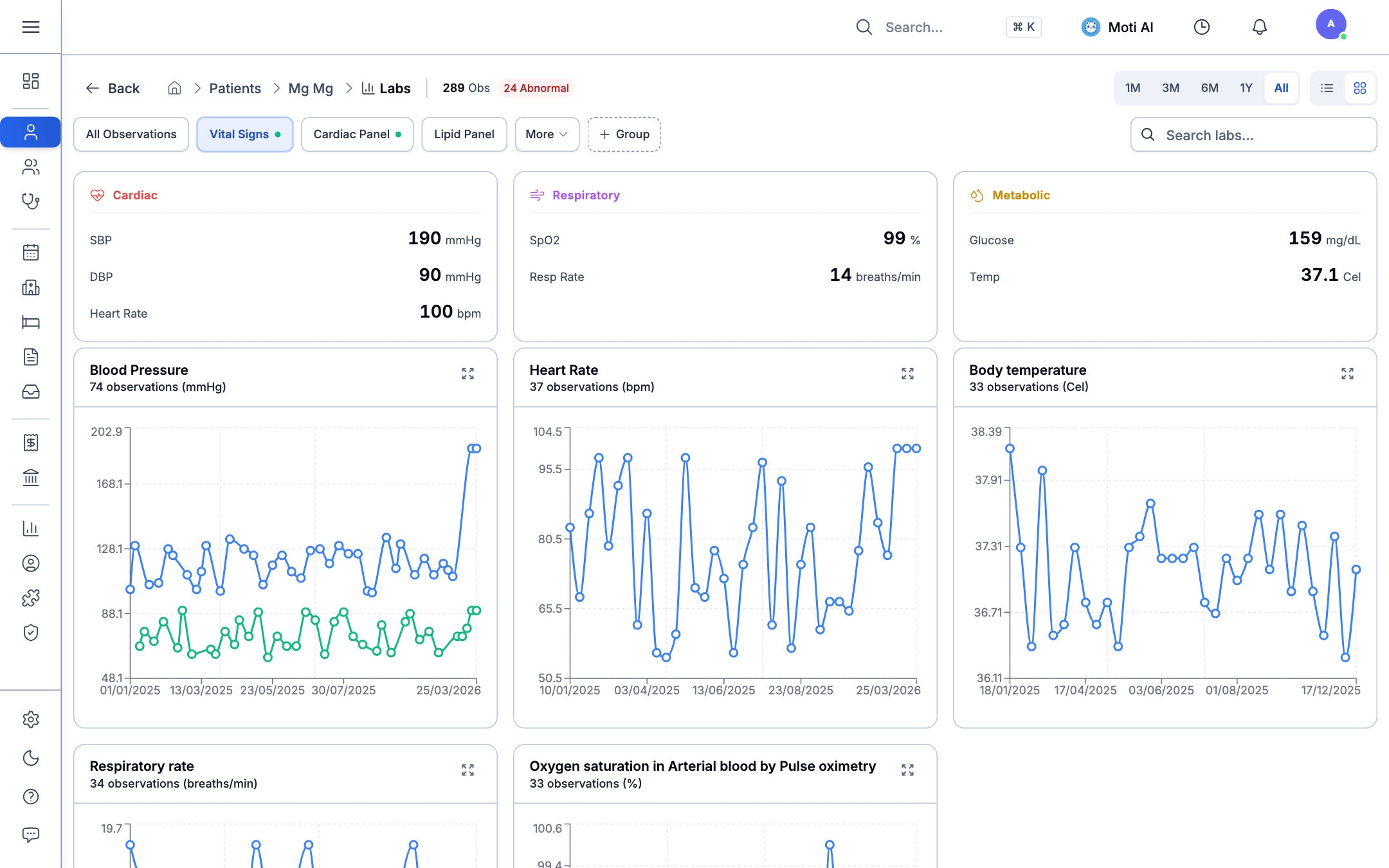
- Go to Charts / Labs.
- Switch panels — Vital Signs, Cardiac Panel, Lipid Panel — to focus on a specific set of measurements.
- Review the trend line; values outside the normal physiological range are highlighted automatically, and the panel header shows the count of abnormal flags (e.g., 289 Observations · 24 Abnormal flags).
Was this page helpful?
Help us improve our clinical documentation with your quick feedback.
Patient Management
Register patients, perform fast search queries, edit demographics, track clinical sub-records, and manage patient profiles.
Appointments & Scheduling
Manage clinic calendars, schedule visits, configure dynamic Kanban boards, set up practitioner timetables, and handle patient check-ins.