
Clinic Locations, Practitioner Profiles & Rosters
Configure multi-branch clinics, update practitioner profiles, customize working hours and timetables, and manage clinic-wide duty rosters.
Medaius is built from the ground up for multi-facility healthcare organizations. Administrators and medical directors can organize separate clinic branches, manage practitioner credentials, configure individual consultation schedules, and coordinate rotating duty rosters.
1. Multi-Location Clinic Management
Manage physical facilities, outpatient branches, and clinical departments under Admin → Clinics:
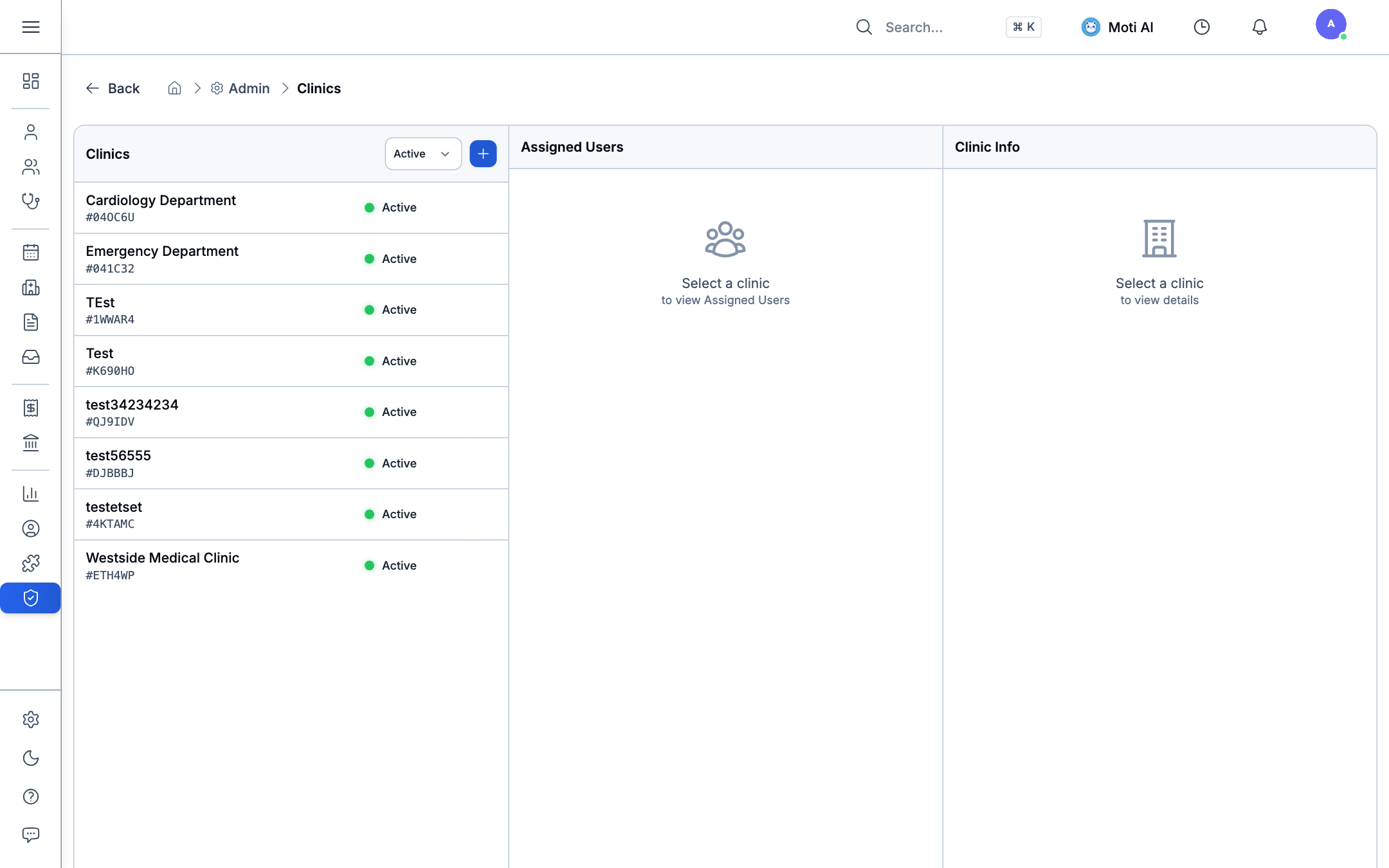
Key Capabilities:
- Departmental Hierarchy: Add and organize clinical units (e.g., Cardiology Department, Emergency Department, Westside Outpatient Clinic).
- Assigned Staff Allocation: Inspect and allocate doctors, nurses, and technicians to specific clinical branches.
- Location Metadata: Manage physical street addresses, contact phone numbers, consultation room counts, and clinic operating licenses.
2. Practitioner Self-Profile & Credentials Management
Every medical provider can manage their personal credentials, clinical biography, contact channels, and performance insights under My Profile (/profile):
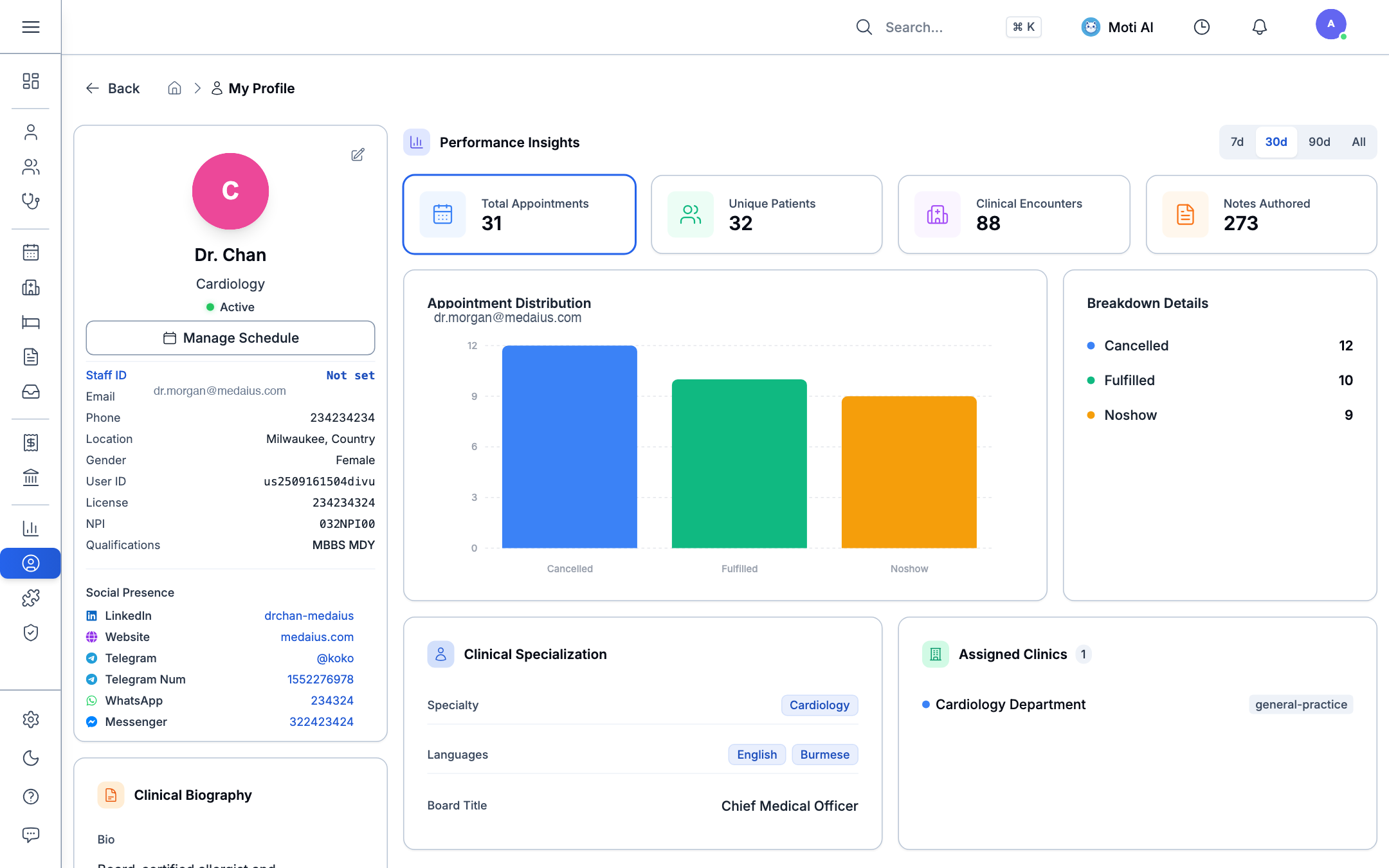
Profile Highlights & Performance Insights:
- Clinical Credentials: Displays practitioner status (Active), assigned specialty (Cardiology), Staff ID, Email, Phone, Location, License number, NPI, and medical qualifications (e.g.,
MBBS MDY). - Social Presence & Telehealth Channels: Direct links to practitioner communication channels (LinkedIn, Website, Telegram, WhatsApp, Messenger) for patient outreach and internal consultation.
- Performance Analytics: Real-time 30-day indicators for:
- Total Appointments (e.g., 31)
- Unique Patients Seen (32)
- Clinical Encounters Completed (88)
- Consultation Notes Authored (273)
- Appointment Distribution Bar Chart: Visual breakdown of Cancelled, Fulfilled, and No-show appointments.
- Assigned Clinic Units: Overview of branches where the doctor is authorized to practice (e.g., Cardiology Department).
Editing Practitioner Information:
Clicking the pencil icon (PencilSquareIcon) on the profile card opens the Edit Profile modal:
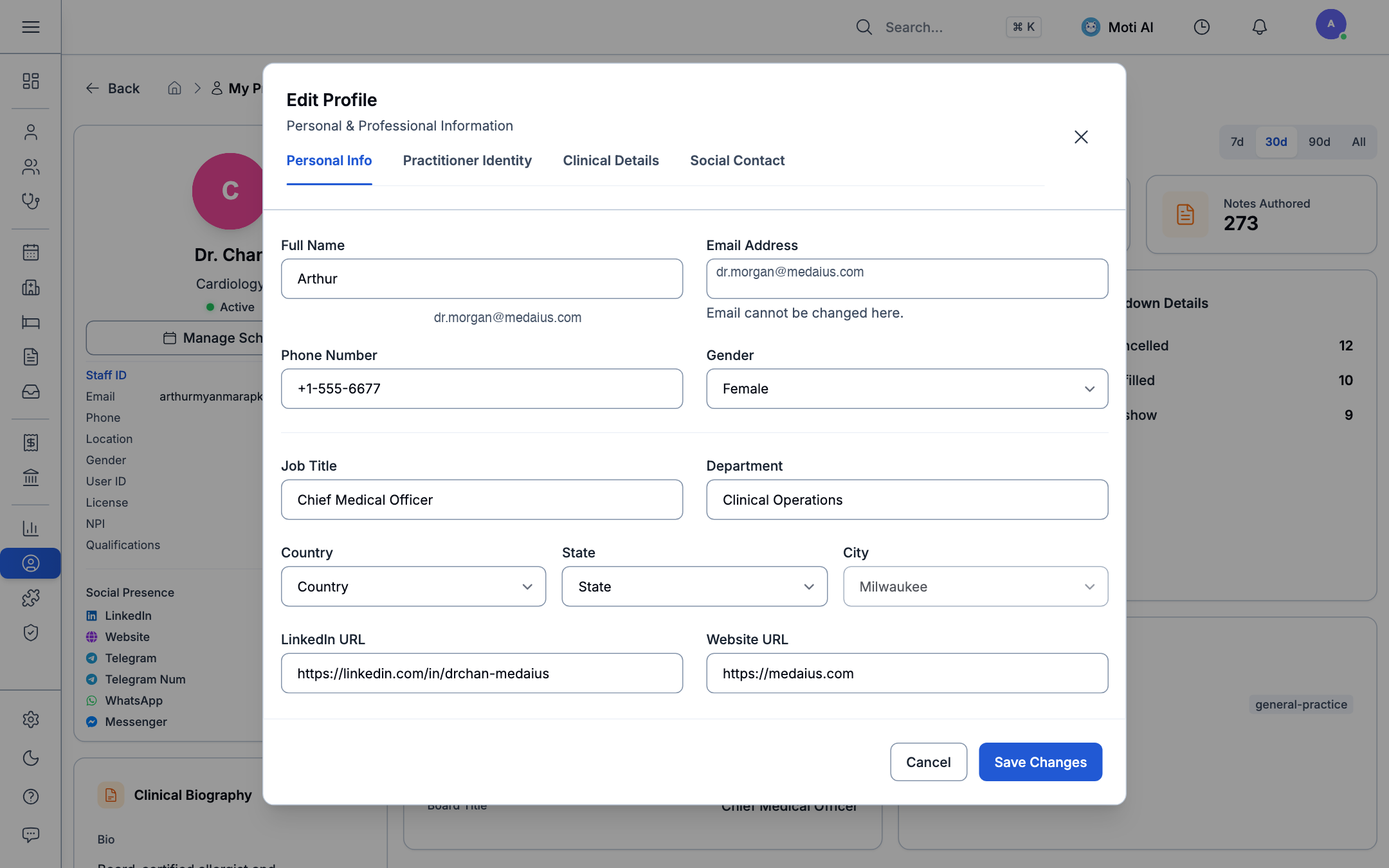
- Personal Info: Full name, email address, phone number, gender, job title (Chief Medical Officer), department (Clinical Operations), and location (city/state/country).
- Practitioner Identity: Medical registration codes, NPI, and internal staff ID.
- Clinical Details: Primary specialty, secondary specialties, spoken languages (English, Burmese), and clinical bio.
- Social Contact: Public messaging handles for patient telehealth follow-ups.
3. Individual Practitioner Timetables & Schedules
Clicking Manage Schedule on the doctor profile or navigating to Practitioners → Timetable (/practitioners/timetable?practitionerId=...) opens the provider availability editor:
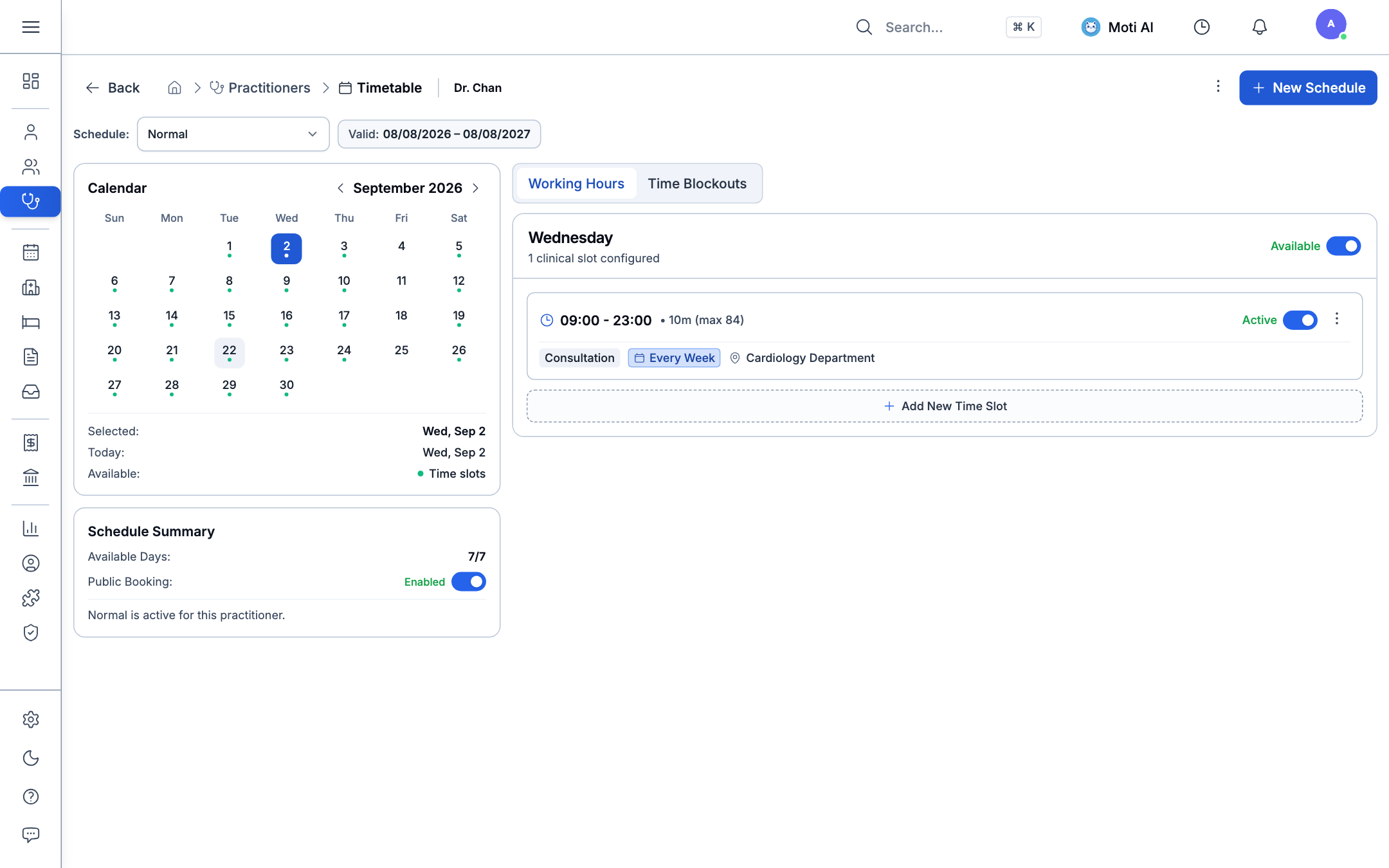
Schedule Controls:
- Interactive Calendar:
- Monthly calendar grid displaying green dot indicators for configured working days.
- Click any date (e.g., Wed, Sep 2) to view and edit scheduled clinical slots.
- Working Hours & Time Slots:
- Add slots with exact start and end times (e.g.,
09:00 - 23:00). - Configure Slot Duration (e.g.,
10 minutes) and maximum daily patient capacity (max 84). - Categorize slots with tags such as Consultation, Procedure, or Follow-up.
- Associate slots with specific clinic locations (Cardiology Department).
- Use the Active toggle switch to temporarily pause a slot without deleting it.
- Add slots with exact start and end times (e.g.,
- Public Online Booking Toggle:
- Under Schedule Summary, switch Public Booking to Enabled to allow patients to discover and book this doctor through the online portal, or disable it for private hospital rounds.
- Time Blockouts:
- Switch to the Time Blockouts tab to log vacation, sick leave, hospital rounds, or medical conferences. Blocked times are immediately removed from online booking calendars.
4. Clinic-Wide Weekly Duty Roster Matrix
To coordinate multi-doctor coverage across departments, navigate to Practitioners → Duty Roster (/practitioners/roster):
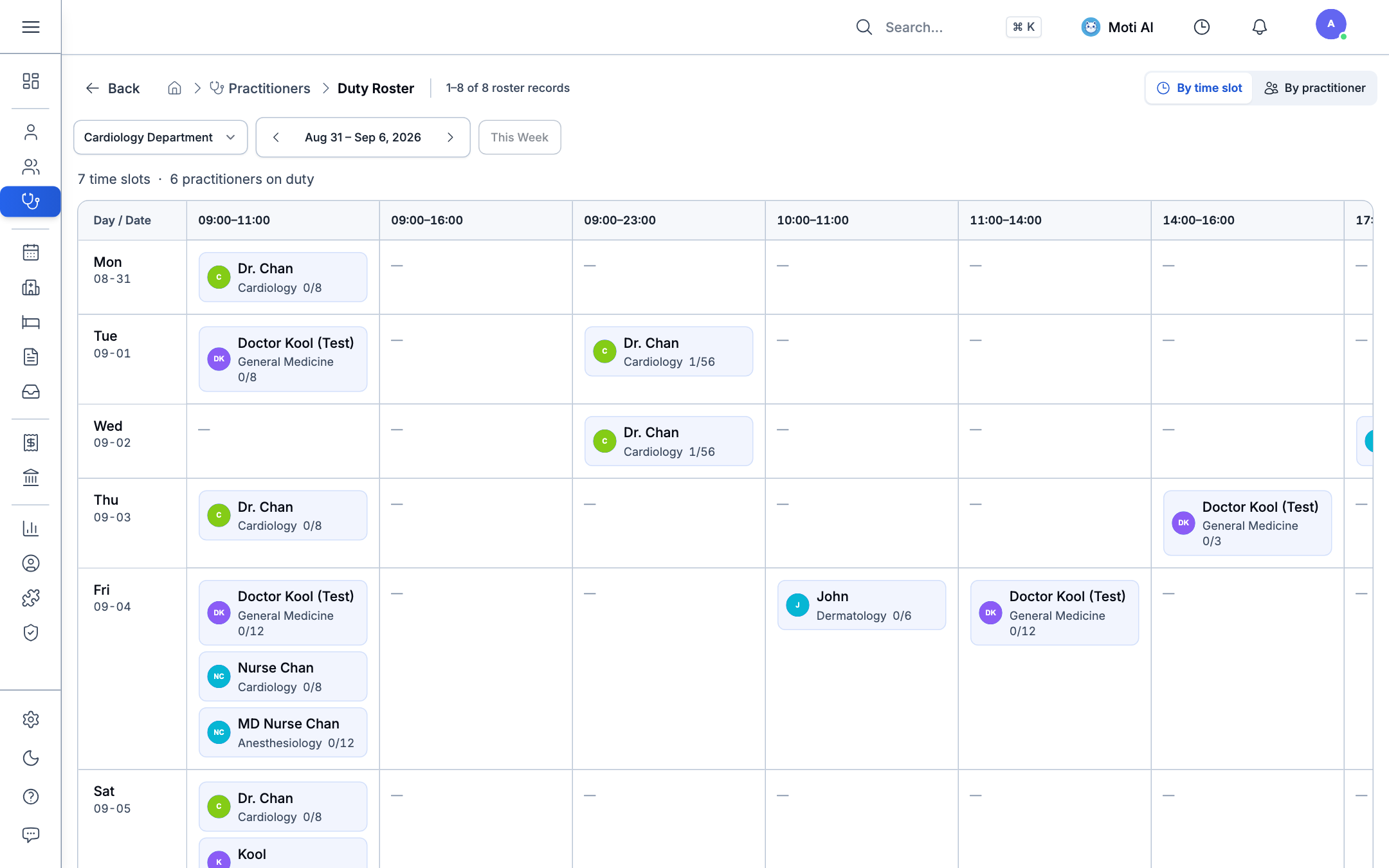
Roster Management Features:
- Departmental Filter: Filter duty records by department (e.g., Cardiology Department, General Medicine, Emergency).
- Weekly Date Navigation: Step through weeks (
Aug 31 – Sep 6, 2026) or return to This Week with a single tap. - View Modes: Toggle between By time slot (showing concurrent doctor coverage across shifts) and By practitioner (tracking individual doctor weekly commitments).
- Live Shift Matrix:
- Displays concurrent provider allocations across time bands (
09:00–11:00,09:00–16:00,11:00–14:00,14:00–16:00,17:00+). - Color-coded provider badges show booked vs total slot capacity (e.g.,
Dr. Chan 1/56,Doctor Kool 0/8,Nurse Chan 0/8). - Double-booking prevention: Locked roster slots guarantee appointments can only be booked when a provider is confirmed on duty.
- Displays concurrent provider allocations across time bands (
Was this page helpful?
Help us improve our clinical documentation with your quick feedback.