
Team Announcements & Communications
Coordinate clinic staff with real-time newsfeeds, pinned notices, urgent alerts, threaded discussions, and clinical activity widgets.
Medaius includes a social-style Clinic Newsfeed & Announcements system that unifies internal communications, urgent operational alerts, and daily clinical task overviews in one centralized hub.
1. Clinic Feed & Dashboard Workspace
When staff log into Medaius or navigate to the Dashboard feed, they are presented with an interactive team communication center:
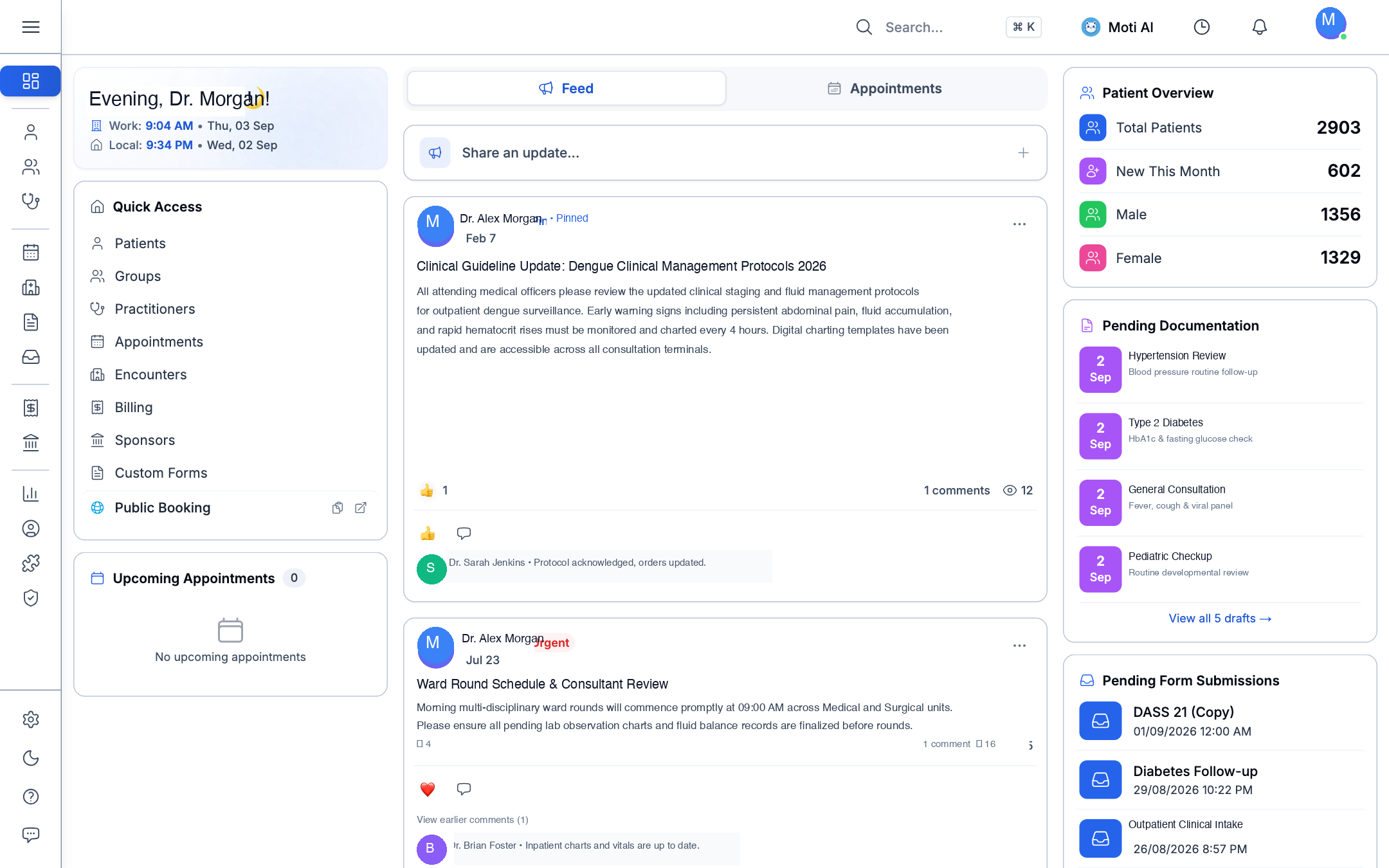
Core Sections of the Clinic Workspace
- Feed Stream: Chronological timeline of clinical updates, policies, shift announcements, and case discussions.
- Pinned & Urgent Badges: Critical clinical guidelines or emergency alerts are pinned at the top with prominent 📌 Pinned or 🔴 Urgent badges.
- Quick Access Navigation: Direct shortcuts on the left for Patients, Groups, Practitioners, Appointments, Encounters, and Billing.
- Patient Overview Widget: Real-time snapshot of active patients (e.g., 2,903 total, 602 new this month), with demographic breakdowns.
- Pending Documentation: Alerts doctors to incomplete draft encounters requiring review and sign-off.
- Pending Form Submissions: Real-time queue of patient-submitted questionnaires (e.g., DASS 21, Diabetes Follow-up) awaiting clinical triage.
2. Publishing an Announcement
Staff members with appropriate administrative or operational permissions can broadcast updates:
- Click the Share an update... composer at the top of the feed.
- Type your message content. You can include:
- Clinical notices and duty rota changes.
- Attachments, documents, or protocols using the + attachment icon.
- Priority tags such as Urgent to alert all on-duty personnel.
- Click Post to broadcast immediately to the clinic workspace.
3. Threaded Discussions & Reactions
To keep clinical dialogue focused and organized without cluttering the main timeline:
- Threaded Comments: Click the speech bubble icon below any announcement to read or leave replies. Discussions nest cleanly to maintain context.
- Emoji Reactions: React with 👍, ❤️, or other emojis to quickly acknowledge protocol updates or celebrate team achievements.
- Read & View Counters: View eye-icon counters (e.g., 👁️ 12) to verify how many staff members have viewed critical updates.
Was this page helpful?
Help us improve our clinical documentation with your quick feedback.
Marketplace, Add-ons & Module Governance
Enable or disable modular clinical capabilities, manage subscription plan entitlements, and configure hospital extensions.
Data Export & Clinical Data Management
Comprehensive guide to exporting clinical, operational, and financial records from Medaius with entity filtering, format options, and audit trails.