
Inpatient, Wards & Bed Management
Manage hospital inpatient admissions, visualize live bed occupancy on the interactive Bed Board, configure ward departments, and coordinate patient transfers.
The Medaius Inpatient & Bed Management suite gives hospital directors, nursing supervisors, and ward coordinators real-time oversight of inpatient capacity, bed occupancy, and admission queues.
1. The Interactive Bed Board
Access the Bed Board under Inpatient → Bed Board (/inpatient/board):
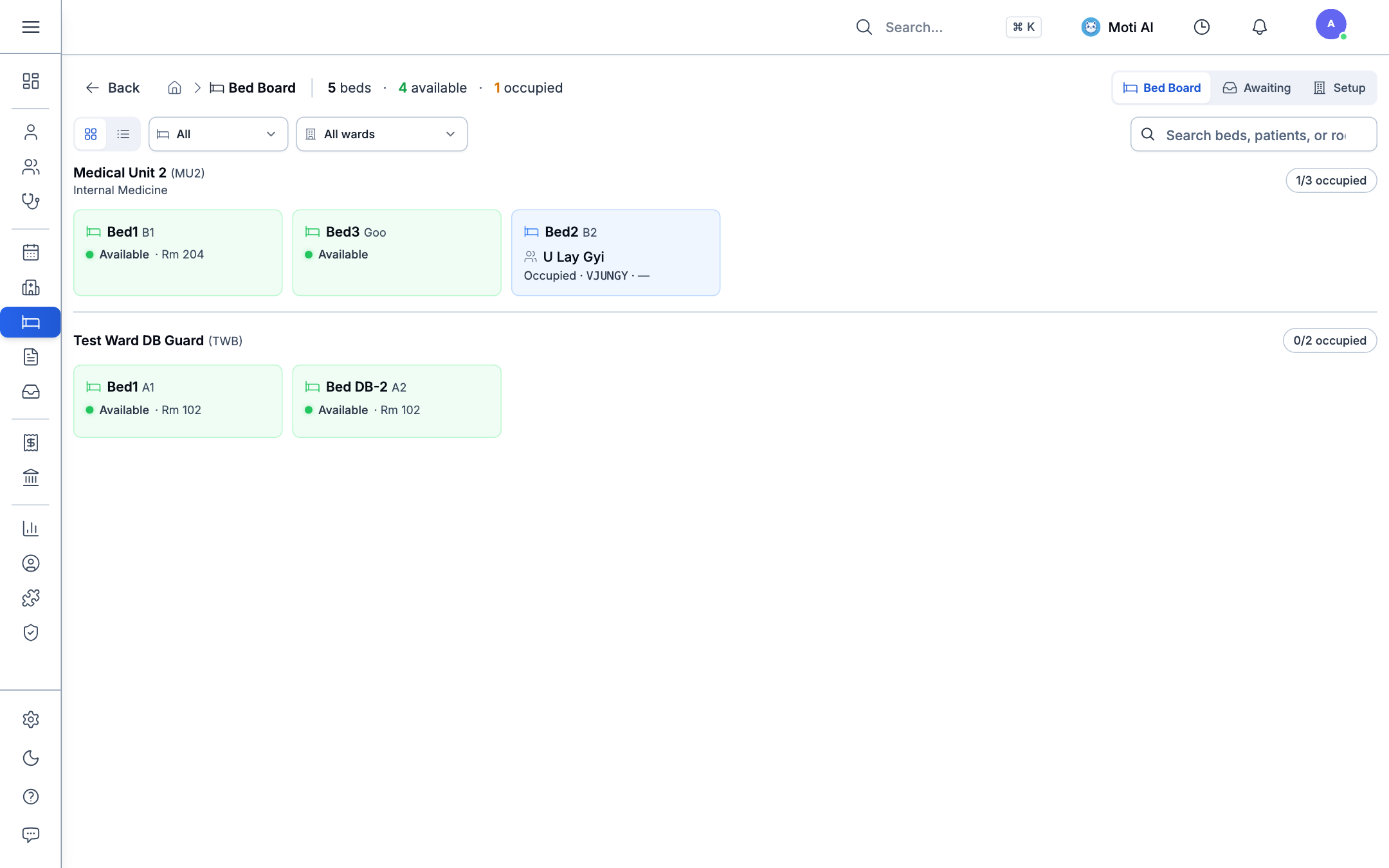
Key Capabilities:
- Live Occupancy Header: Instant statistics of total beds, available beds, and currently occupied units (e.g., 5 beds · 4 available · 1 occupied).
- Ward-by-Ward Grouping: Displays beds partitioned by clinical unit (e.g., Medical Unit 2 - Internal Medicine and Test Ward).
- Bed Status Indicators:
- Available: Green indicator showing room number (e.g., Bed1 B1 · Rm 204) ready for immediate admission.
- Occupied: Blue indicator displaying the admitted patient name (U Lay Gyi), unique patient ID (VJUNGY), and attending details.
- Fast Filtering & Search: Switch between Grid and List views, filter by ward or status, and search by bed code or patient name.
2. Awaiting Admission Queue
When a physician recommends hospital admission during a clinical encounter, the patient enters the Awaiting Bed queue:
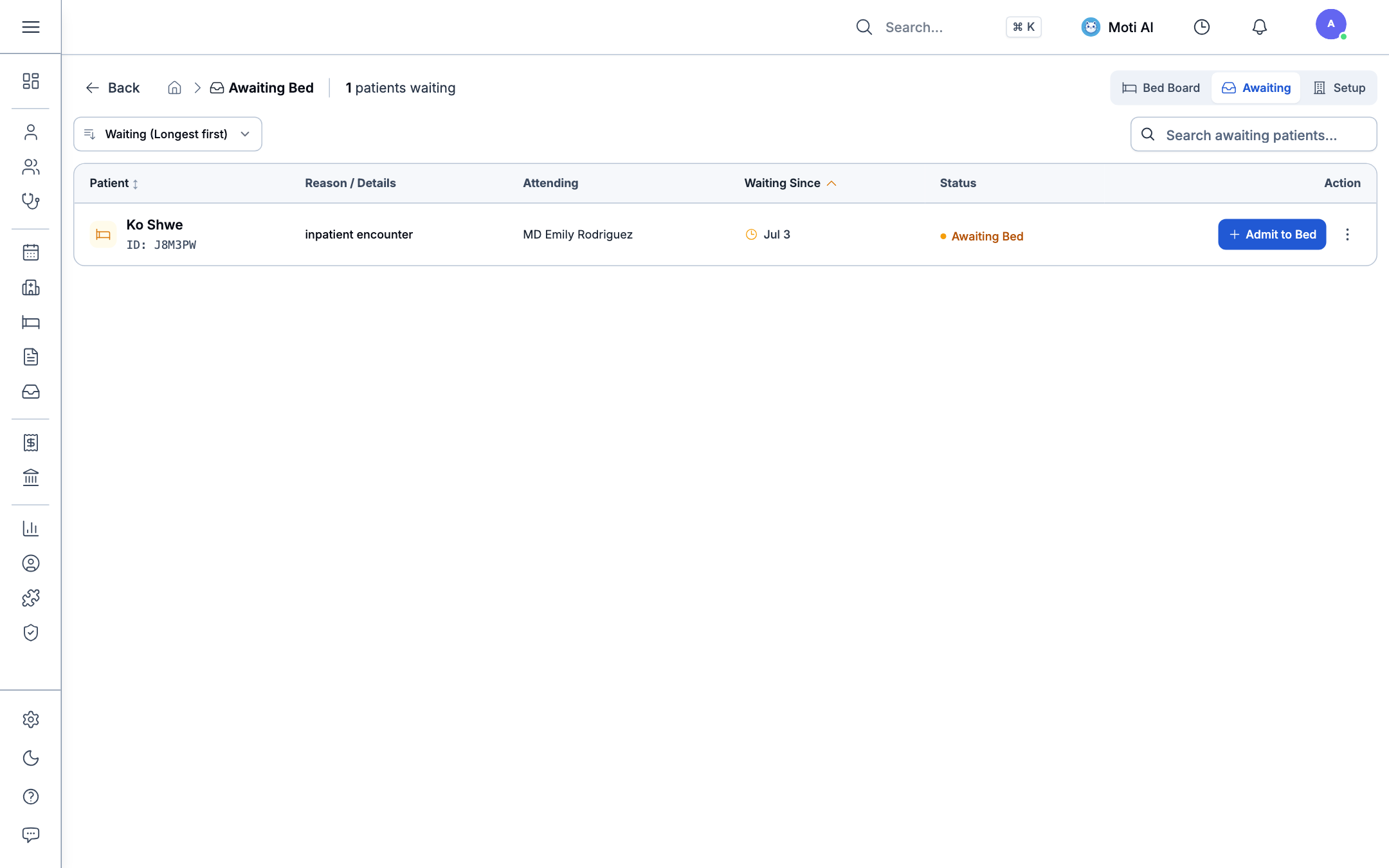
- Prioritized Intake: Sort patients by longest waiting time to ensure urgent cases receive prompt placement.
- Encounter Details: Review the reason for admission (e.g., inpatient encounter) and the attending physician (MD Emily Rodriguez).
- One-Click Admission: Click the + Admit to Bed button to open the bed selection dialog and assign the patient to an open room.
3. Hospital Wards & Department Setup
Administrators and nurse managers can configure hospital facilities under Inpatient → Setup → Wards:
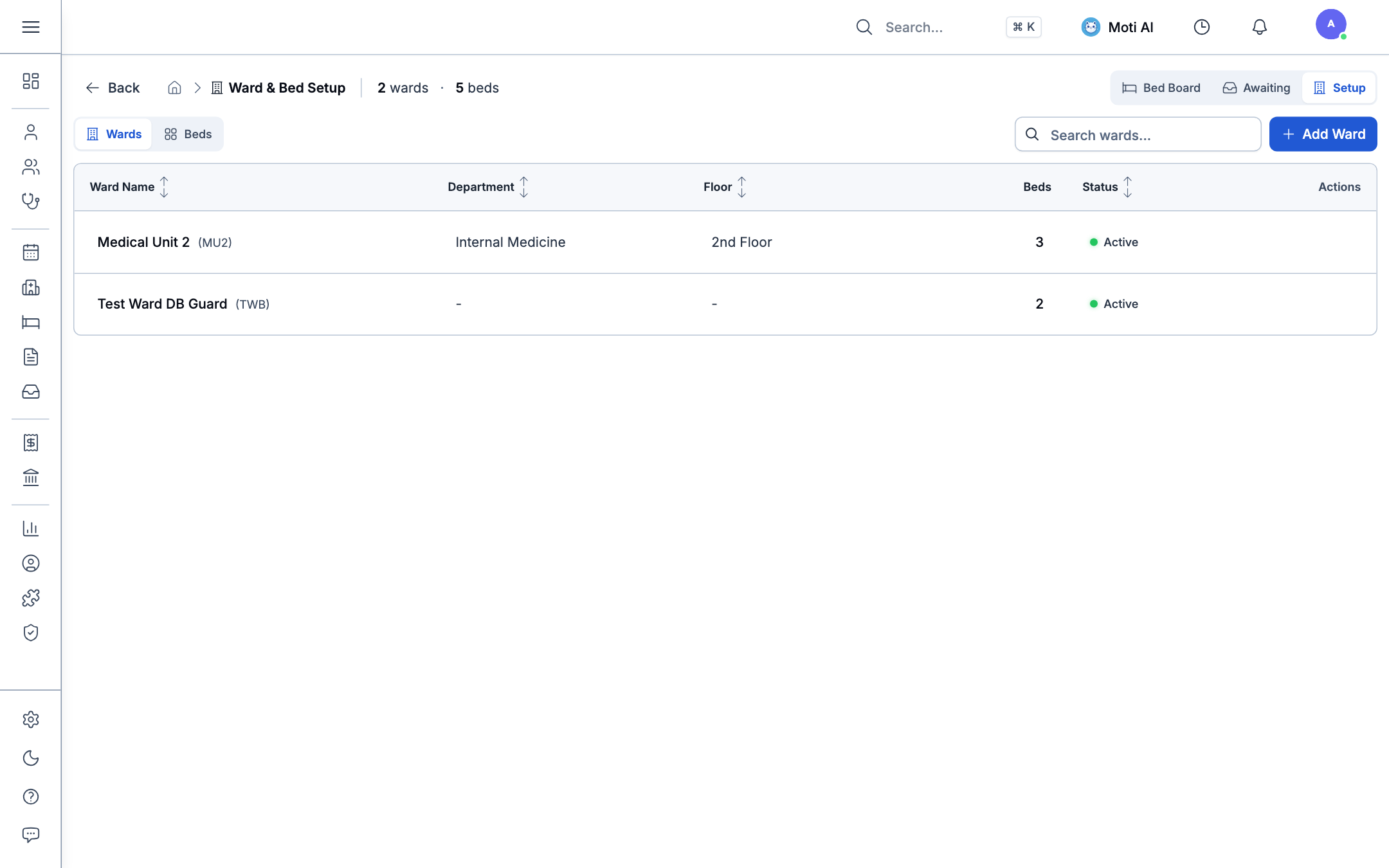
Setting Up a Ward:
- Click the + Add Ward button.
- Enter the Ward Name (e.g., Medical Unit 2, Emergency Ward, ICU).
- Assign the clinical Department (Internal Medicine, Cardiology, Surgery).
- Specify the Floor / Building Location (2nd Floor, West Wing).
- Set total bed capacity and activate the ward.
4. Granular Bed-Level Configuration
Click the Beds tab to manage individual physical beds within each ward:
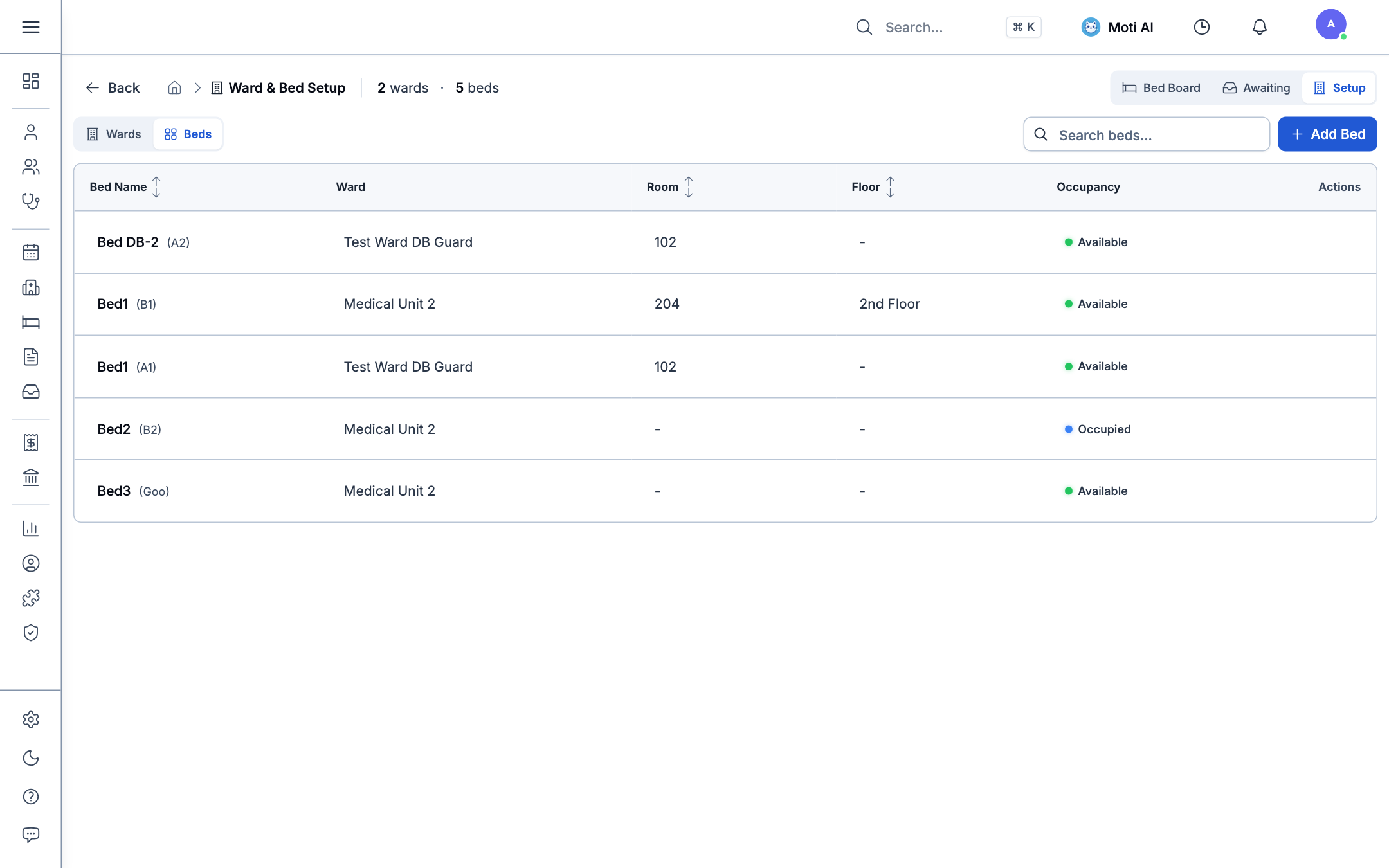
- Bed Identification: Assign recognizable codes such as
Bed1 (B1),Bed2 (B2), orBed DB-2 (A2). - Room Allocation: Link each bed to a physical consultation room or cubicle (e.g., Room 102, Room 204).
- Operational Maintenance: Mark beds as under cleaning, maintenance, or available for active admissions.
Was this page helpful?
Help us improve our clinical documentation with your quick feedback.
Observation Charts & Vitals Trending
Track longitudinal vital signs, view Blood Pressure and Heart Rate trends, monitor BMI curves, and analyze diagnostic panels.
Custom Forms Setup & Management
Design custom form templates, configure resource mappings, edit templates, and generate targeted form links for individual patients or group therapy cohorts.