
Public Intake Forms & Patient Self-Service
Publish clinical screening questionnaires and patient intake forms online, share secure pre-fill links, and review patient responses directly in the clinic workspace.
Medaius allows clinics to extend clinical documentation beyond examination rooms directly into the hands of patients. Forms created in the Custom Forms Builder can be configured as Public Forms or Dual Scope (Internal & Public), allowing patients to complete intake questionnaires, COVID-19 screening, or pediatric assessments on their smartphones before arriving at the clinic.
1. Configuring Form Scope (Internal, Public, or Both)
Every custom form in Medaius has an explicit Usage Scope:
- Internal Only: Available exclusively to logged-in clinical staff during visits or from the patient profile.
- Public Only: Built for anonymous or patient self-service via web links (e.g., patient satisfaction surveys).
- Both (Dual Scope): Can be completed directly by clinicians in the workspace and shared via public links with patients.
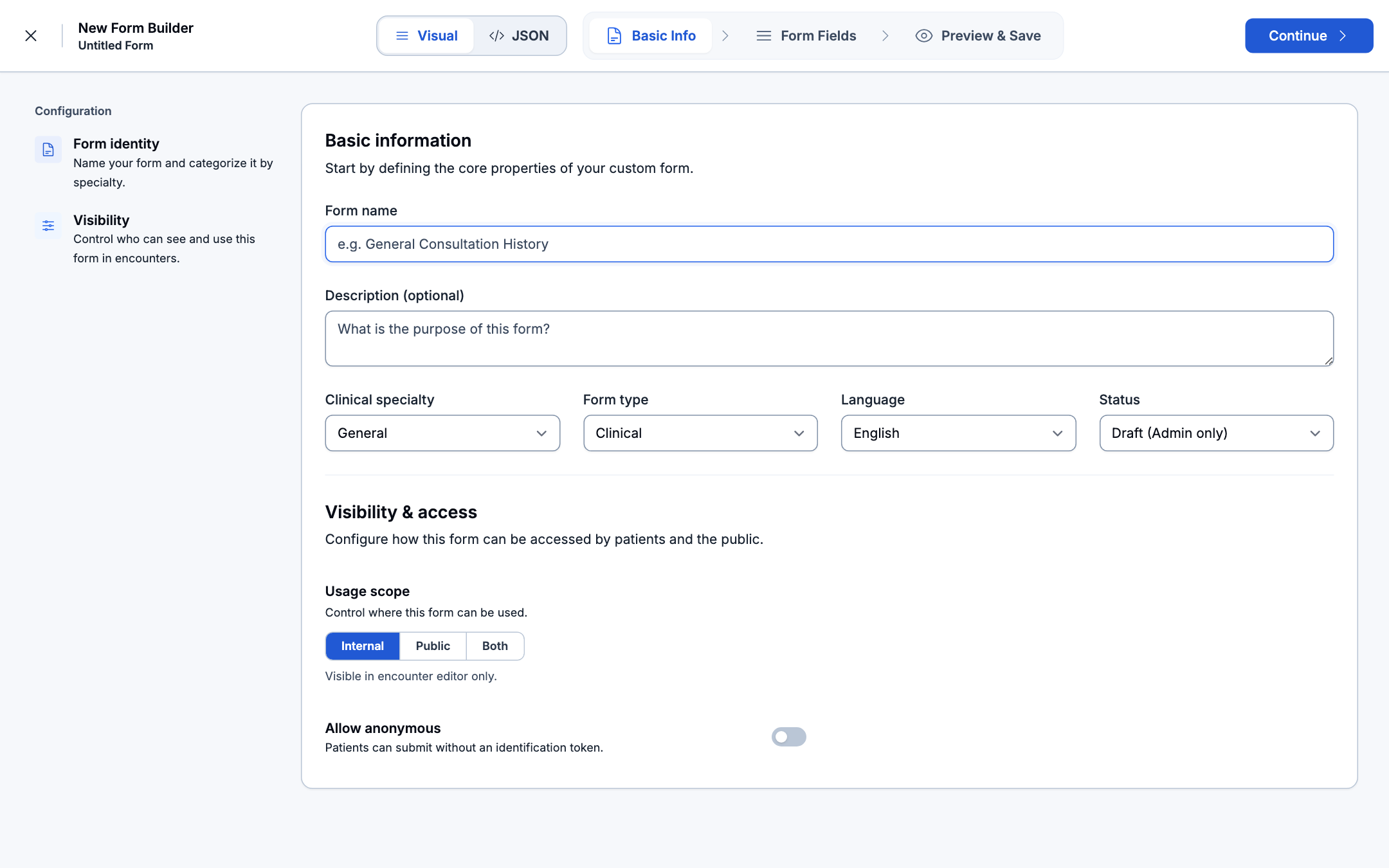
- Open Custom Forms from the navigation sidebar.
- Select any template and open its settings drawer.
- Under Usage Scope, select Public or Both.
- The form is assigned a permanent public slug and listed in your clinic catalog with a 🌐 globe badge.
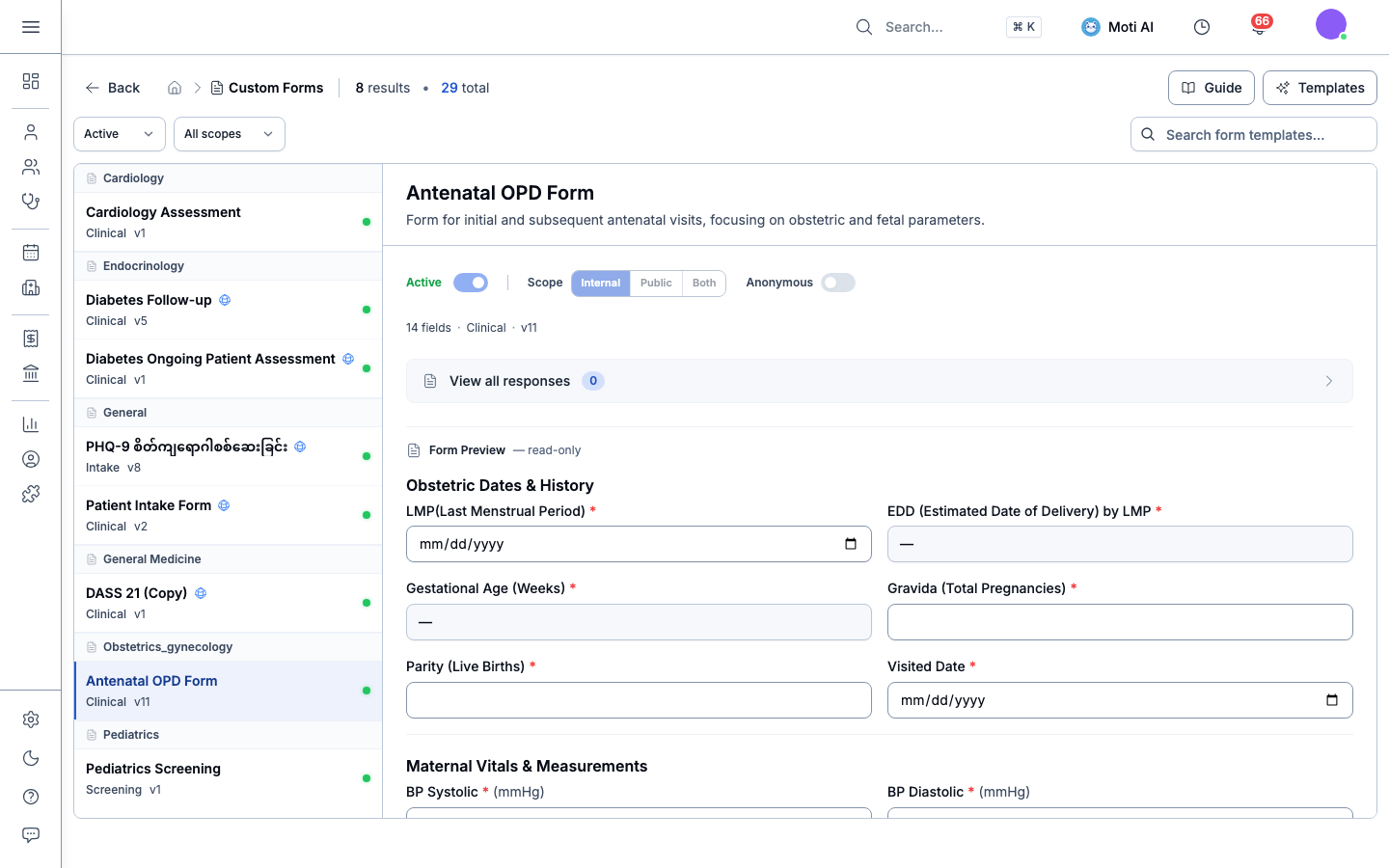
2. Generating Public Links
Medaius provides two distribution methods for public forms:
A. General Public Link (Catalog Link)
From the form detail view, copy the general URL (/?formId=<form_id>):
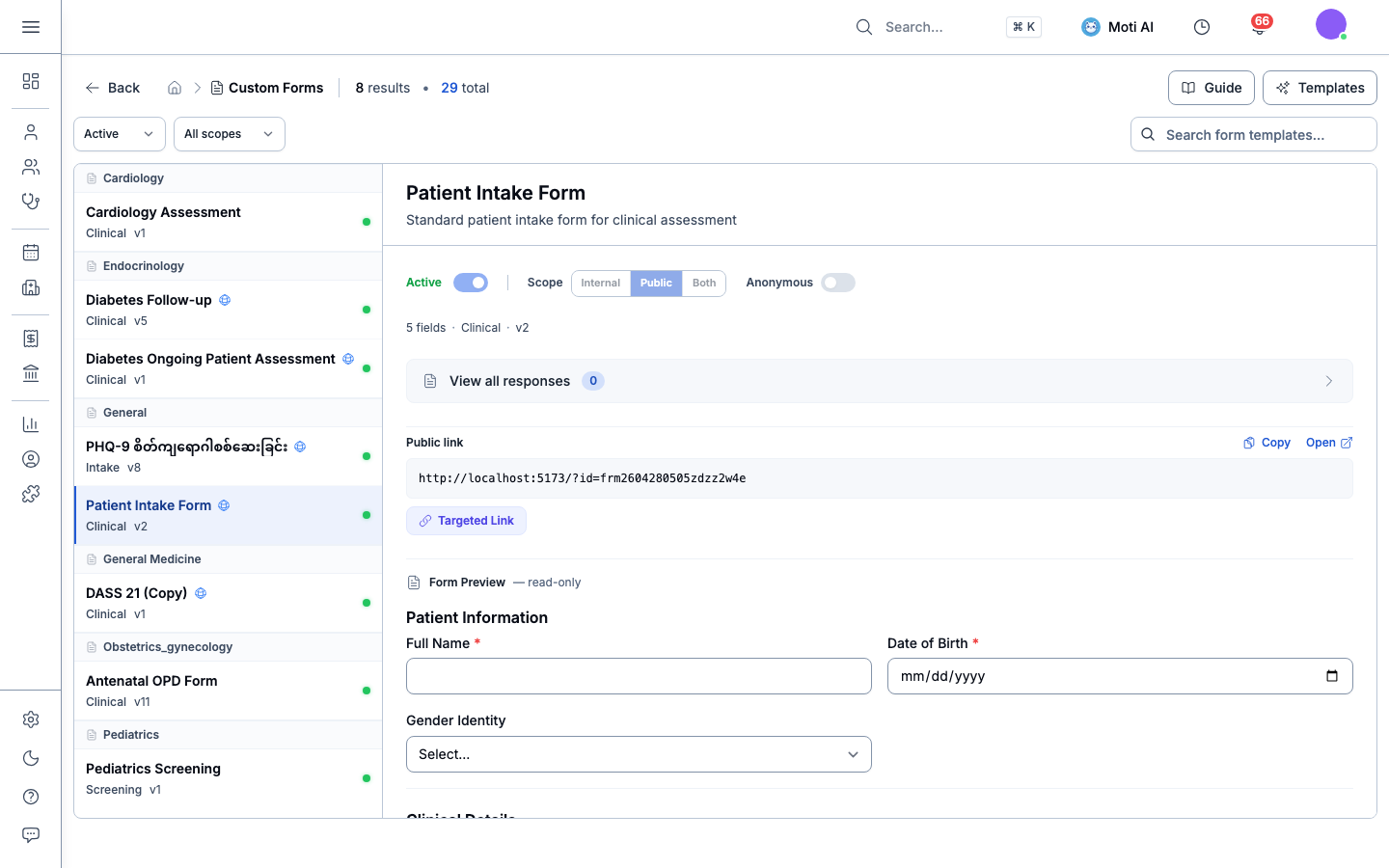
This link can be published on your clinic website, printed as a QR code in the waiting room, or embedded in booking confirmation SMS messages.
B. Targeted Pre-Authenticated Link (Patient-Specific)
To pre-link a submission to an existing patient file or prevent identity mismatch:
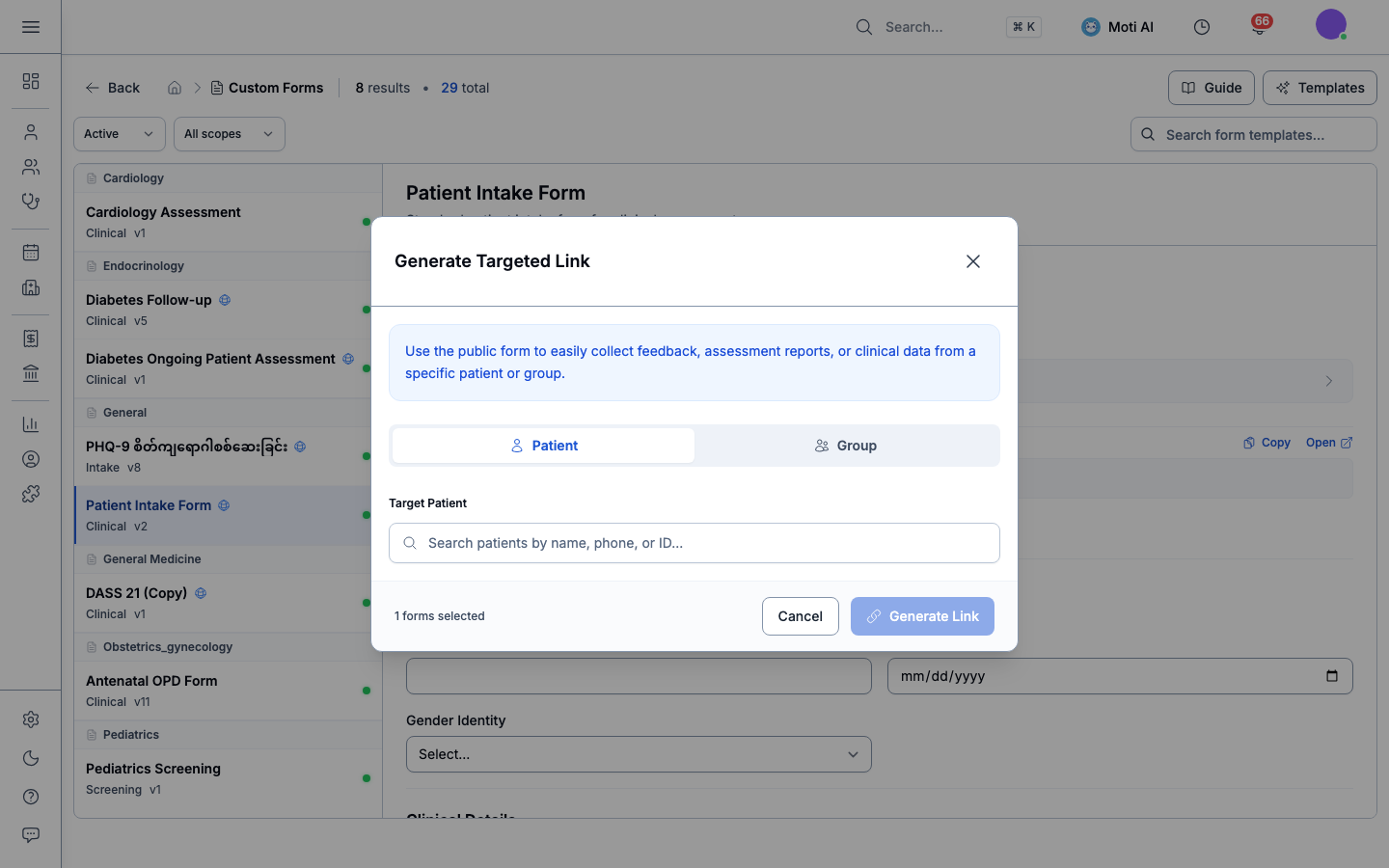
- Click Targeted Link on the form card.
- Search and select the recipient patient (or Group).
- Click Generate Link.
- Send the generated URL directly via SMS, WhatsApp, or Telegram.
3. Patient Experience on the Public Portal (medaius-public)
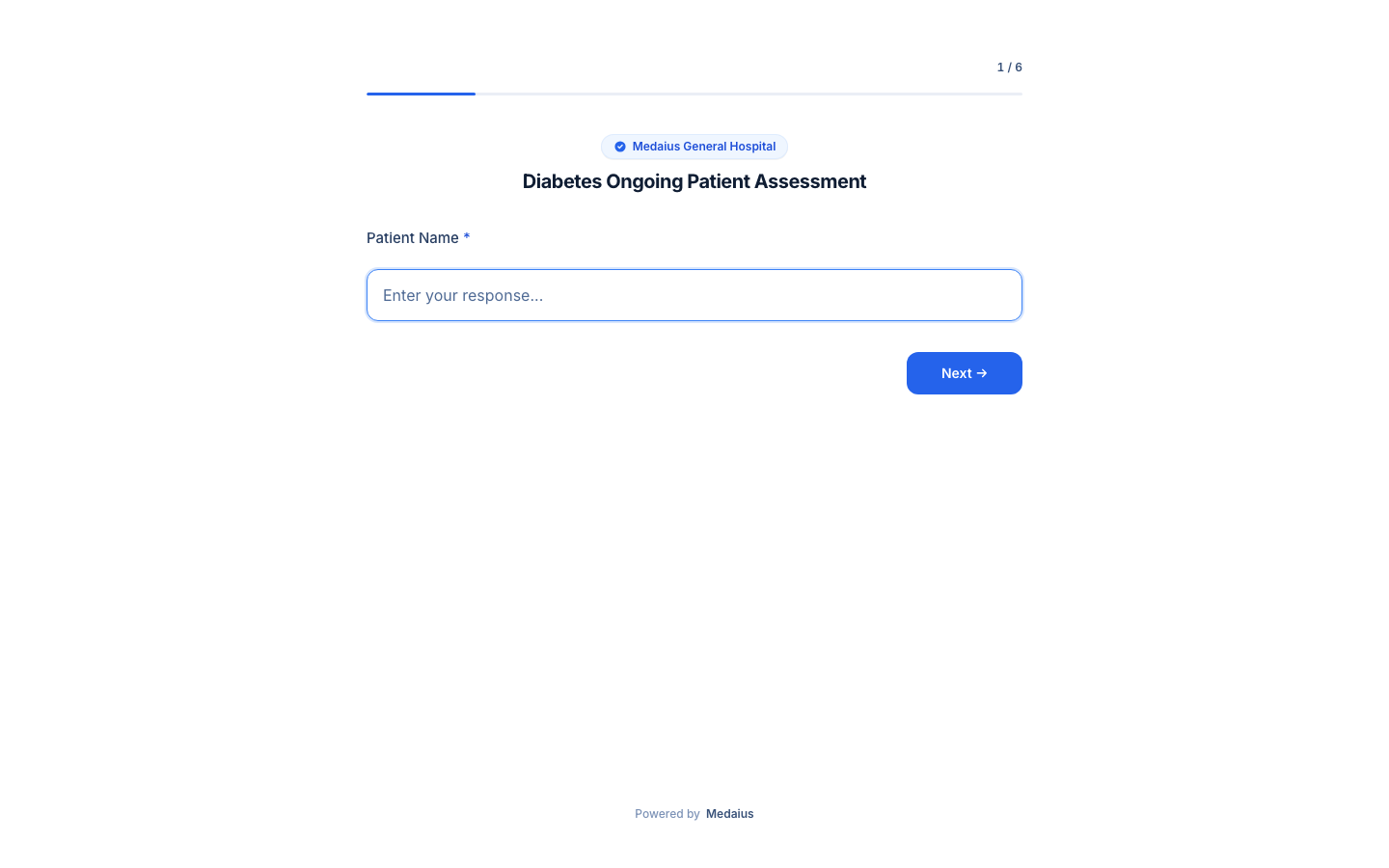
When a patient opens the link on their device, the form renders with zero sign-in friction:
Desktop Patient View
Features clean typography, responsive layout, clear question groups, and instant field validation:
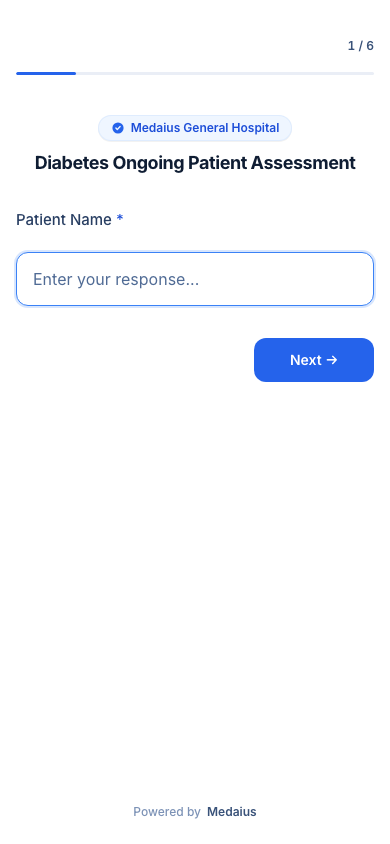
Mobile Responsive Intake
Optimized for single-thumb navigation, large tap targets, and intuitive keyboard types (numbers, dates, phone):
When the patient clicks Submit Questionnaire, the submission is encrypted and immediately routed to the clinic's triage queue.
4. Reviewing Submissions in the Workspace (Inbox & Dashboard)
Clinic staff can monitor and process incoming public submissions through two entry points:
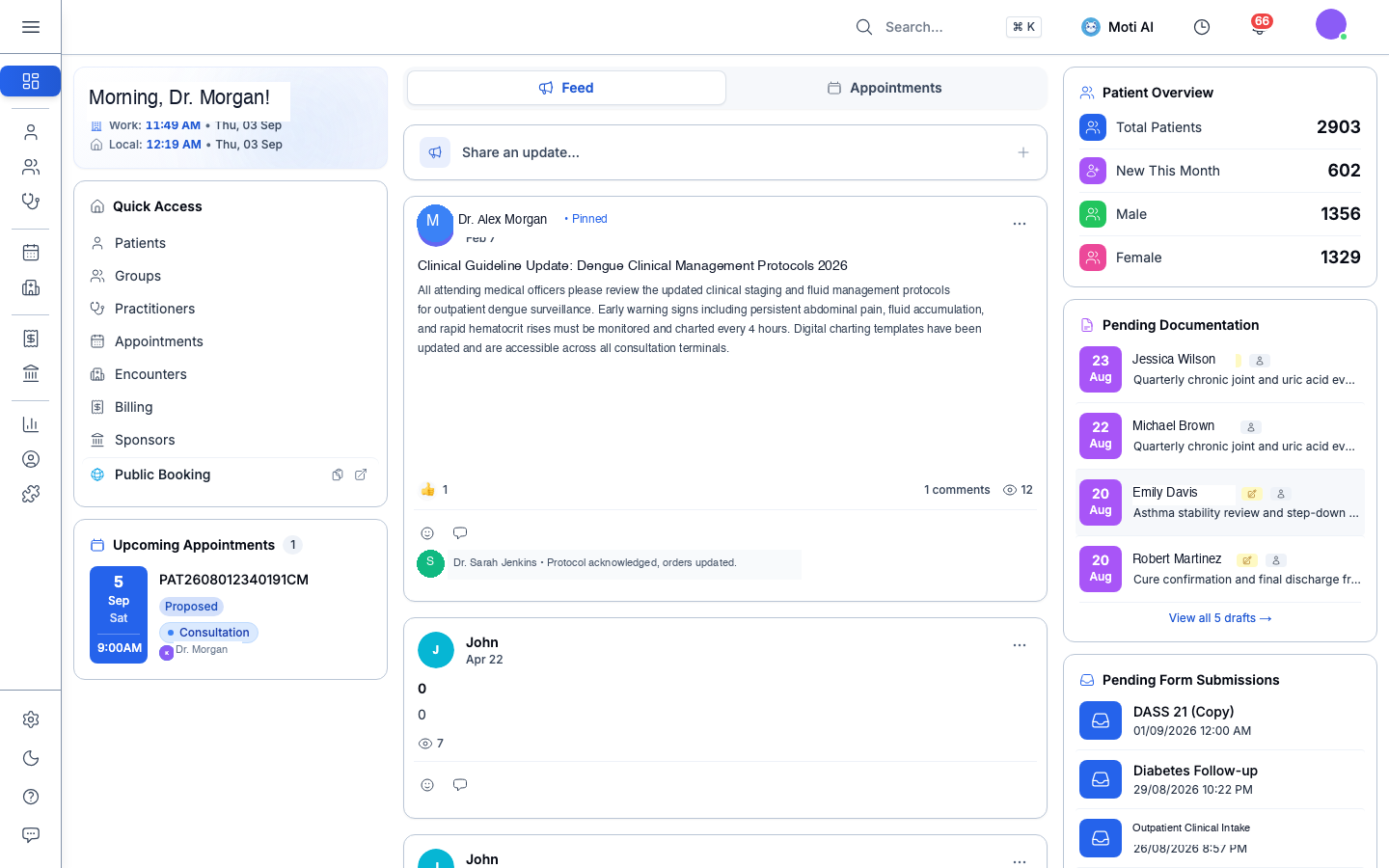
A. Clinic Dashboard Quick Access
The main dashboard features a Pending Form Submissions card with one-click access:
B. The Custom Forms Inbox (/custom-forms?tab=inbox)
Staff can review all incoming submissions in the triage inbox:
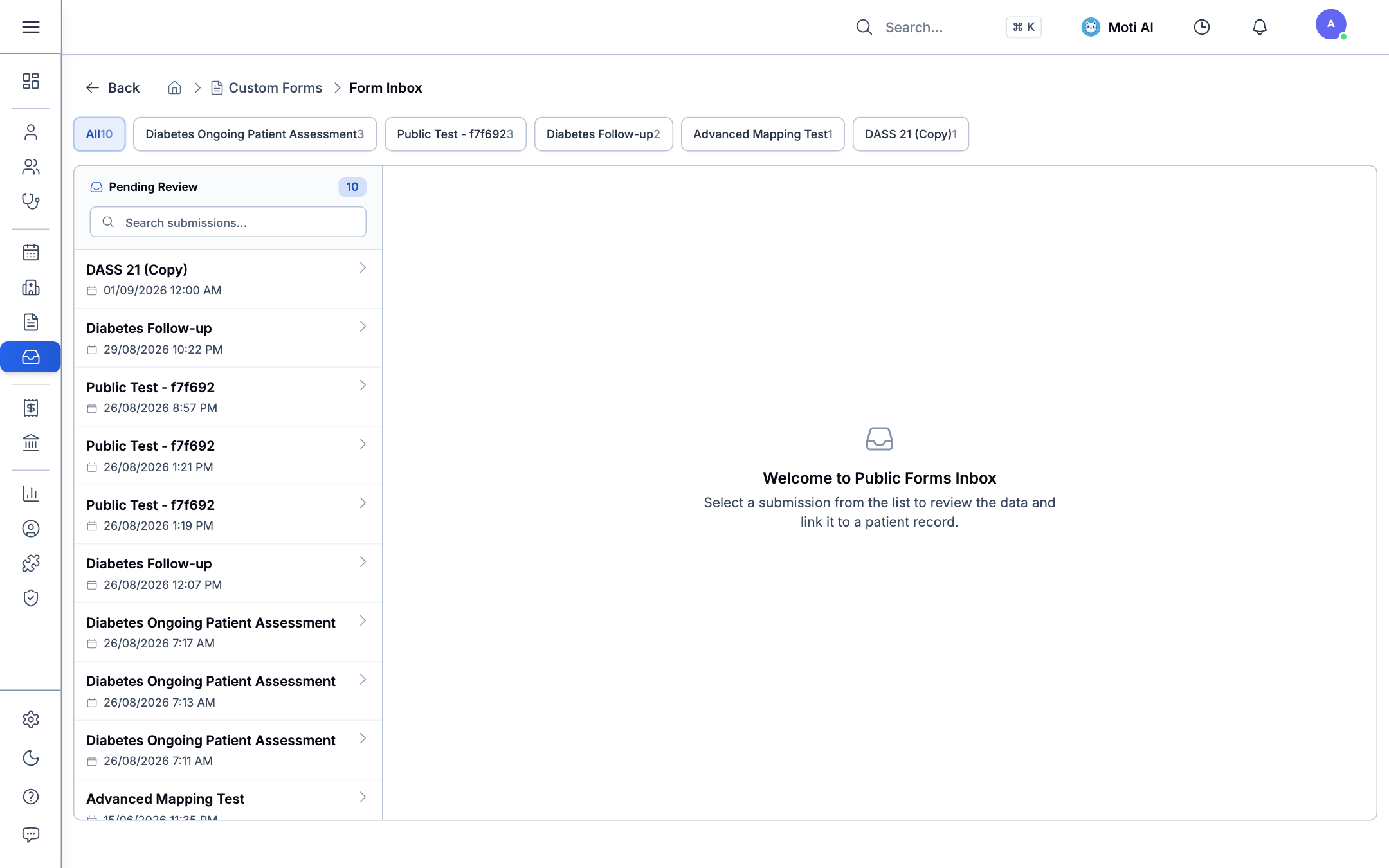
- Unlinked Submissions: Staff can search the patient master directory and click Link to Patient to attach the response to an existing chart, or click Create New Patient to register the patient with pre-filled demographics.
- Pre-linked Submissions: Submissions generated via Targeted Links automatically attach to the patient's record under Patient Profile > Forms (
/forms).
5. Related Guides & Next Steps
Custom Form Builder
Learn how to design interactive forms with text fields, dropdowns, scales, and conditional logic.
Public Online Booking
Let patients schedule appointments and view live doctor timetables online.
JSON Schema Reference
Technical specification for form data structures, validation rules, and FHIR Questionnaire compatibility.
Was this page helpful?
Help us improve our clinical documentation with your quick feedback.
Custom Forms Setup & Management
Design custom form templates, configure resource mappings, edit templates, and generate targeted form links for individual patients or group therapy cohorts.
AI Form Builder & JSON Schema
Generate forms using AI prompts, edit templates directly in JSON, and copy ready-to-use clinical form configurations.