
Public Online Booking & Timetable
Allow patients to discover doctors, explore published schedules, select available slots, and book visits online via the public patient portal.
Medaius includes a dedicated public scheduling and doctor directory application that runs without requiring patients to log in or install an app. Patients can browse clinic specialists, view real-time available appointment slots, and submit booking requests directly from their phone or computer.
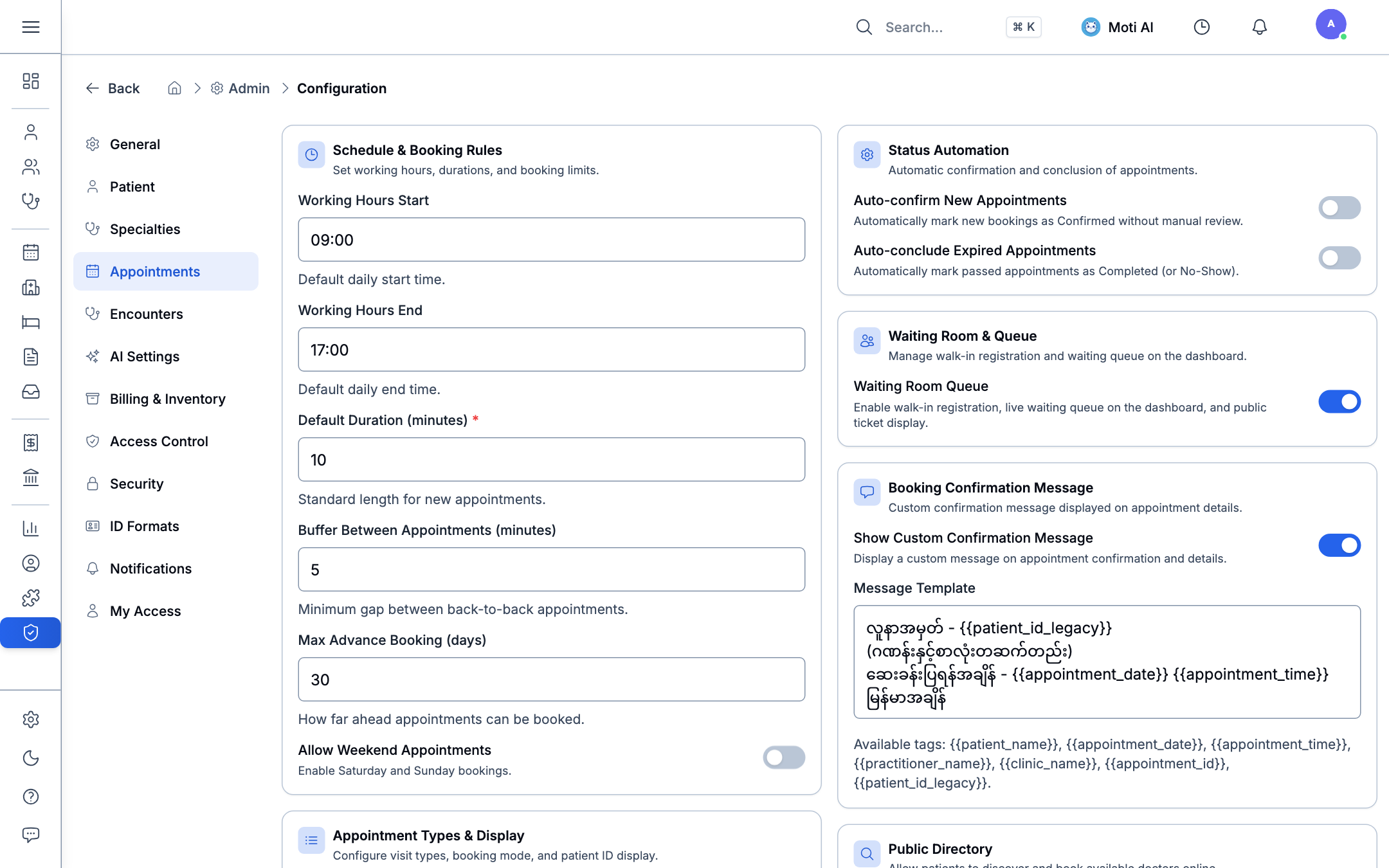
1. Enabling Public Booking in Admin Settings
Before patients can book online, clinic administrators must activate public booking and publish doctor timetables:
- Navigate to Admin Settings > Organization Config > Appointment Settings.
- Toggle Enable Public Online Booking to Active.
- Configure your clinic's booking parameters:
- Lead Time: Minimum advance notice required (e.g., 2 hours before the slot).
- Slot Interval: Default duration per consultation (e.g., 10, 15, or 30 minutes).
- Auto-Confirm Policy: Choose whether submissions are automatically confirmed or held in the Proposed queue for front-desk triage.
- Copy your clinic's unique public booking URL (
/?org=<org_id>).
2. Cross-Clinic Doctor Directory (/directory)
Patients who don't have a direct clinic link can search the centralized Medaius provider directory:
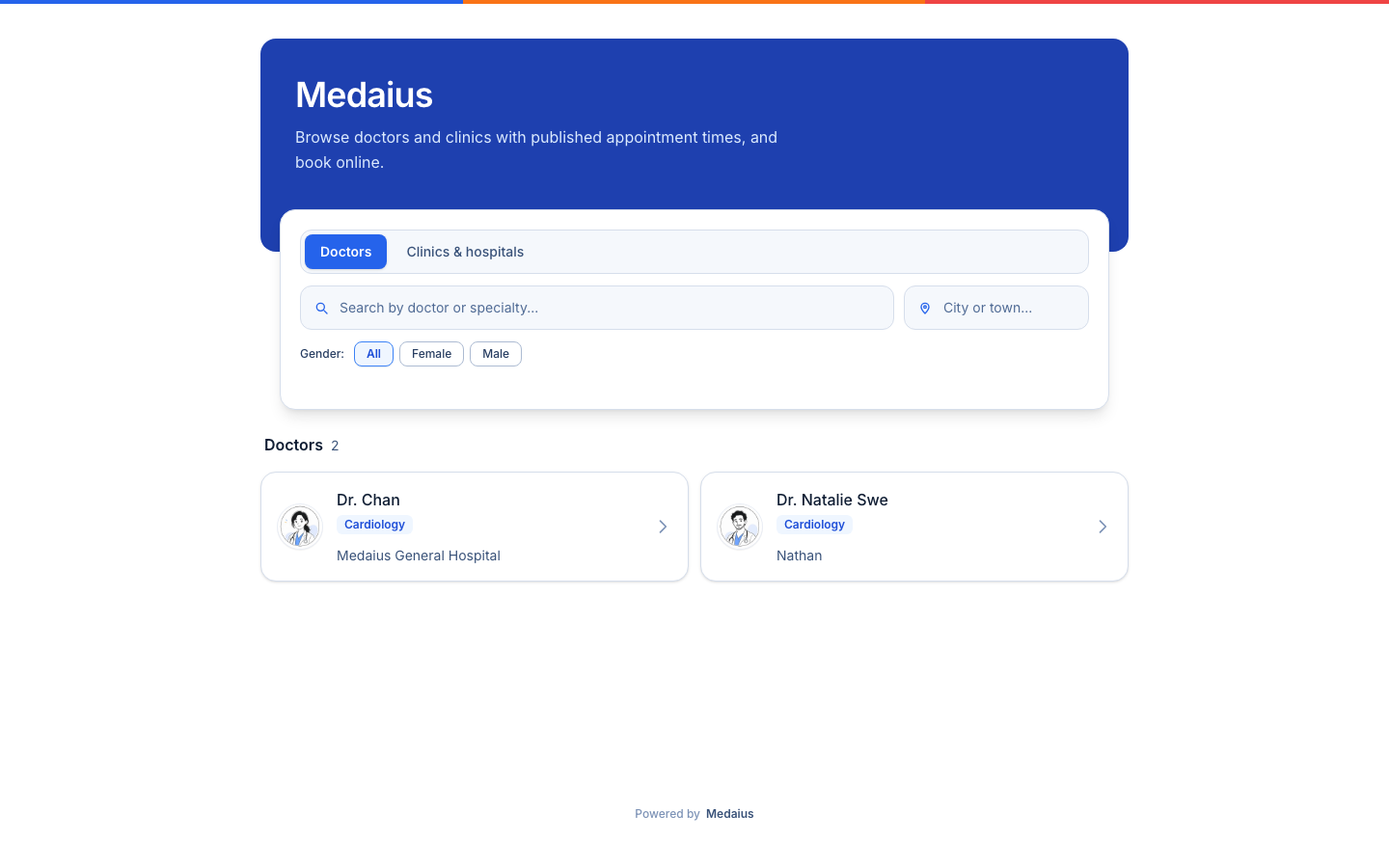
Directory Search Features:
- Doctor & Specialty Search: Filter by clinical specialty (e.g., Cardiology, Pediatrics, General Medicine).
- Location & Township Filter: Search by clinic location, city, or township.
- Provider Profiles: View doctor credentials (e.g., MBBS, MD), clinical biographies, affiliations, and available booking dates.
- One-Click Booking: Click any doctor card to open their live booking timetable.
3. The Public Timetable & Slot Picker (/?org=...)
When a patient opens your clinic's booking link, they arrive at the clean, responsive public timetable:
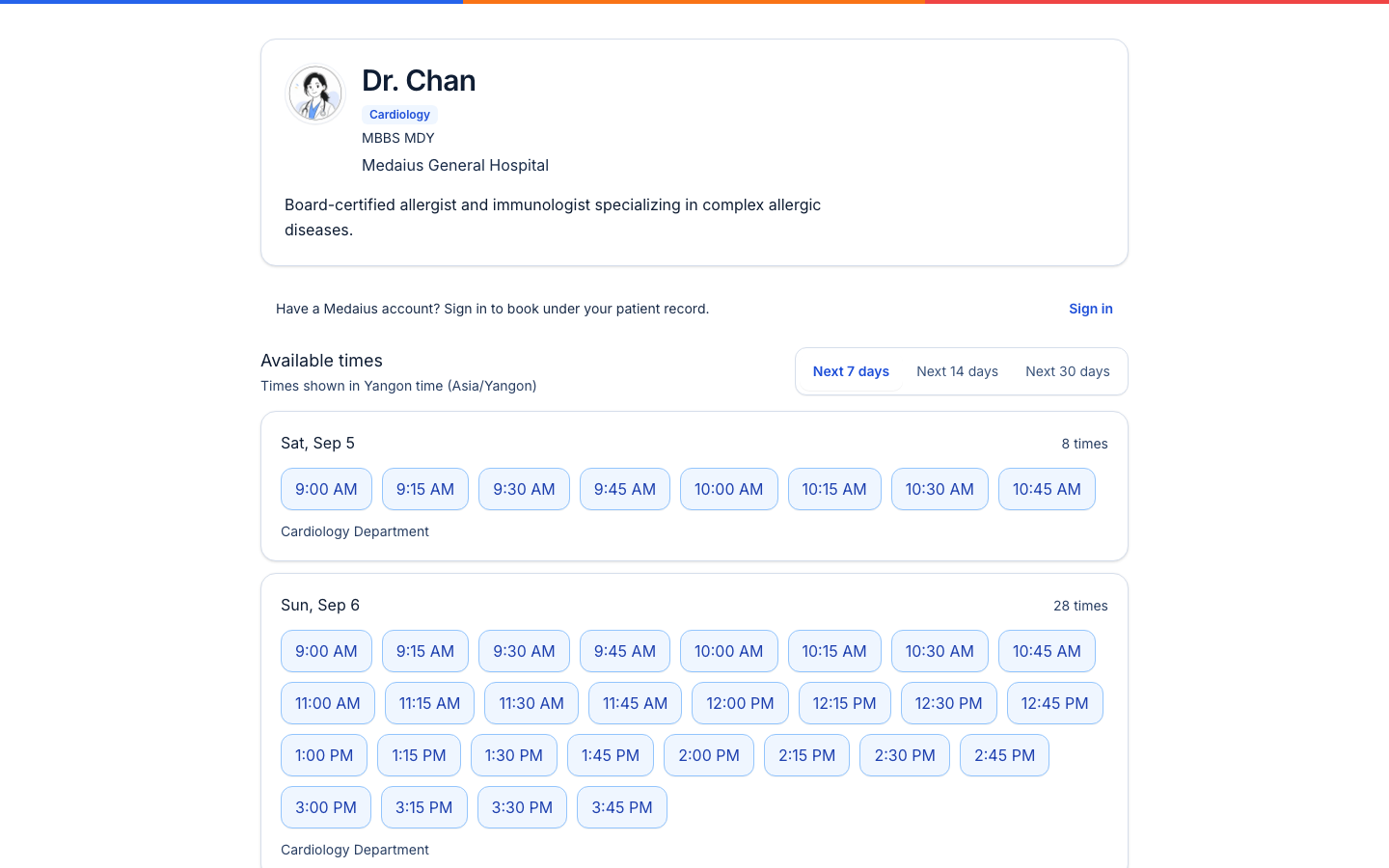
Timetable Features:
- Practitioner Information: Displays the attending doctor, medical specialty, clinic department, and photo.
- Dynamic Time Range: Switch between Next 7 days, Next 14 days, and Next 30 days.
- Real-Time Availability Engine: Only bookable slots are shown. Slots already booked in the workspace or blocked by doctor leave are automatically excluded.
- Time Zone Awareness: Explicitly indicates clinic operating time zone (e.g., Asia/Yangon).
Mobile Responsive Experience
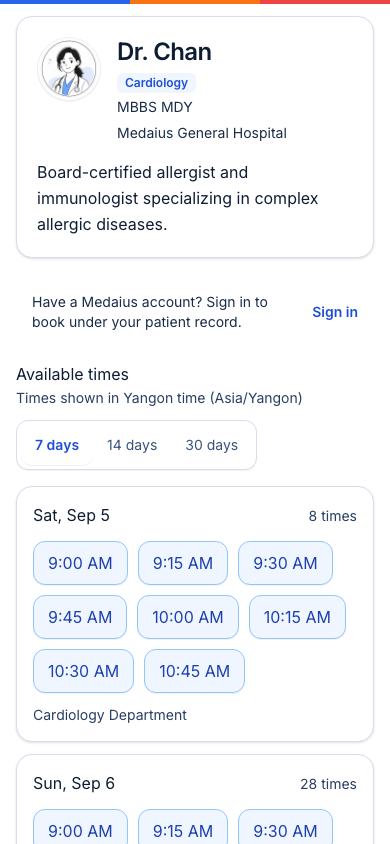
The public timetable adapts seamlessly to smartphone screens, making it easy for patients to book on messaging apps or mobile browsers:
4. Appointment Confirmation Dialog
Clicking any available time slot opens the instant booking dialog:
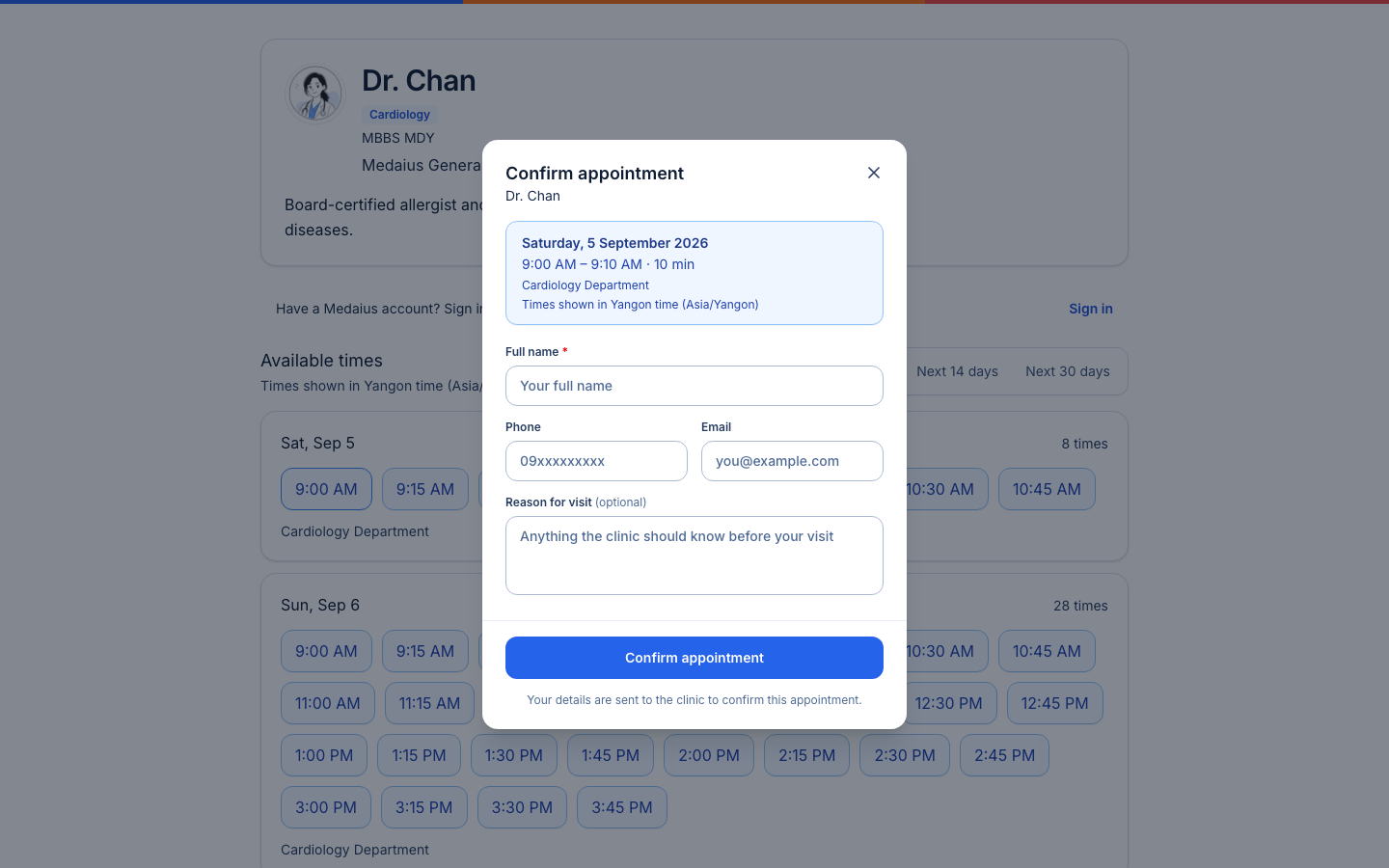
- Visit Summary: Confirms selected date, start/end time, duration, doctor, and department.
- Patient Information:
- Full Name (Required): Patient's legal name.
- Phone Number (Required): For SMS appointment confirmations and WhatsApp/Telegram reminders.
- Email (Optional): To receive digital calendar invites.
- Reason for Visit (Optional): Chief complaints or special assistance requirements.
- Click Confirm Appointment to submit.
5. Front-Desk Reception Triage & Auto-Confirm
Once a patient submits a public booking:
- Mode A (Auto-Confirm Active): The appointment immediately transitions to Booked and appears on the doctor's calendar.
- Mode B (Triage Required): The appointment appears under the Proposed staging column on the front-desk Kanban board:
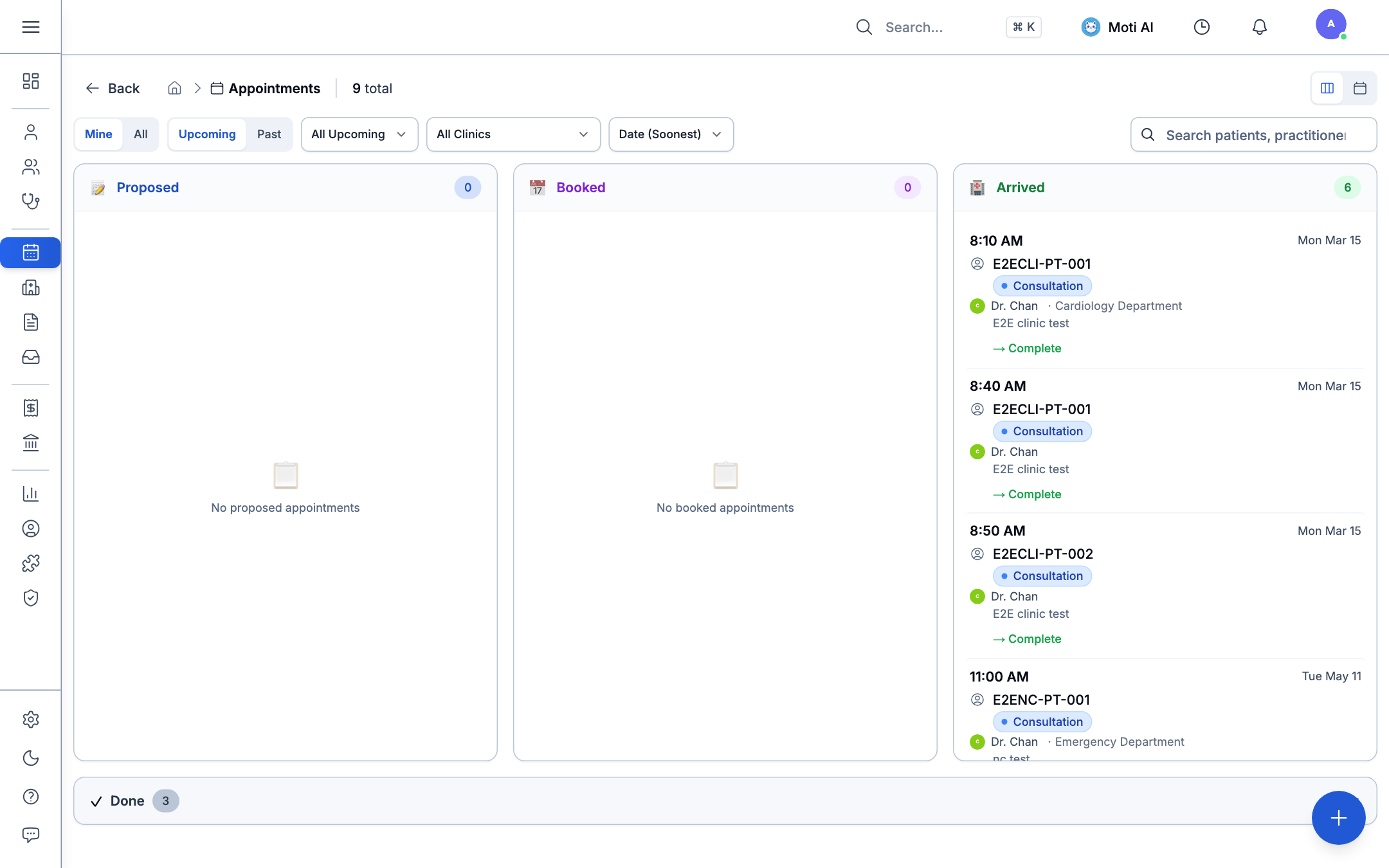
Receptionists can review incoming requests, verify insurance/sponsorship details, and click Confirm or Reschedule.
6. Related Guides & Next Steps
Appointments & Scheduling
Learn how clinic staff manage provider timetables, Kanban boards, and calendar density.
Public Intake Forms
Send pre-consultation questionnaires and medical screening forms to patients online.
Clinic Configuration
Configure appointment slot intervals, cancellation policies, and provider schedules.
Was this page helpful?
Help us improve our clinical documentation with your quick feedback.
Appointments & Scheduling
Manage clinic calendars, schedule visits, configure dynamic Kanban boards, set up practitioner timetables, and handle patient check-ins.
Clinical Encounters & SOAP Notes
Start clinical visits, write SOAP notes, utilize keyboard slash commands, add clinical resources, sign off charts, and append addendums.