
Custom Forms Setup & Management
Design custom form templates, configure resource mappings, edit templates, and generate targeted form links for individual patients or group therapy cohorts.
Medaius supports Custom Form Management, enabling clinic administrators and practitioners to build dynamic, specialty-specific forms (such as pediatric questionnaires, cardiovascular screenings, or consent sheets) without changing code.
Form Template vs. Form Response
There are two primary concepts to understand:
- Form Templates: The blueprint configuration that defines which questions exist, their types, and what resource mapping or validation rules apply.
- Form Responses: The filled-out clinical records completed by practitioners or submitted by patients.
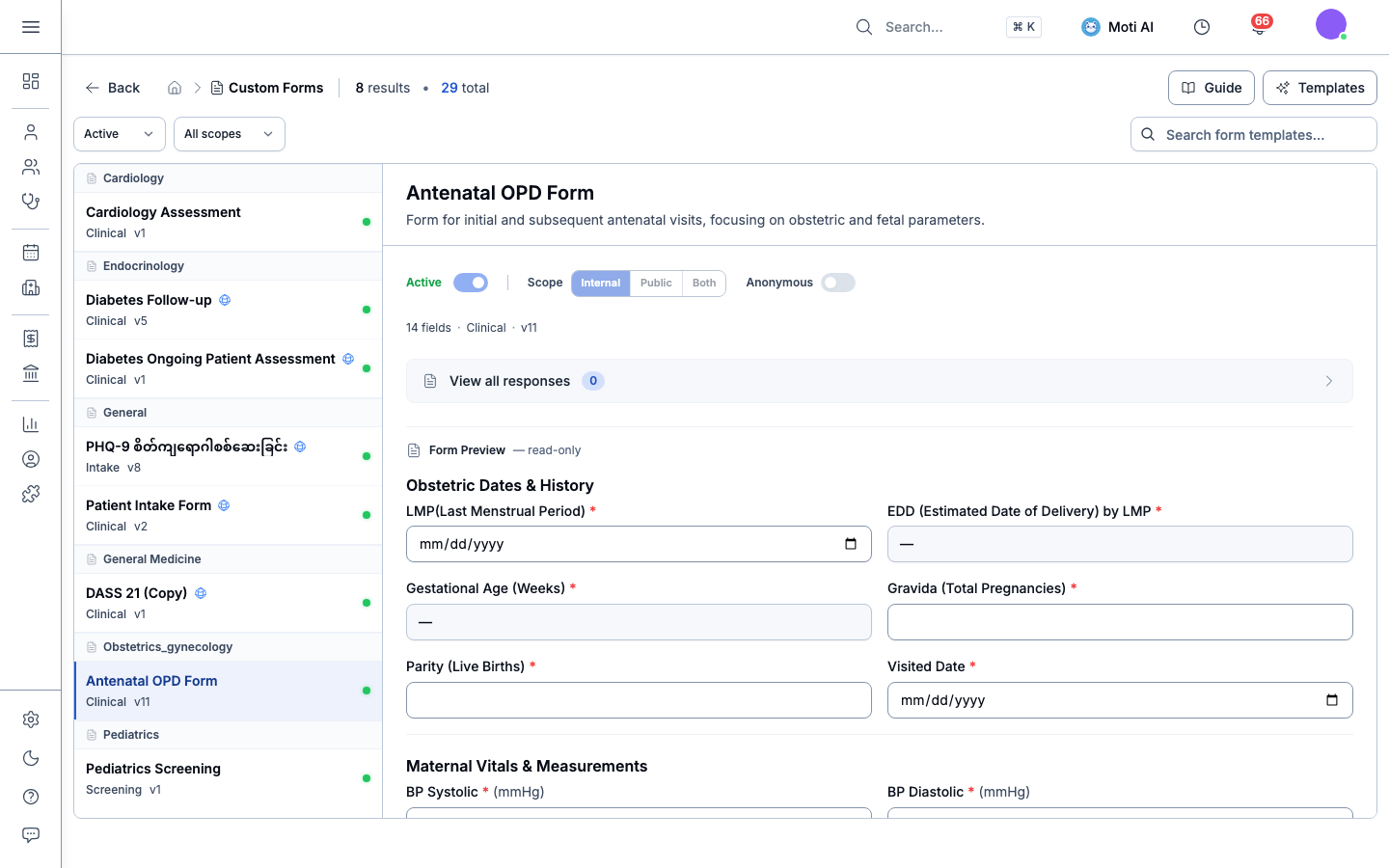
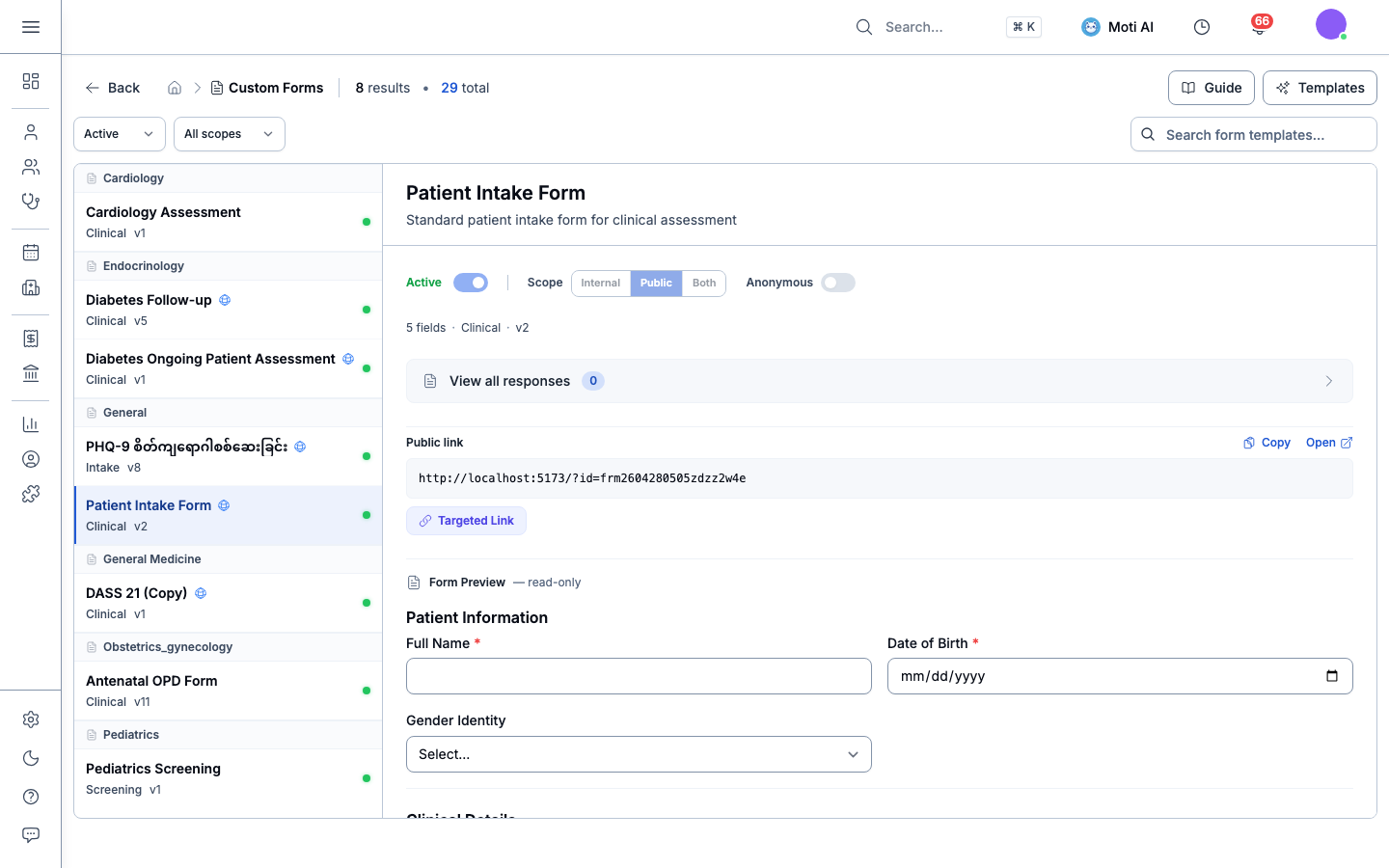
The Custom Forms directory gives you a live overview of all active templates, their clinical specialties, publication versions, and direct quick-action buttons for managing templates and viewing responses.
1. Creating Custom Form Templates
To build a custom form template, users with appropriate role permissions (Administrator) can use the form builder:
- Navigate to Custom Forms in the left sidebar menu.
- Click the + New Form button in the top right corner. The builder opens as an intuitive three-step wizard.
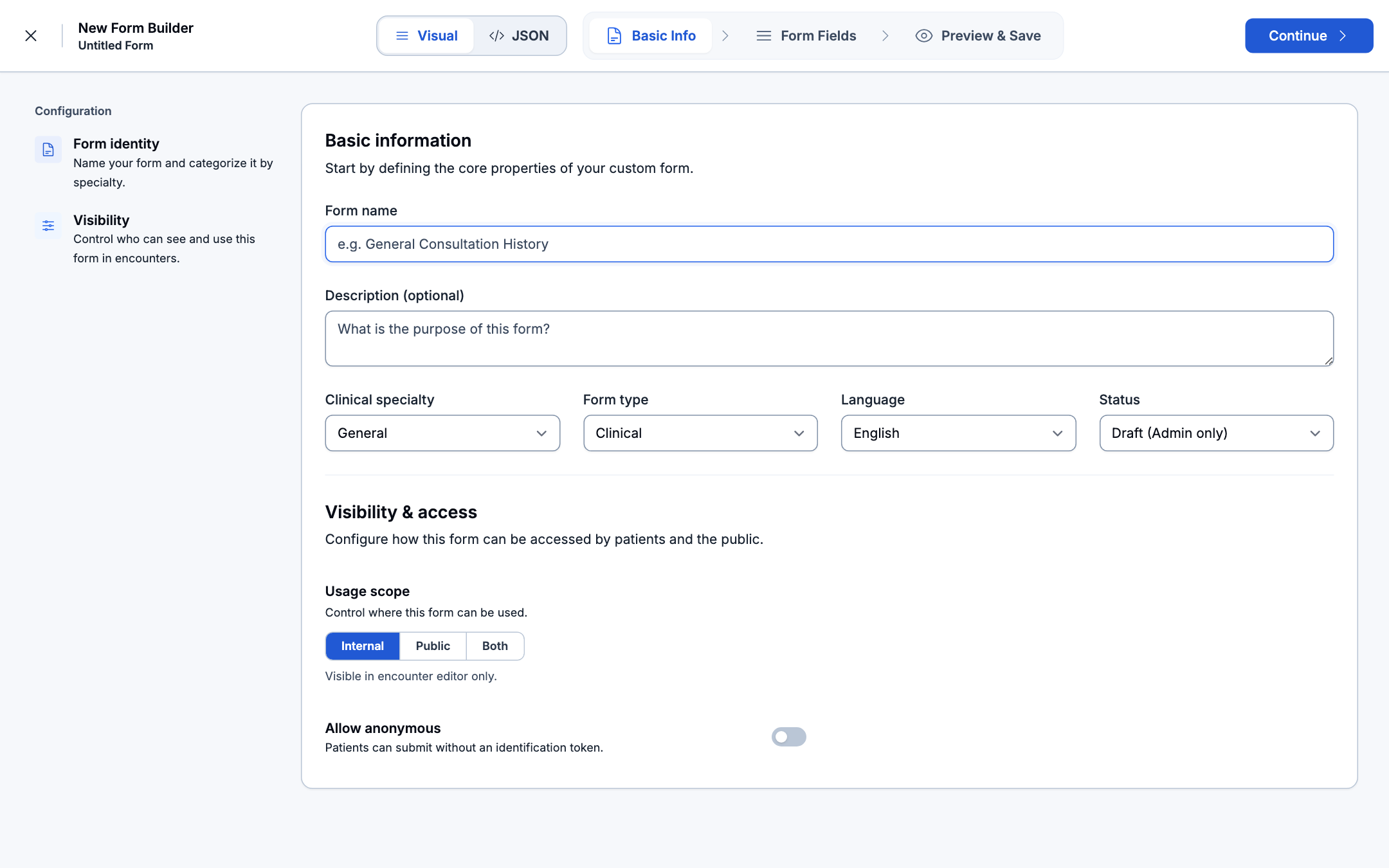
- Step 1: Basic Information, Access Scope & Publishing:
- Form Name: Enter a clear clinical title (e.g., General Consultation History, Cardiology Assessment).
- Description: Add guidance notes or instructions for clinicians and patients.
- Clinical Specialty: Categorize under specialties such as General, Cardiology, Pediatrics, or Mental Health.
- Form Type: Choose between Clinical (for charts and consultations) or Administrative (for registration and consent).
- Language: Choose the language for questions (English, Burmese, etc.).
Publication Status & Visibility Scope:
1. Why Publish? (Draft vs. Active)
- Draft (Admin only): While drafting questions, the form is completely isolated. Doctors cannot mistakenly select it during patient encounters, and external patients cannot view or submit responses.
- Active (Available): Publishing the form promotes it to production status. It immediately surfaces in the Form Inbox, attaches to consultation charting sidebars, and becomes accessible on public portals.
2. Usage Scope: Internal vs. Public vs. Both
Internal: Restricted exclusively to authenticated healthcare practitioners inside the Medaius digital health workspace. Appears solely inside the consultation note editor during clinical encounters.Public: Configured for external patient self-completion. Medaius generates a shareable web URL and QR code suitable for pre-visit SMS invites, online booking check-ins, or clinic waiting room kiosks.Both: Seamless dual availability. Doctors can complete the form during a visit, or patients can submit it ahead of time from home.
3. Allow Anonymous Submissions
- Why Enable Anonymous?:
- Ideal for community health screenings, patient satisfaction surveys, feedback forms, and whistleblower/incident reports where patient privacy must be preserved without requiring an existing clinic profile or login token.
- When to Keep Disabled?:
- Essential for clinical intake, informed consent, and diagnostic assessments where responses must be verified and strictly linked to a specific patient's Electronic Health Record (EHR).
Click Continue in the top right to proceed to the fields designer.
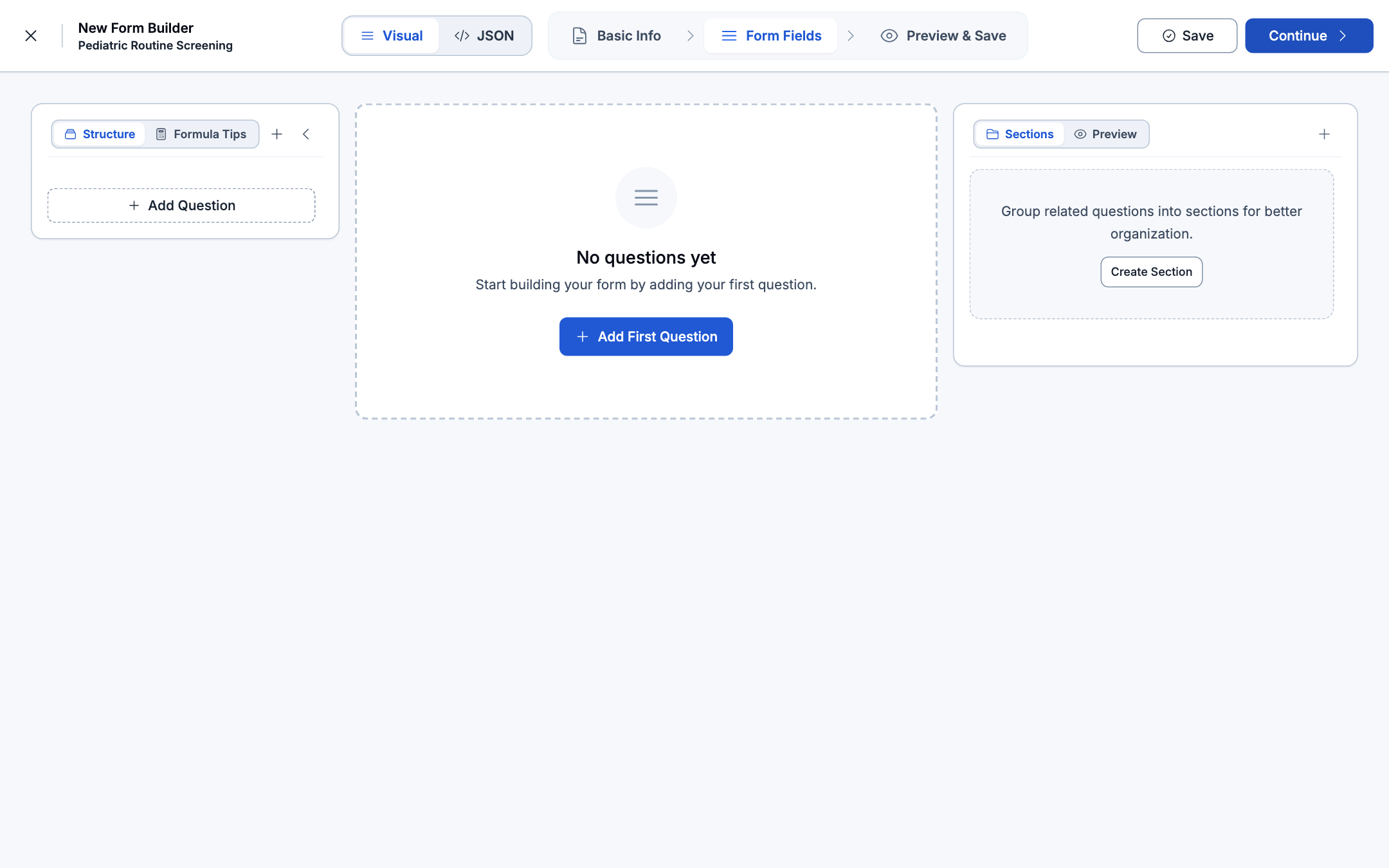
-
Step 2: Form Fields & Sections:
- Click + Add Question or + Add First Question to insert a new question block.
- Each field takes a label, an optional help text, and an input type:
Type Use for Text / Textarea Short clinical answers or detailed narrative notes. Number Quantitative observations and clinical measurements. Select / Radio Single-choice selections from standardized lists. Checkbox Multiple selections or a single confirmation checkbox. Boolean Clear yes/no clinical switches. Date / Time Appointment dates, onset dates, or time logs. Email Validated email address fields. Rating Numerical visual rating scales (e.g., pain scale 1–10). Calculated Real-time formulas derived from other fields (e.g., BMI, risk scores). - Organize complex questionnaires by clicking Create Section in the right-hand drawer to group related questions together (e.g., Symptom History, Lifestyle, Vitals).
- Configure conditional visibility so specific follow-up questions only appear when indicated by prior answers.
-
Step 3: Preview & Save:
- Review how the form renders across mobile and desktop devices.
- Click Save to store the draft, or flip the status toggle to Active to publish it immediately across your clinic.
[!TIP] If you prefer not to build from scratch, click the Templates button on the Custom Forms directory page to load pre-built clinical forms.
2. Resource Mapping (Direct Chart Sync)
Resource mapping connects a form field directly to a structured clinical record in the workspace. When a response is completed or approved, the mapped values are extracted and written directly into the patient's chart, eliminating double-entry.
| Mapping Target | Action |
|---|---|
| Observation / Clinical Measurement | Creates a vital sign or observation record with standard LOINC codes (e.g., Systolic BP, Diastolic BP, Heart Rate, Glucose, HbA1c). |
| Immunization / Vaccine | Automatically adds an entry into the patient's vaccination ledger. |
Example: When a patient or nurse inputs blood pressure into a mapped form field, the system automatically logs the systolic and diastolic readings into the patient's longitudinal vital signs table.
3. Usage Scope: Internal Forms vs. Public Forms
A defining strength of Medaius is the ability to configure whether a form is reserved exclusively for clinic staff or distributed publicly to patients:
| Usage Scope | Intended Audience | Access Point | Typical Use Cases |
|---|---|---|---|
Internal Only | Doctors, Nurses, Healthcare Staff | Inside Encounter workbench note editor and Patient longitudinal charts | Clinical progress notes, nursing shift handover, in-depth physician cardiology evaluations, surgical checklists. |
Public | External Patients, Family Caregivers | Web portal (/appointment/... or ?formId=...), SMS/WhatsApp link, or QR code | Pre-visit intake forms, medical history disclosures, patient satisfaction surveys, incident reporting. |
Both | Clinicians and Patients | Both clinic consultation drawer and shareable public links | PHQ-9 depression screening, pediatric developmental milestones, lifestyle questionnaires. |
Accessing Public Portals from the Dashboard
When the public forms service (medaius-public-forms) is active:
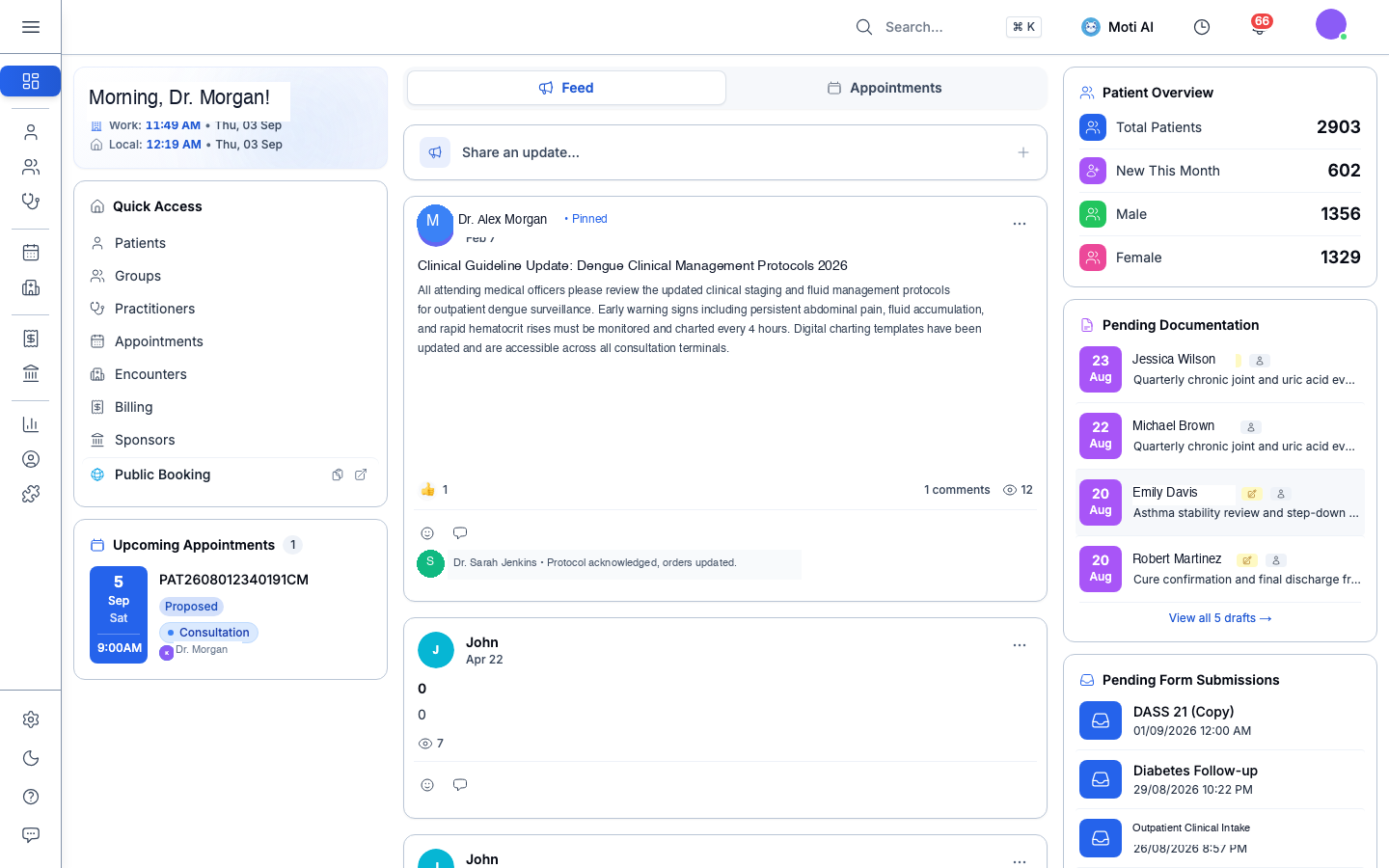
- Quick Access Menu: Click the Public Booking or Forms icon right from the main clinic dashboard.
- Pending Form Submissions Card: The dashboard features a real-time summary card tracking submitted public forms that await clinical triage and approval.
4. Generating Shareable & Targeted Links
Every active public-scoped form can be distributed in two ways:
-
General Public Portal Link:
- A standalone public URL (
http://<public-forms-domain>/?formId=<FORM_ID>) that can be embedded on your clinic website or printed on waiting-room QR code banners. - Enables anonymous or walk-in intake.
- A standalone public URL (
-
Targeted Form Links (Tied to Patient or Group):
- Generate a secure, pre-authenticated link tied to a specific patient profile:
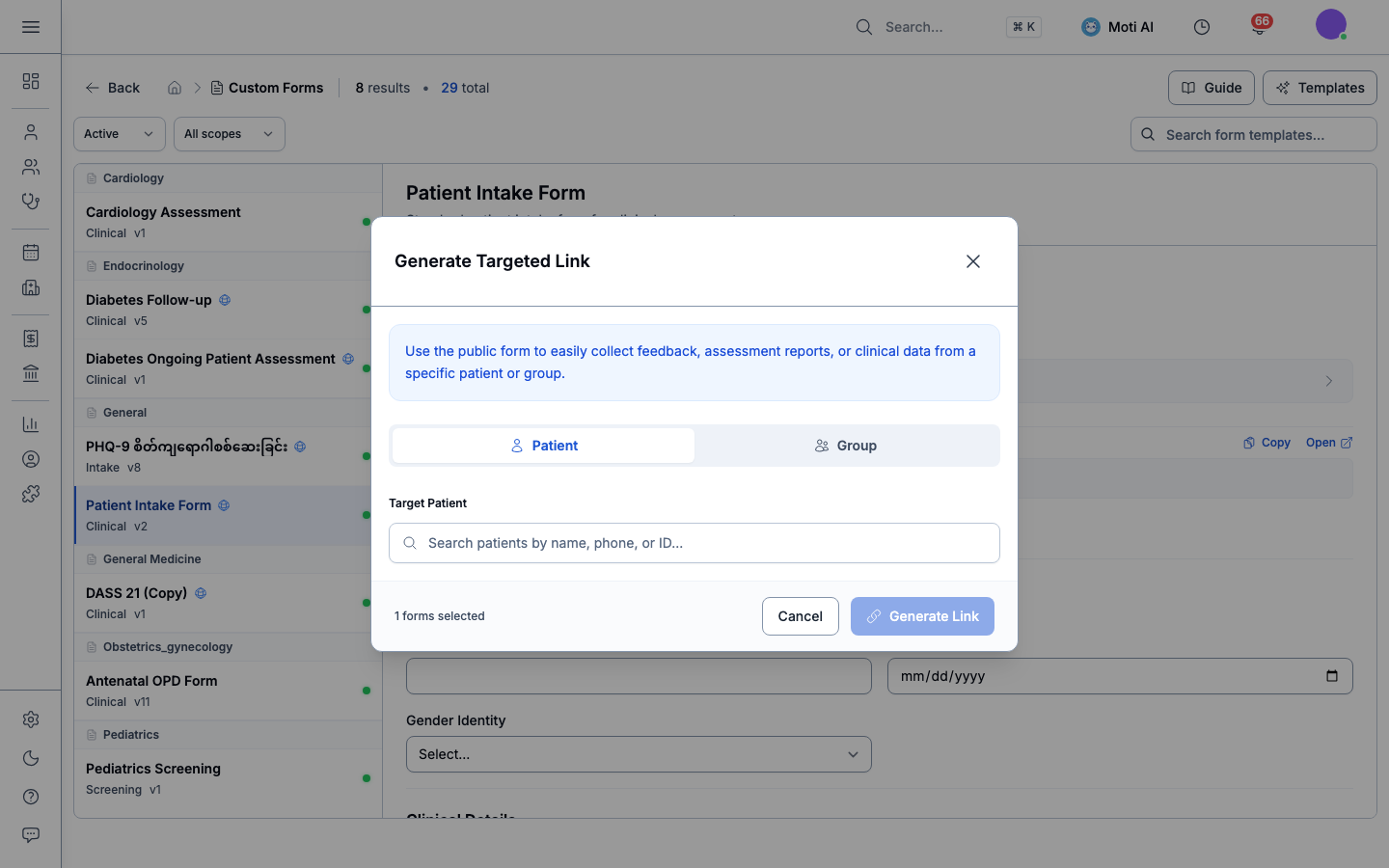
- Open any active form template in Custom Forms and click Targeted Link (or click Share Public Form from a patient profile page).
- Select the recipient:
- Individual Patient: Search by patient name (e.g., Sarah Chen, Alex Morgan), phone number, or record number.
- Group Therapy Cohort: Choose an active group to distribute forms to all cohort participants simultaneously.
- Click Generate Link.
- Copy the URL to dispatch via SMS/WhatsApp or display the QR code for instant scanning on the patient smartphone or clinic reception tablet.
- Generate a secure, pre-authenticated link tied to a specific patient profile:
5. Patient Public Submission Experience
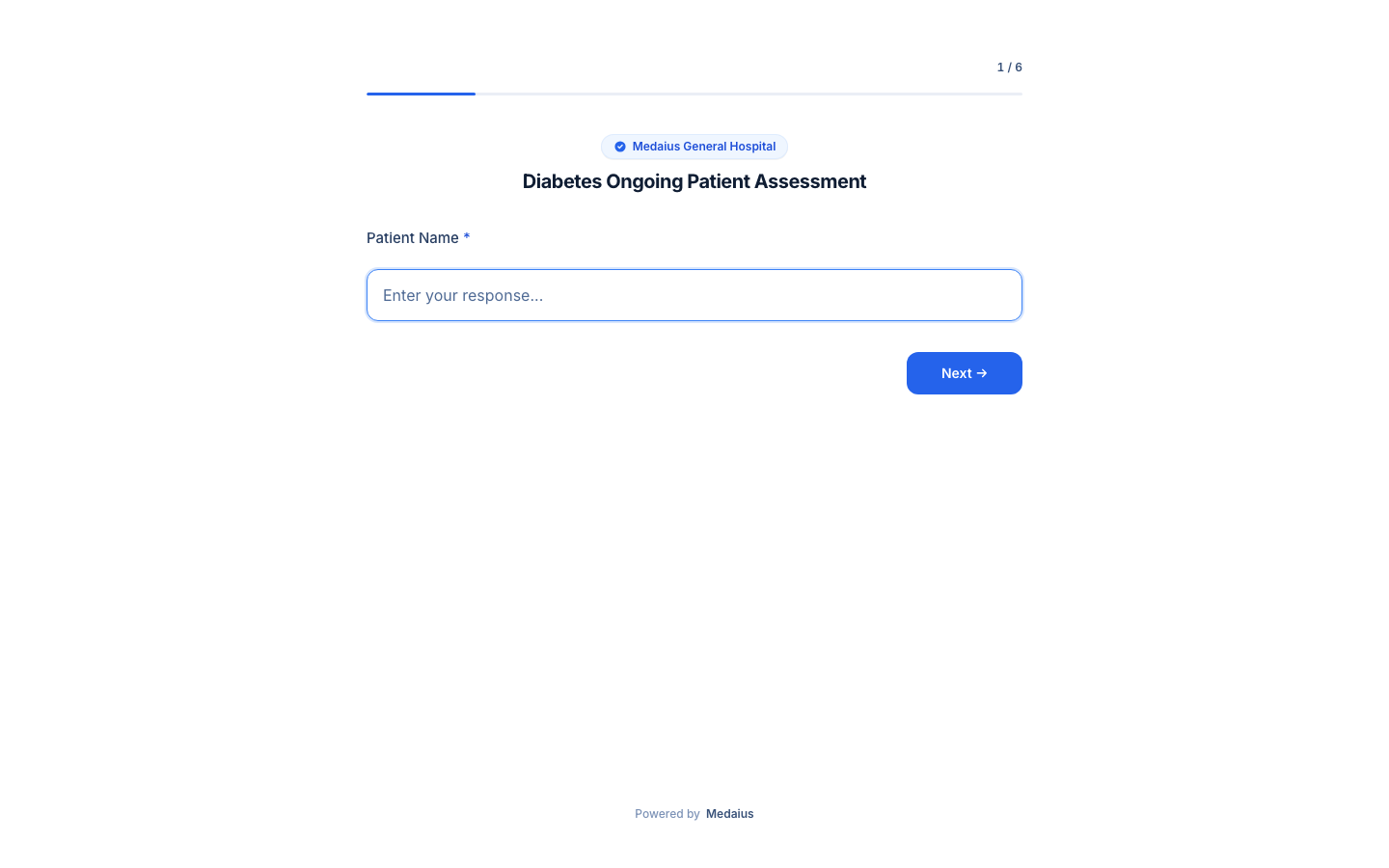
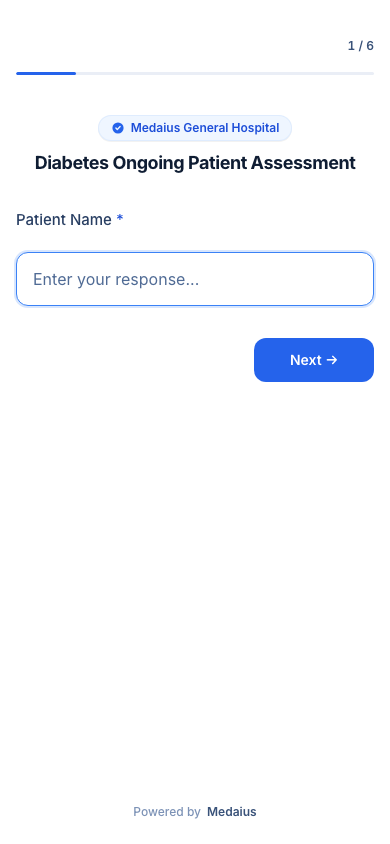
When a patient opens the public form link on their phone, tablet, or laptop:
- No Login Barrier: Patients do not need to create a patient portal account or remember passwords.
- Responsive Layout: Question sections, date pickers, conditional fields, and signature canvas automatically adapt to mobile screens.
- Immediate Confirmation: Upon completion, the patient receives an instant confirmation banner and the encrypted submission is securely transmitted to the clinic workspace.
6. Public Forms Inbox & Clinical Triage
All patient responses submitted via public links arrive in the Form Responses Inbox (/custom-forms/inbox):
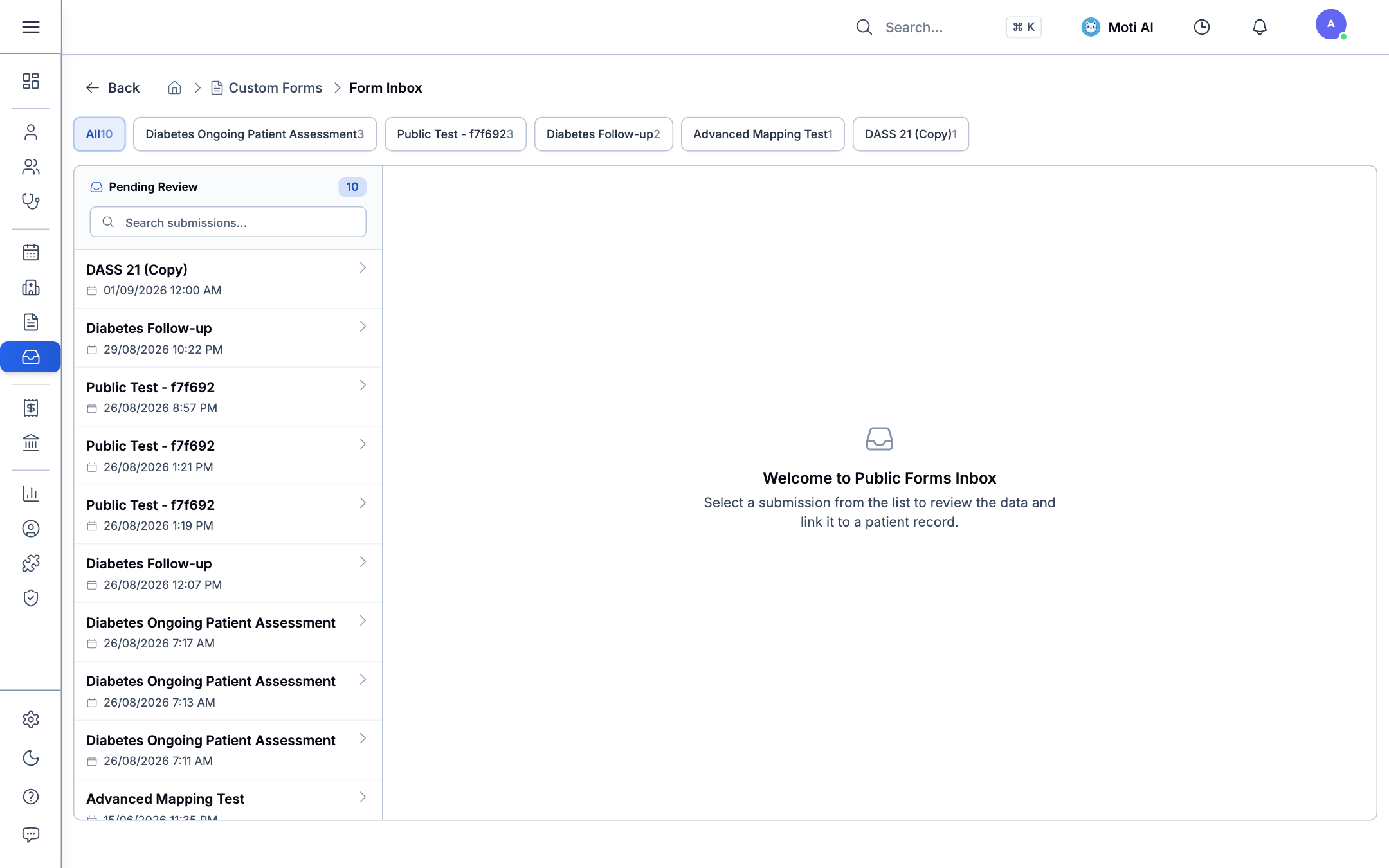
Response Lifecycle & Review Workflow:
- Submitted: Complete and awaiting clinical review.
- Pending Review: Flagged by triage nurses for attending physician sign-off.
- Finalized (Chart Sync): Once approved, mapped clinical measurements (such as blood pressure, pulse, or vaccine history) automatically synchronize into the patient master electronic health record.
- Rejected: Discarded or flagged as duplicate/invalid.
7. Related Guides & Next Steps
Clinical Encounters
Learn how clinicians attach internal forms and progress notes directly inside active consultations.
Patient Records & Charts
Review how mapped form responses automatically populate longitudinal patient observation charts.
Clinic Configuration
Configure public directory visibility, online booking parameters, and public forms server settings.
Was this page helpful?
Help us improve our clinical documentation with your quick feedback.
Inpatient, Wards & Bed Management
Manage hospital inpatient admissions, visualize live bed occupancy on the interactive Bed Board, configure ward departments, and coordinate patient transfers.
Public Intake Forms & Patient Self-Service
Publish clinical screening questionnaires and patient intake forms online, share secure pre-fill links, and review patient responses directly in the clinic workspace.