
Patient Management
Register patients, perform fast search queries, edit demographics, track clinical sub-records, and manage patient profiles.
The Patient module is the central foundation of Medaius. Every clinical encounter, laboratory order, appointment booking, prescription, and billing invoice links directly to a centralized patient master index. This guide covers registering new patients, searching the directory, navigating the patient profile workspace, managing longitudinal charts, and enforcing data privacy.
Registering a New Patient
To register a patient in your clinic workspace:
- Click Patients in the left sidebar navigation.
- Click the New Patient button in the top right corner.
- The registration modal is organized into four intuitive tabs:
1. Personal Details Tab
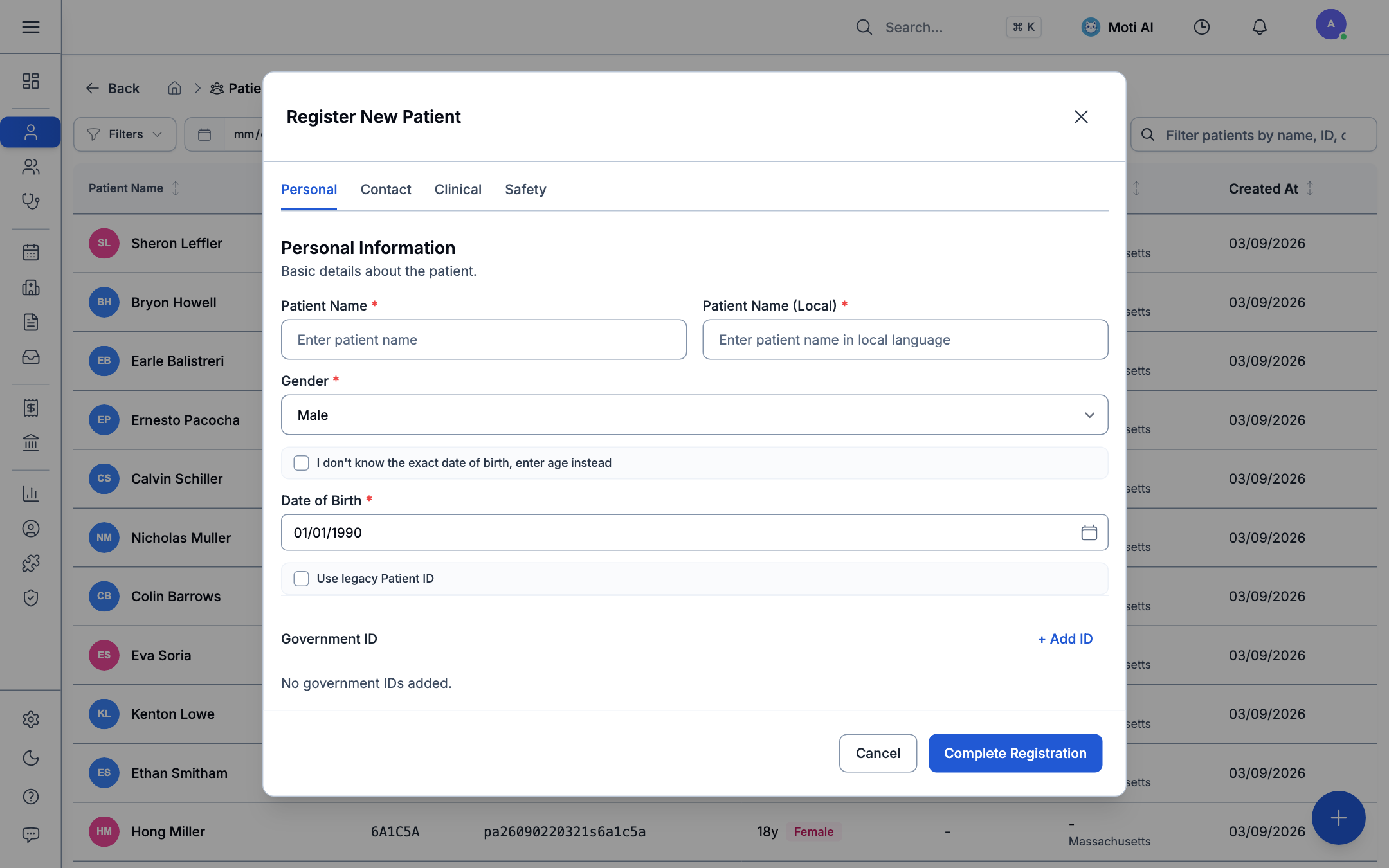
- Full Name: Enter the patient's legal primary name.
- Local Script Name (
patient_name_local): Enter the patient's name in native Burmese or local script for local identity verification. - Gender: Select from your clinic's configured gender options (Male, Female, Other/Non-binary).
- Date of Birth or Age:
- Enter the exact birth date using the calendar picker, or
- Toggle Age Input to specify age numerically in Years, Months, or Days (the system automatically estimates the birth date).
- Preferred Language: Choose the patient's primary spoken language (Burmese, English, Chinese, Shan, Karen, etc.) for personalized care instructions.
- Government Identifiers: Click + Add Identifier to record government identity cards:
- Select ID Type: National ID, Passport, Driver's License, or Other (with a custom label such as Monk ID or Military ID).
- Enter the ID Number and Issuing Country.
- All identifiers are securely stored and masked by default in clinic views.
- Legacy Chart ID: If your organization transitions from paper charts, toggle Legacy ID and enter your existing physical chart number.
2. Contact Information Tab
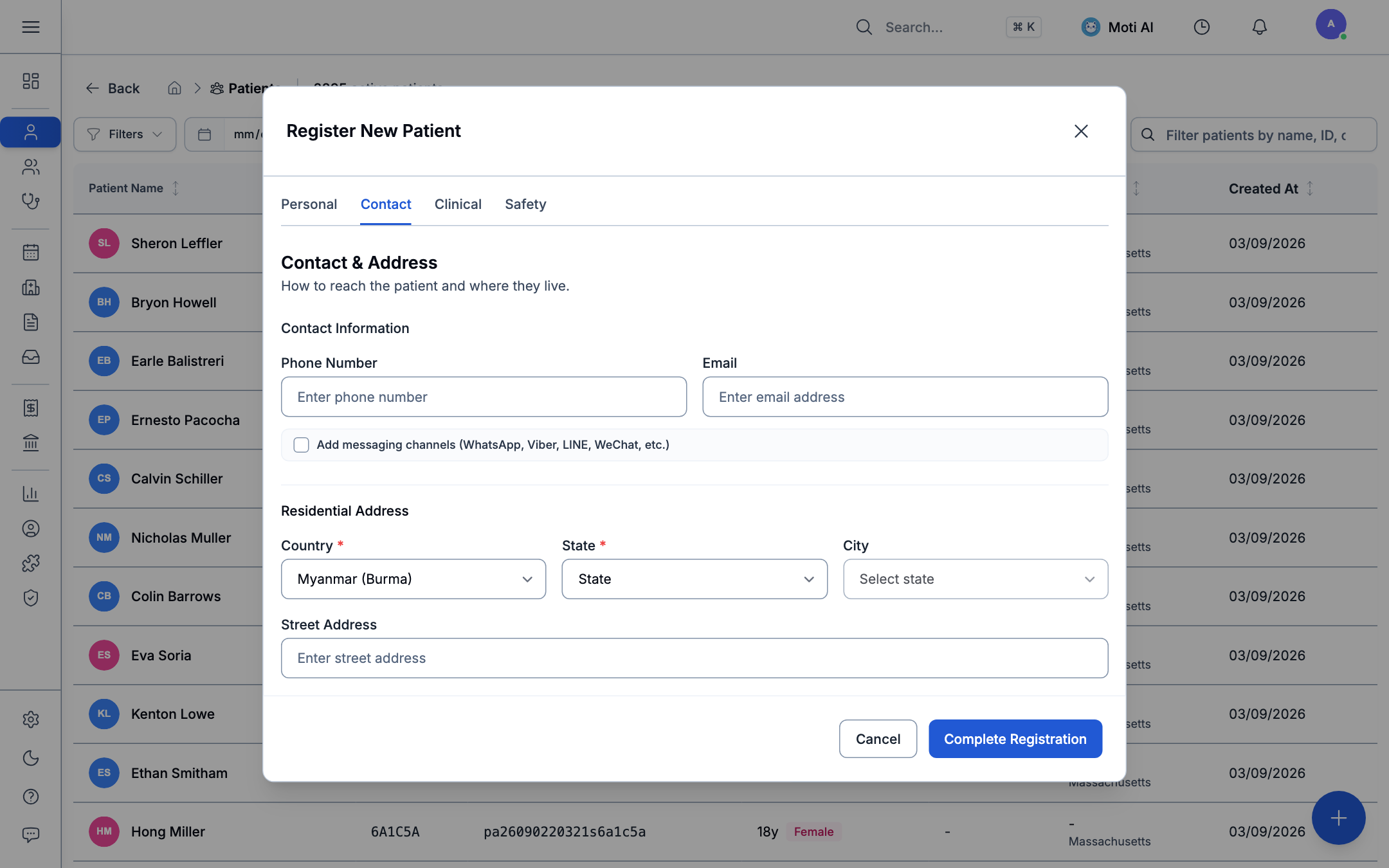
- Phone & Email: Primary telephone and email address.
- Physical Address: Country, State/Division, City/Township, and Street address.
- Social Messaging Channels: To communicate directly with patients via popular regional messaging apps, configure:
- Telegram: Phone number or Telegram username.
- Facebook / Messenger: Profile ID or Messenger handle.
- Preferred Channel: Select whether the clinic should prioritize SMS, Phone, Telegram, or WhatsApp for reminders.
3. Clinical & Bio-Data Tab
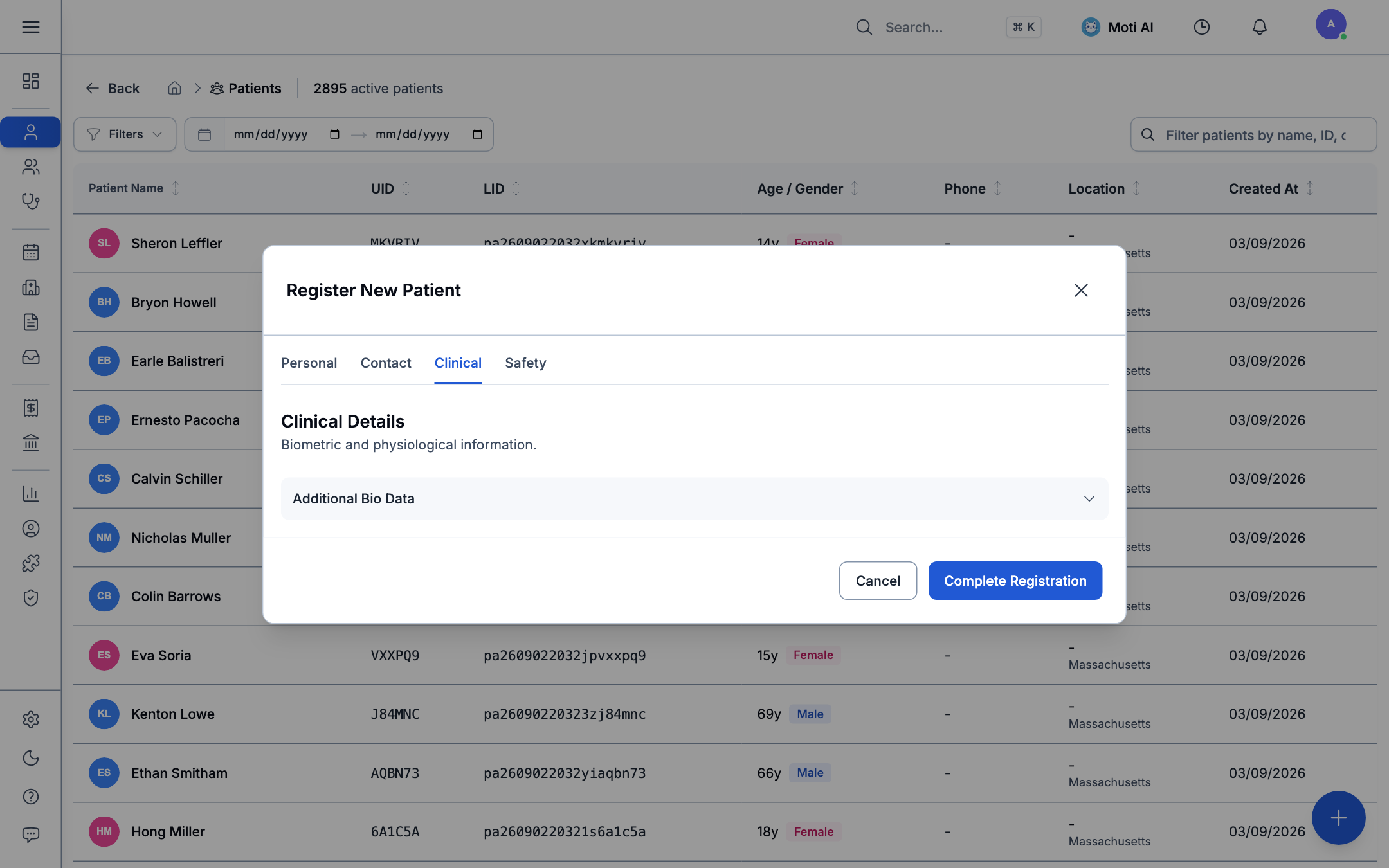
- Blood Group & Rh Factor: Record blood type (A, B, AB, O) and Rh factor (+ or -).
- Vitals Baseline: Baseline Height (cm) and Weight (kg). The system automatically calculates Body Mass Index (BMI).
- Emergency Clinical Notes: Important triage flags (e.g., "Pacemaker implanted", "Diabetic").
4. Safety & Emergency Tab
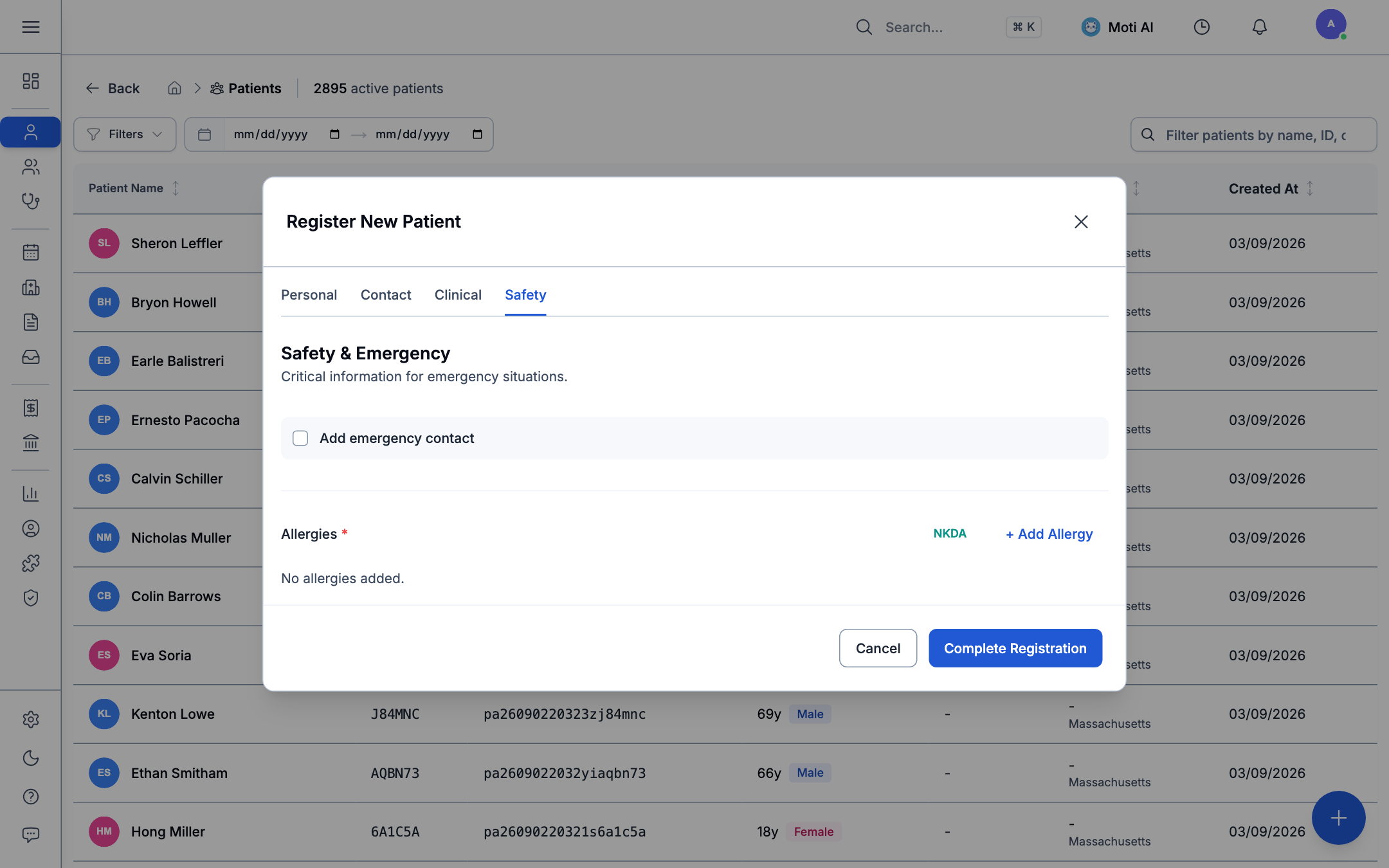
- Emergency Contact: Name, relationship to patient, phone number, and residential address.
- Initial Allergies: Record known allergies directly during intake:
- Specify the allergen substance (drug, food, environmental).
- Select severity: Mild, Moderate, or Severe.
- NKDA Toggle: If the patient has no known allergies, check No Known Drug Allergies (NKDA) to establish a clinical all-clear.
- Click Register Patient (or Save Changes when editing).
[!NOTE] Dynamic Validation: Required fields are dynamically enforced based on your organization's configuration set in Admin > Config > Patient Settings. If a required field is missing on another tab, the form automatically navigates to the offending tab and displays a summary banner.
Searching & Filtering Patients
Medaius features a high-performance search bar with phonetic and multi-field matching so front-desk staff can retrieve records in seconds:
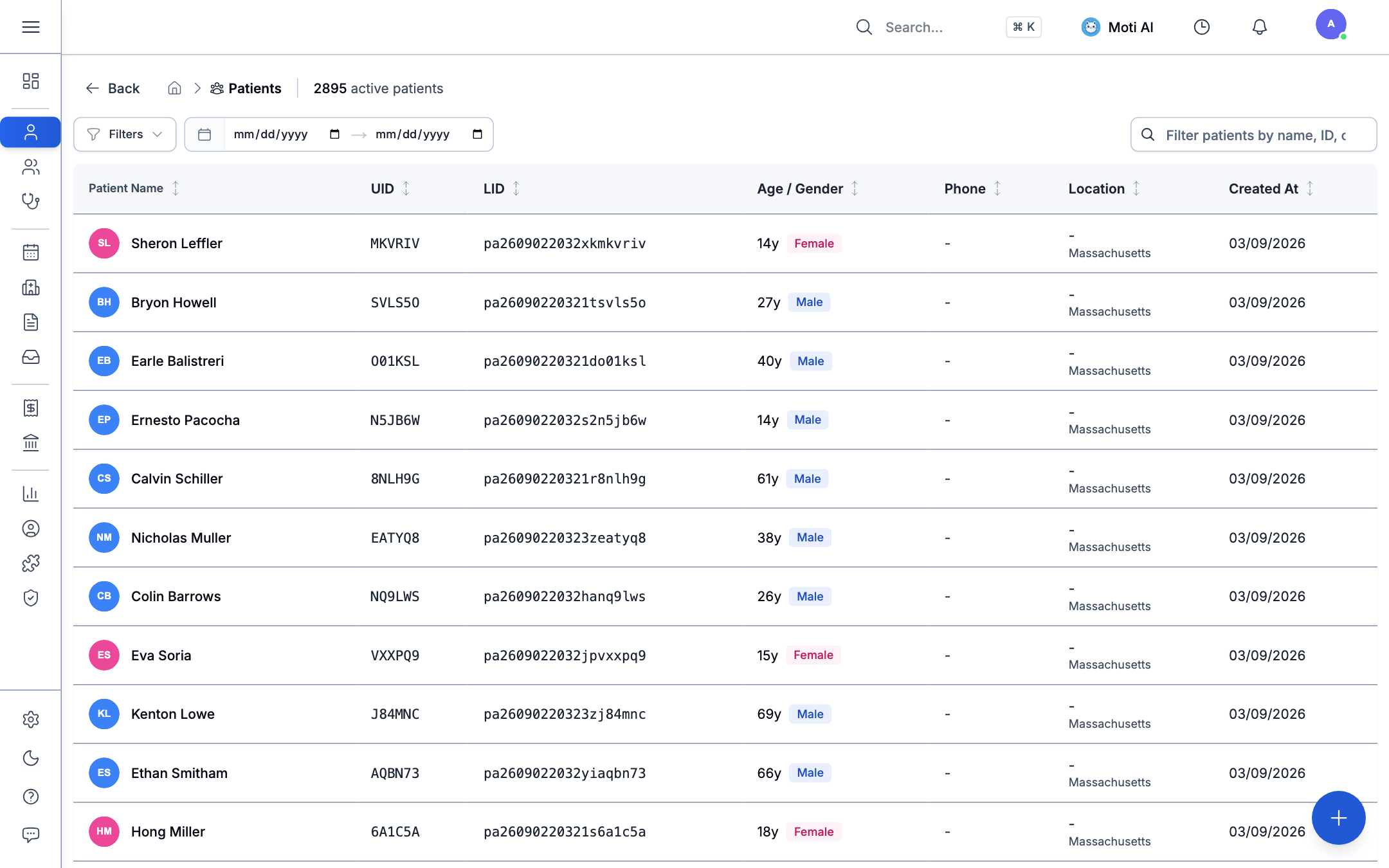
Search Methods
- Fuzzy Phonetic Search: Resolves common phonetic misspellings (e.g., typing "Aung" matches phonetic variants).
- Direct Matching: Search instantly across:
- Patient Full Name and Local Script Name.
- System Patient ID and Legacy Chart ID.
- Phone Number and Telegram Handle.
- Government ID numbers (National ID, Passport).
- Organization Isolation: Search queries strictly filter to patients registered within your active clinic organization.
Filter Controls
On the Patients directory page:
- Filter patient lists by Gender, Age Bracket, or Registration Date.
- Switch between Table View (desktop clinic stations) and Mobile Card View (tablets and smartphones).
The Patient Profile Workspace
Opening any patient file launches the comprehensive Patient Profile Workspace. The workspace consists of a rich patient header and six functional workflow tabs:
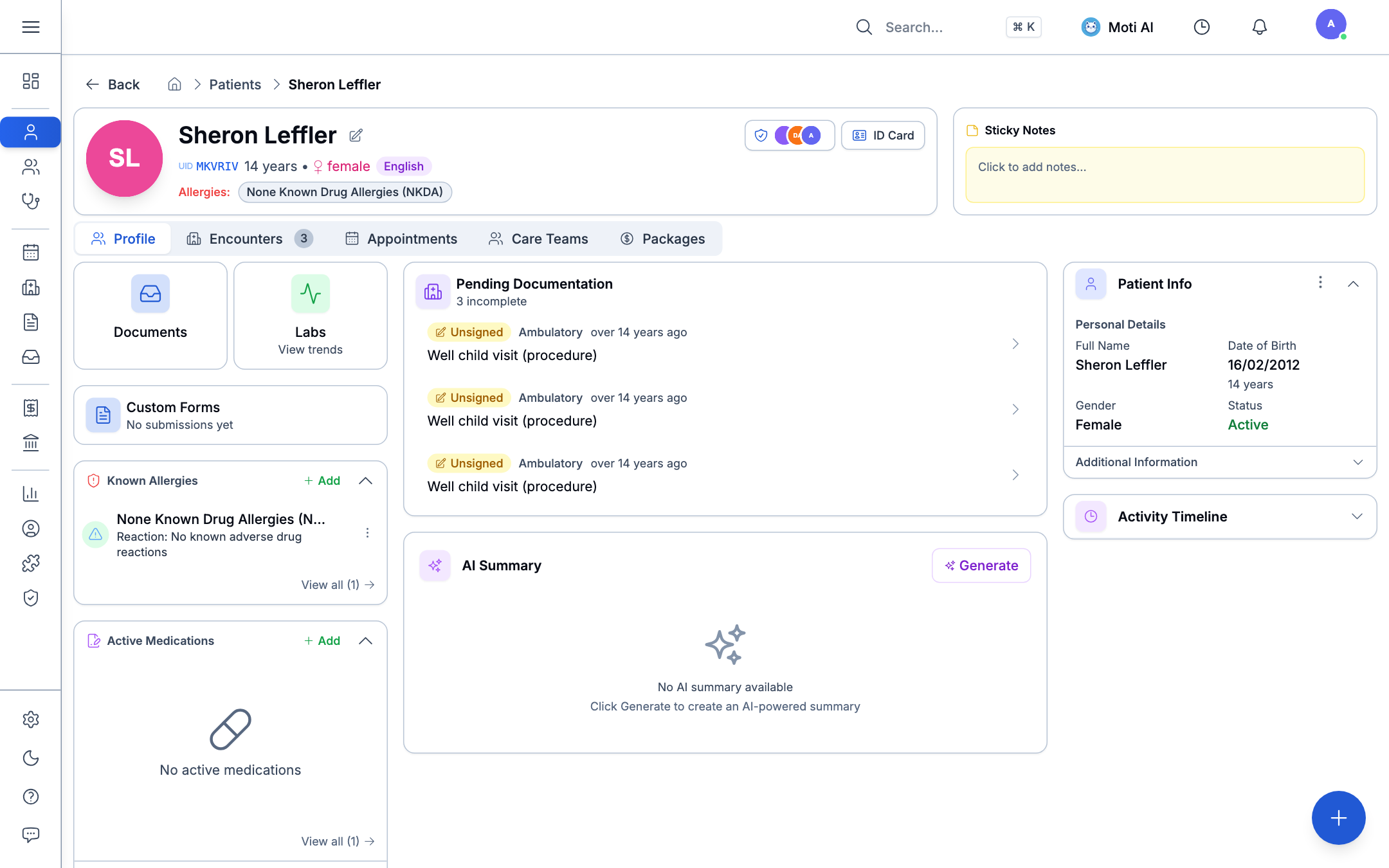
1. Header & Identity Tools
The top header provides critical clinical context at a glance:
- Profile Photo: Click the avatar photo to capture from a camera or upload a picture.
- Dual Identification (
PatientIdPair): Shows the system-generated shorthand ID alongside the clinic's legacy paper chart number. - Demographic Badges: Age, gender icon, blood group with emoji (e.g.,
🩸 O+), baseline height and weight, and preferred language pill. - Allergy Hazard Bar:
- Severe allergies display in prominent Red.
- Moderate allergies display in Amber.
- Confirmed absence of allergies displays as a clean Teal NKDA badge.
- Masked Government IDs: Shows ID type and masked digits (
••••5678). Click any badge to temporarily reveal the full number. - Patient Sticky Notes: A yellow digital notepad pinned to the header. Staff can jot down critical behavioral or administrative notes (e.g., "Requires wheelchair assistance at entrance").
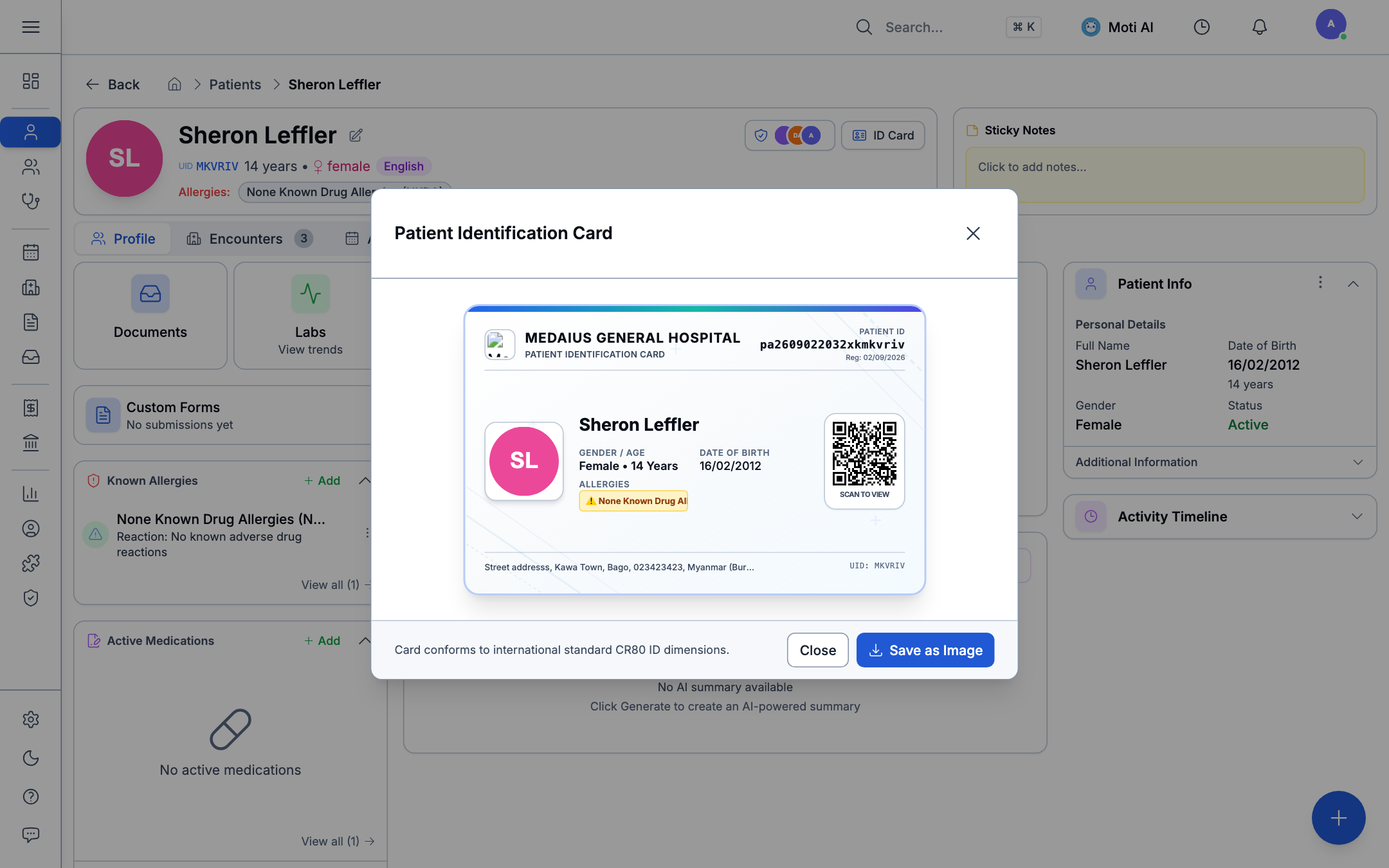
- Printable ID Card Modal: Click ID Card to open and print a wallet-sized patient identity card complete with demographic barcode and QR identifier:
- Access Circle Trigger: Indicates access classification (Standard or Restricted). Clinicians without circle assignment can request break-glass temporary access with logged audit reasons.
- Edit & Delete Menu: Click the pencil icon to edit demographics, or open the kebab menu (
⋮) to access Delete Patient.
[!WARNING] Patient Deletion Safety: Deleting a patient requires the
patient.deletepermission (Admin/Superuser). To prevent accidental loss, the user must explicitly type the confirmation wordDELETE. Deletion performs a compliant soft-delete: the patient is removed from active searches, but existing encounters, billing ledgers, and signed documents remain permanently archived for legal audits.
2. Workspace Navigation Tabs
Below the header, the patient file is divided into six dedicated tabs:
A. Profile Tab
The clinical landing overview of the patient's health status:
- Quick Action Launchers: Direct one-click access to Documents (
/documents), Labs & Trend Charts (/charts), and Forms (/forms). - AI Patient Summary: Generates a natural language clinical synopsis summarizing active conditions, current medications, allergy risks, and historical encounter findings.
- Clinical Summary Section: Live summary panels for active Allergies, active Medications, ongoing Conditions, and Immunizations.
- Active Care Section: Tracks open Service Requests (laboratory/imaging orders) and scheduled Procedures.
- Activity Timeline: A chronological audit feed logging every appointment booked, encounter finalized, document uploaded, or note saved.
- Patient Information Card: Expandable card displaying verified contact details, addresses, and emergency contacts.
B. Encounters Tab
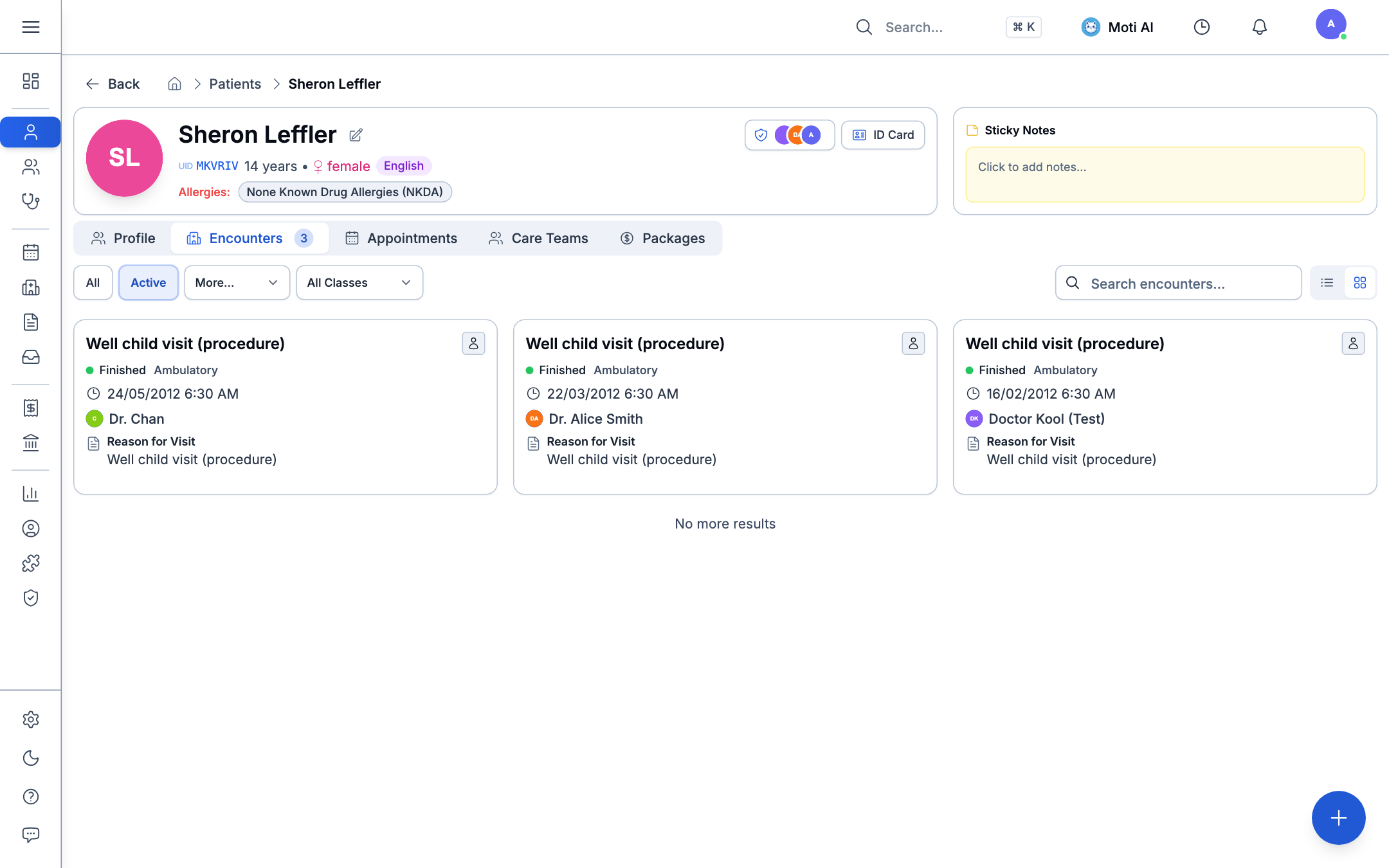
Displays the complete visit history for the patient:
- Filter visits by Documentation Status (Draft, Finalized, All) or Encounter Class (Ambulatory, Emergency, Inpatient, Virtual).
- Click any encounter to open the full SOAP note or launch the Encounter Workbench.
C. Appointments Tab
Displays all upcoming scheduled visits and historical bookings:
- See assigned practitioner, date, time slot, and check-in status.
- Click New Appointment to book a new visit directly pre-filled for this patient.
D. Care Teams Tab
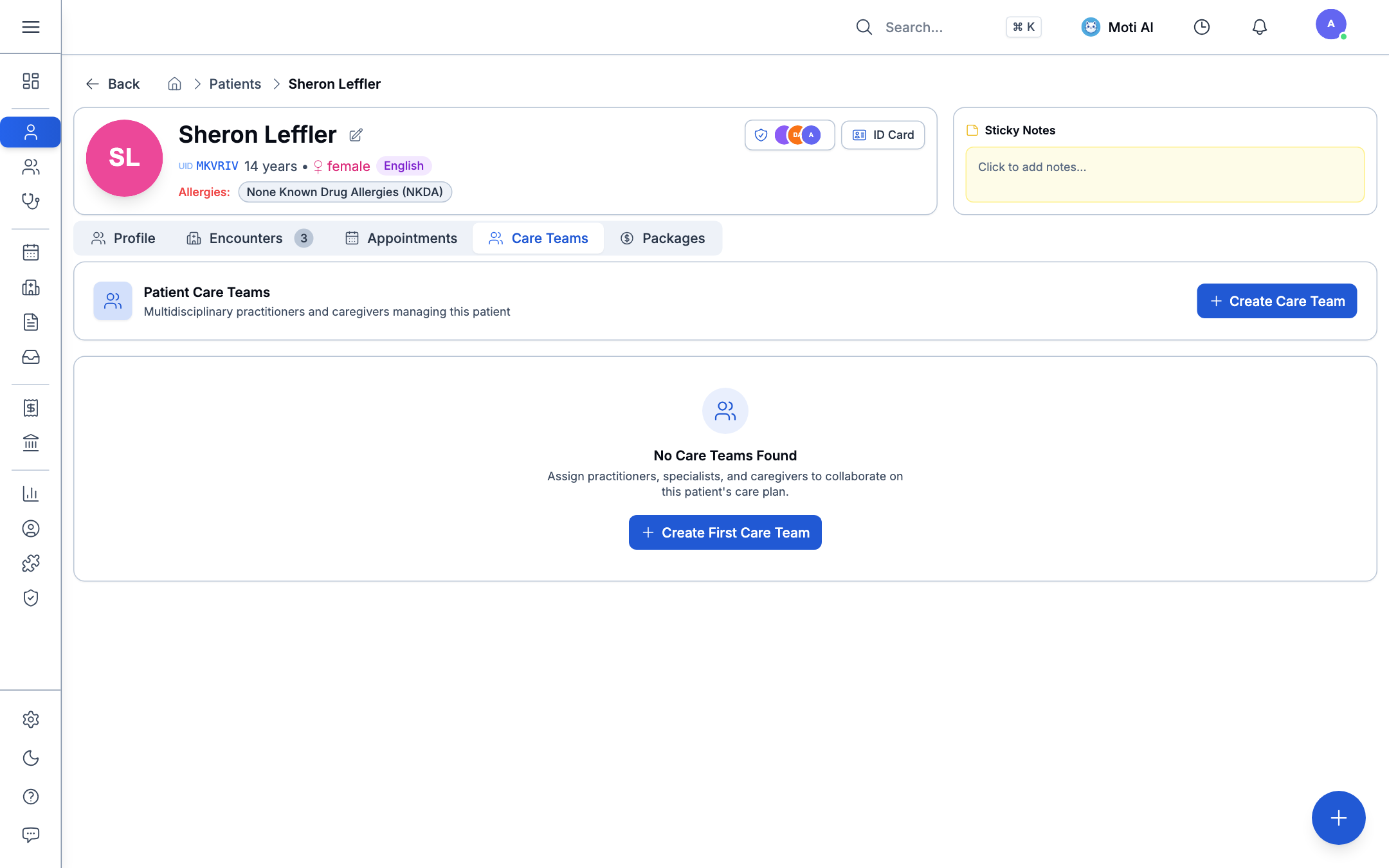
Lists the assigned healthcare team:
- Displays primary care physicians, consulting specialists, and assigned nursing staff responsible for the patient's care plan.
E. Packages Tab
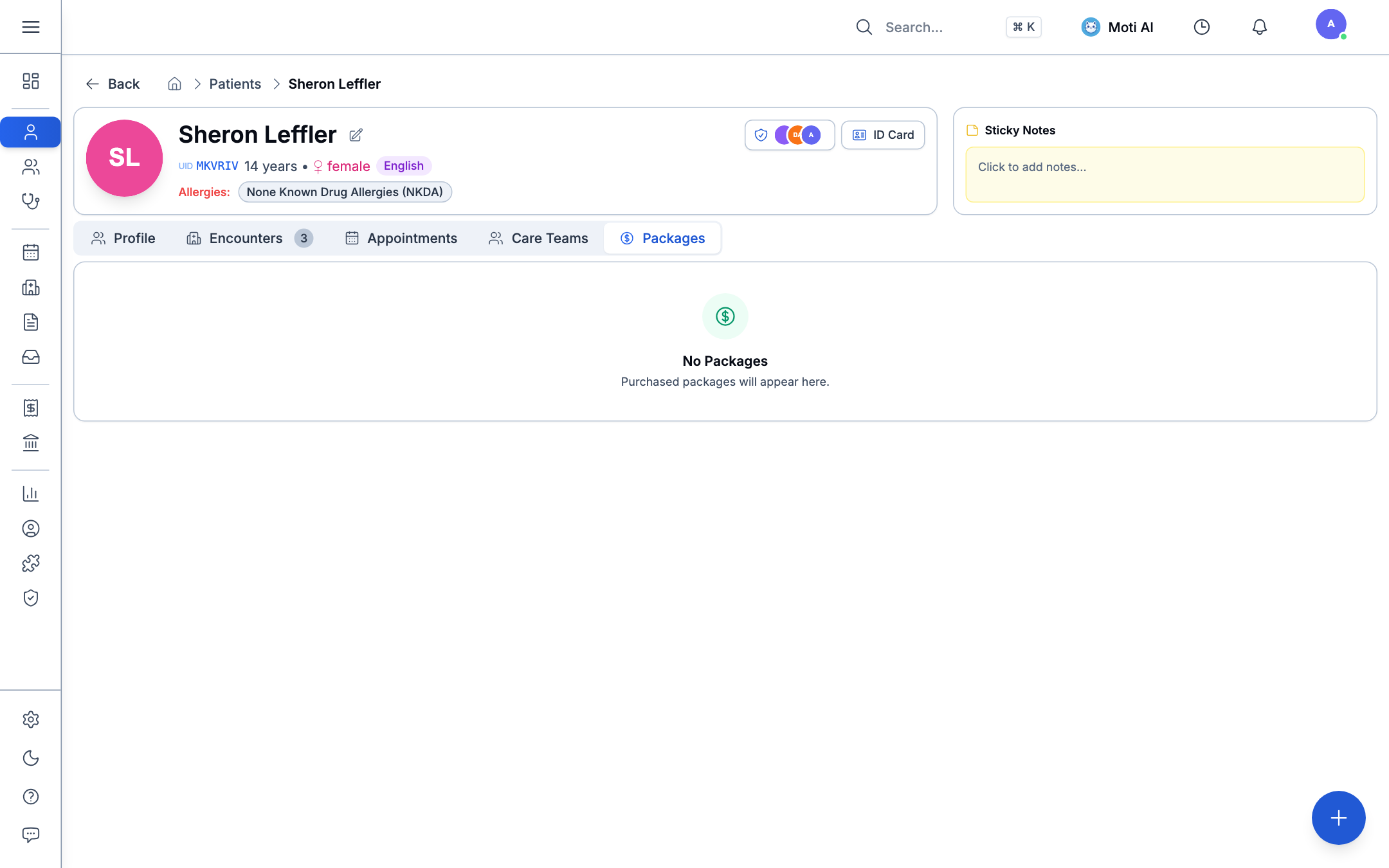
Manages pre-paid clinic services and subscription packages:
- Displays active service packages purchased by the patient.
- Tracks remaining prepaid session credits (e.g., "5 of 10 Physiotherapy sessions remaining").
F. Patient Portal Tab
Manages connected digital portal credentials:
- View linked patient identity records and third-party patient portal credentials via
PatientConnections.
Longitudinal Clinical Subroutes
For in-depth specialty charting and diagnostics, Medaius provides dedicated subroutes accessible directly from the patient file:
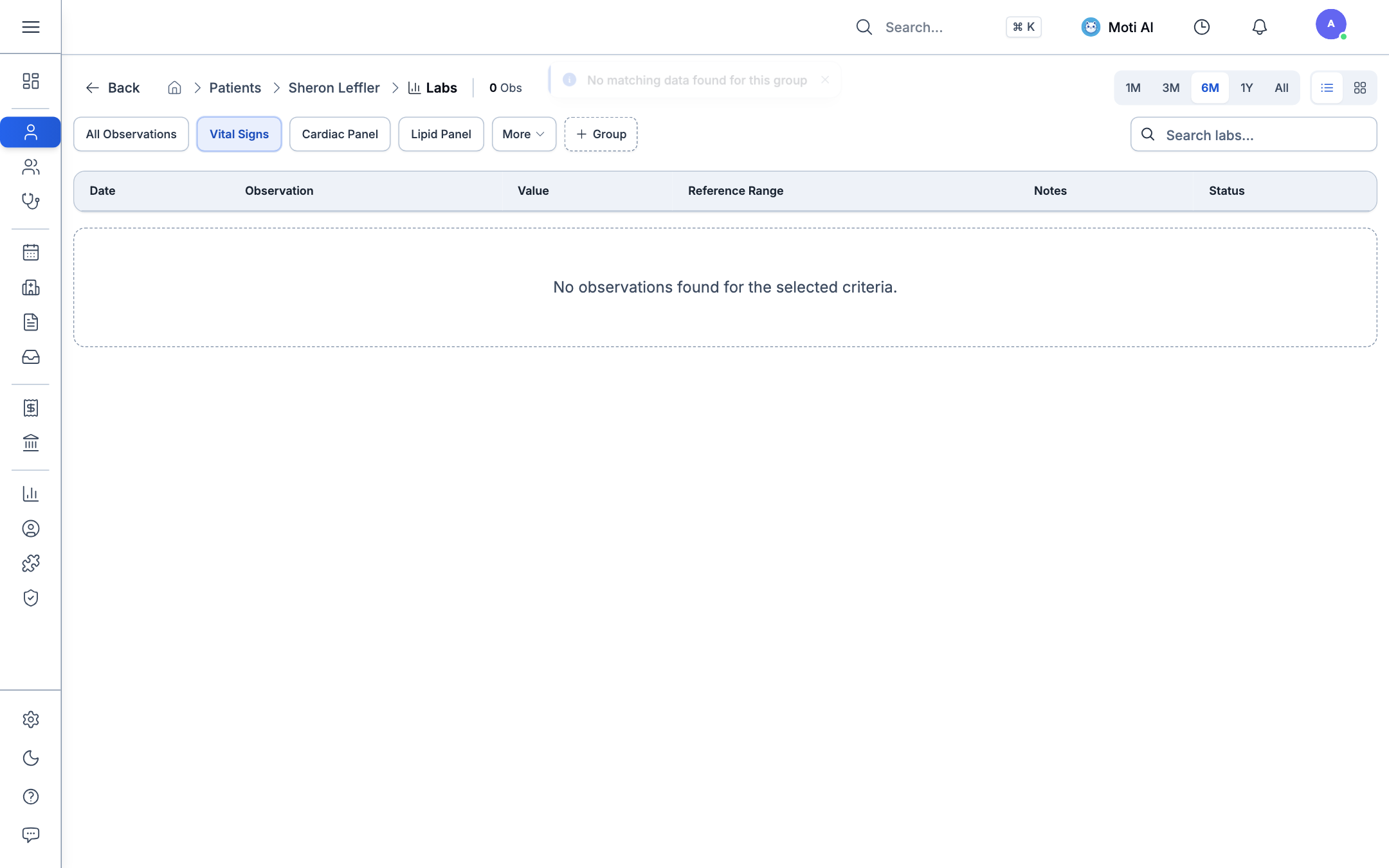
Observations & Vitals Charts (/charts)
Interactive trend line graphs tracking Blood Pressure, Heart Rate, Temperature, SpO2, and BMI over time:
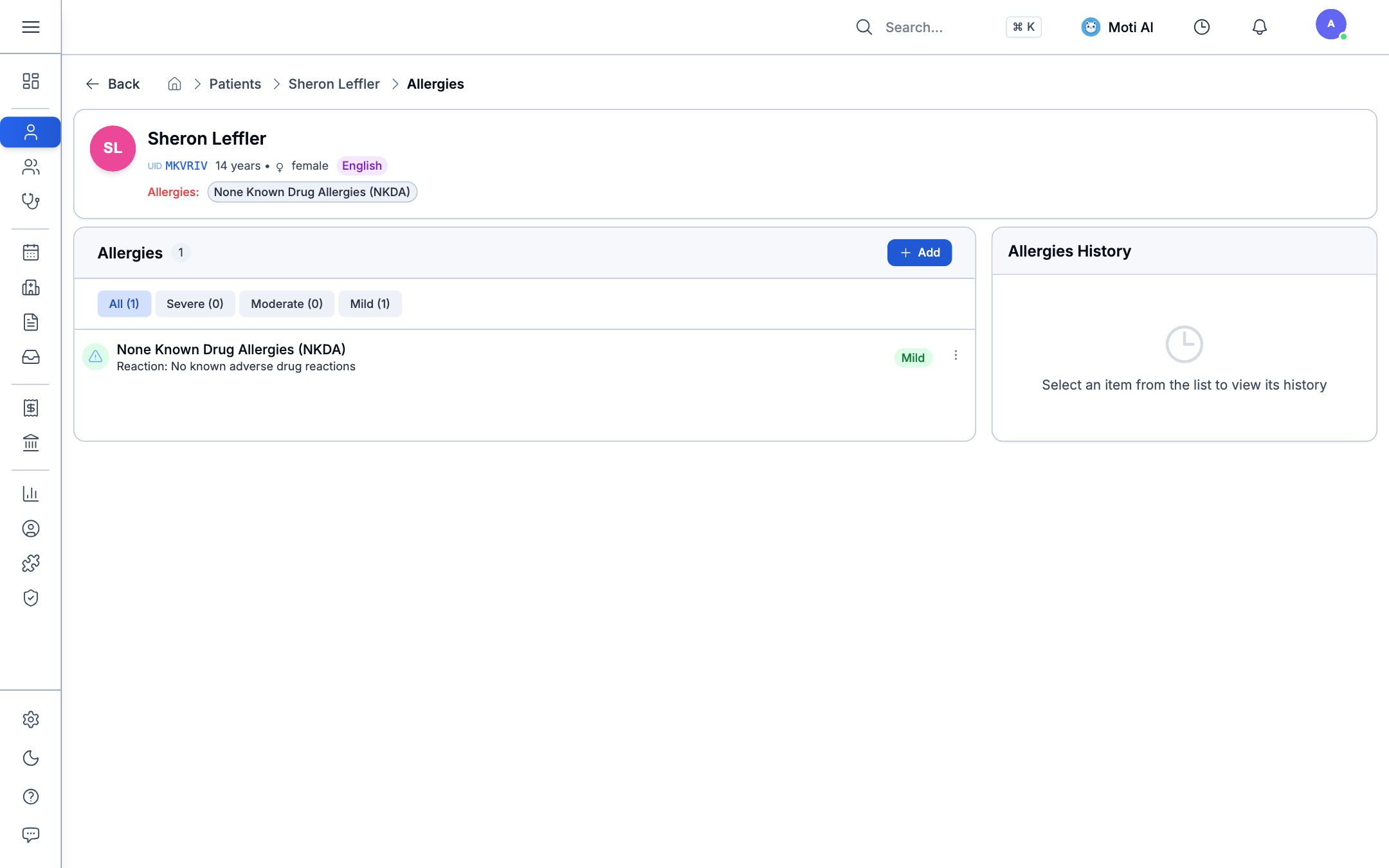
Allergy Registry (/allergies)
Manage food, medication, and environmental allergies with severity levels and reaction notes:
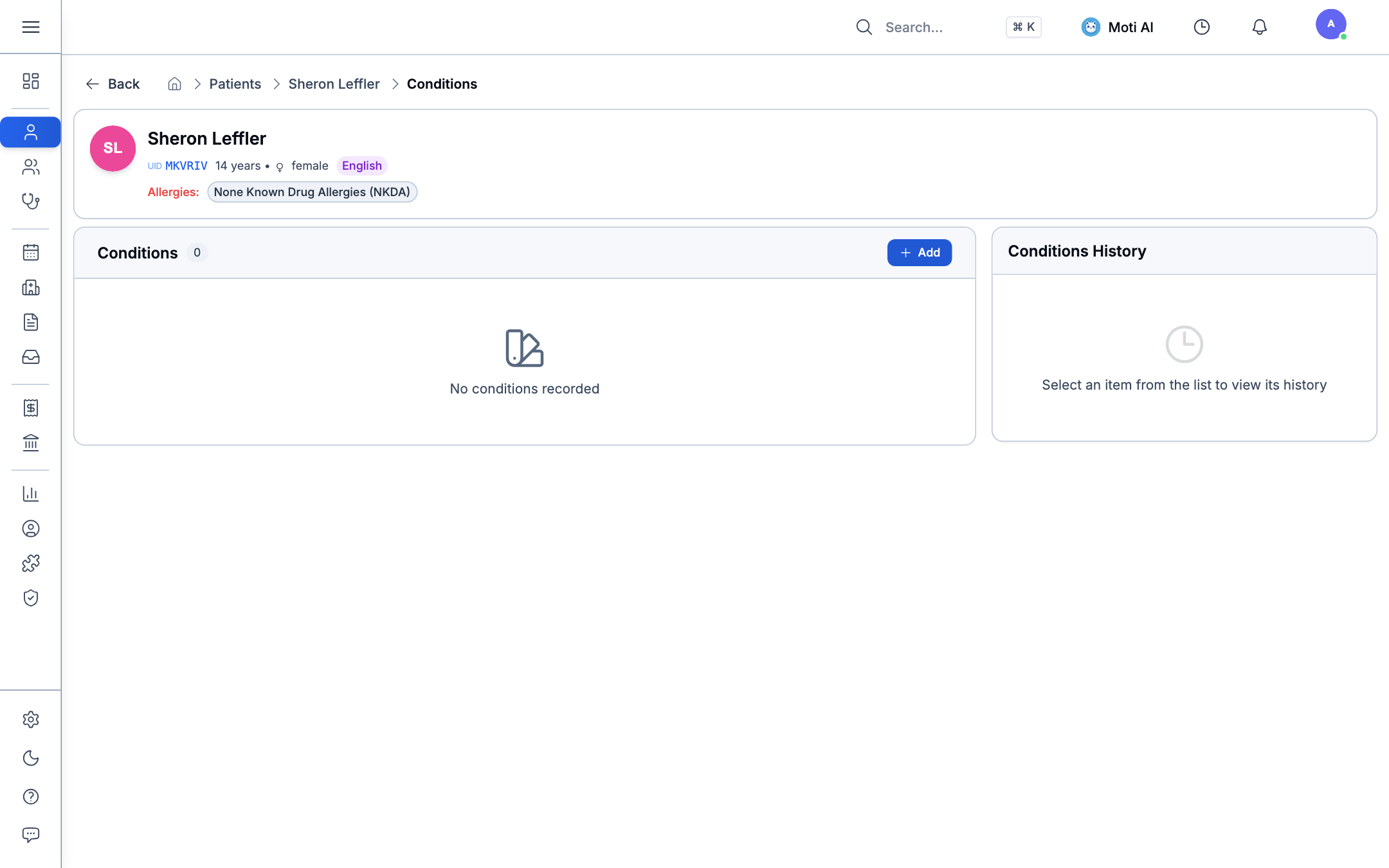
Problem List & Diagnoses (/conditions)
Track acute and chronic conditions using standardized ICD-10 codes with clinical status (Active, Resolved, Remission):
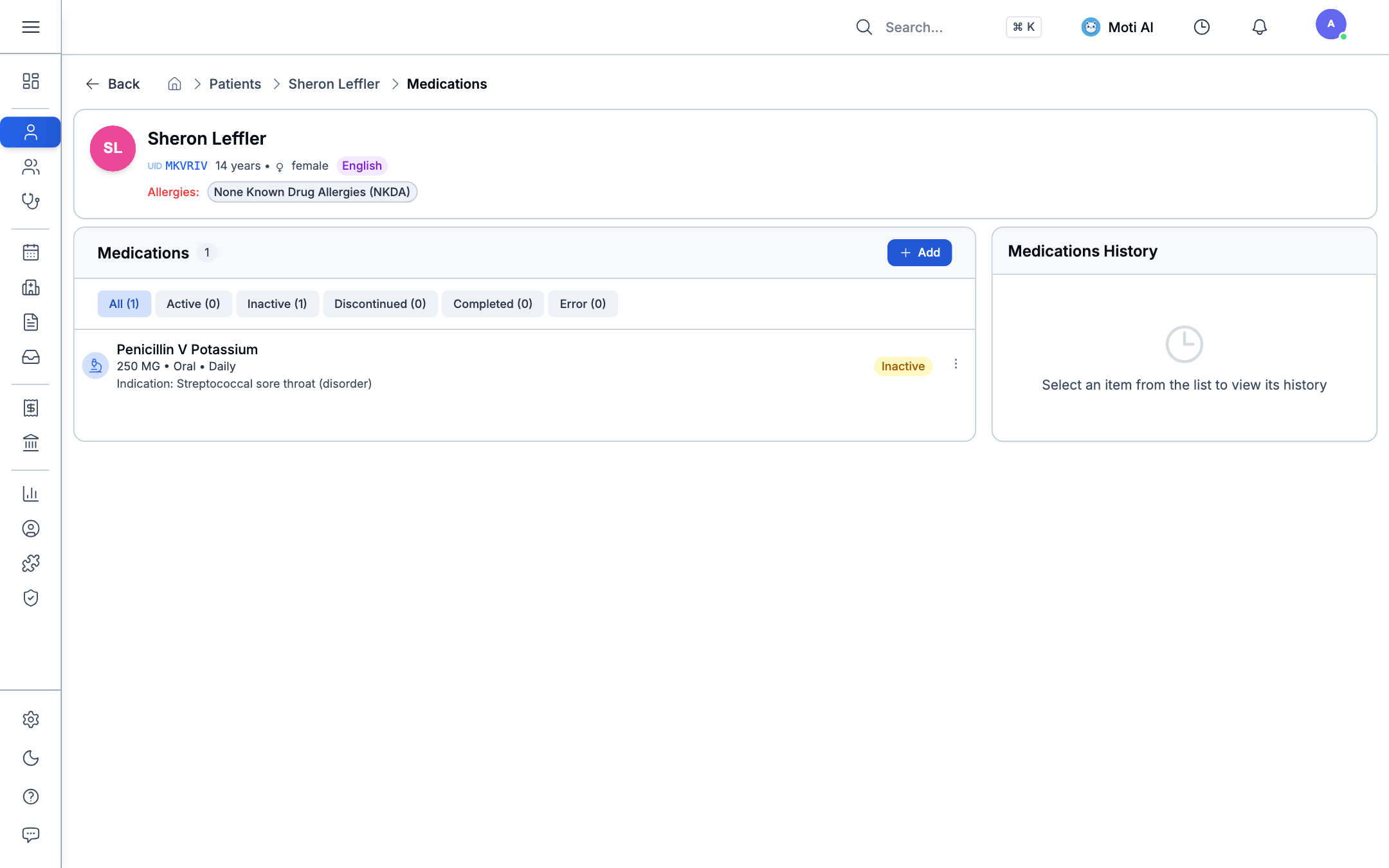
Prescription History (/medications)
Review active, completed, and discontinued medication regimens:
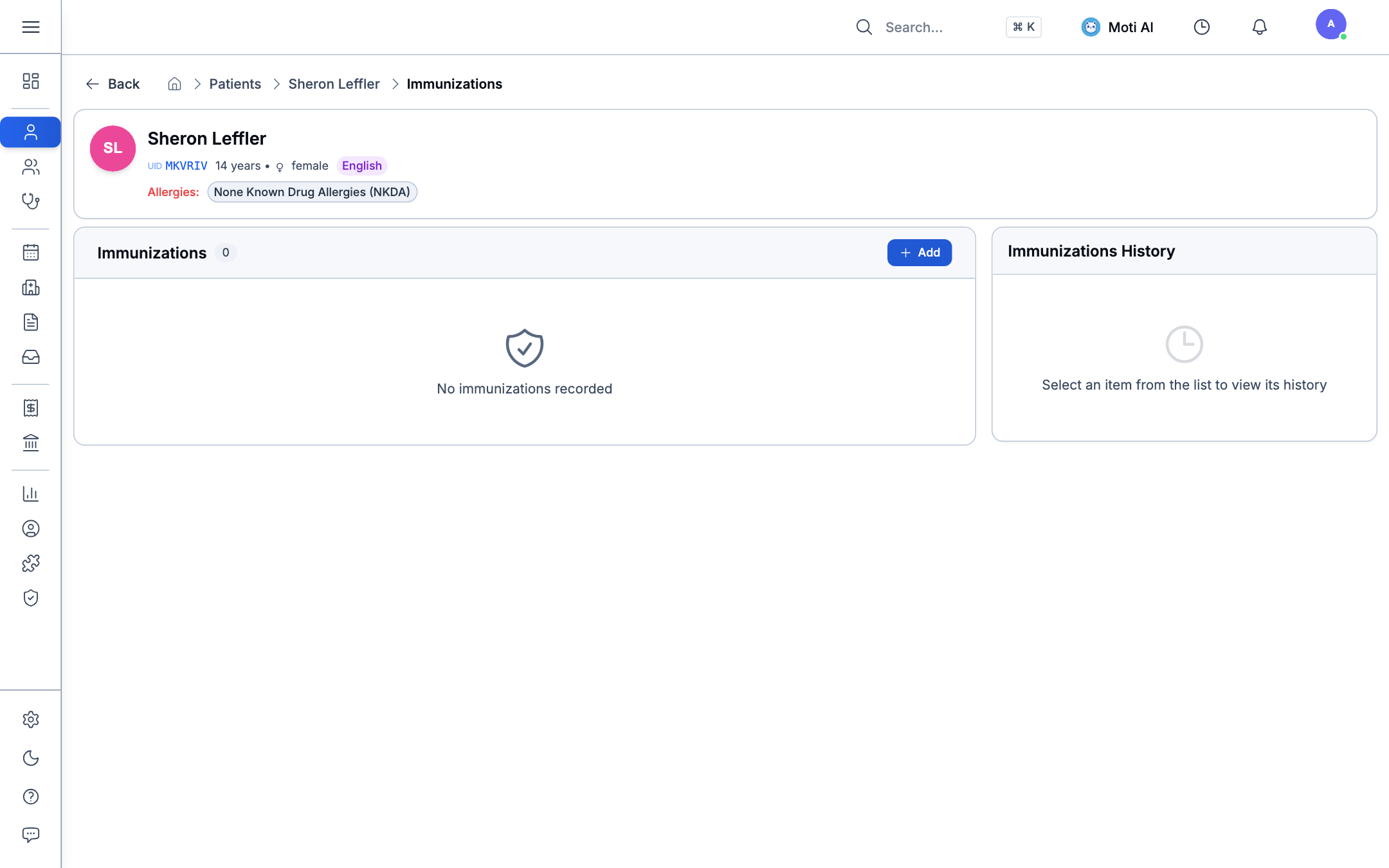
Vaccination Records (/immunizations)
Log vaccine doses, lot numbers, administration dates, and booster schedules:
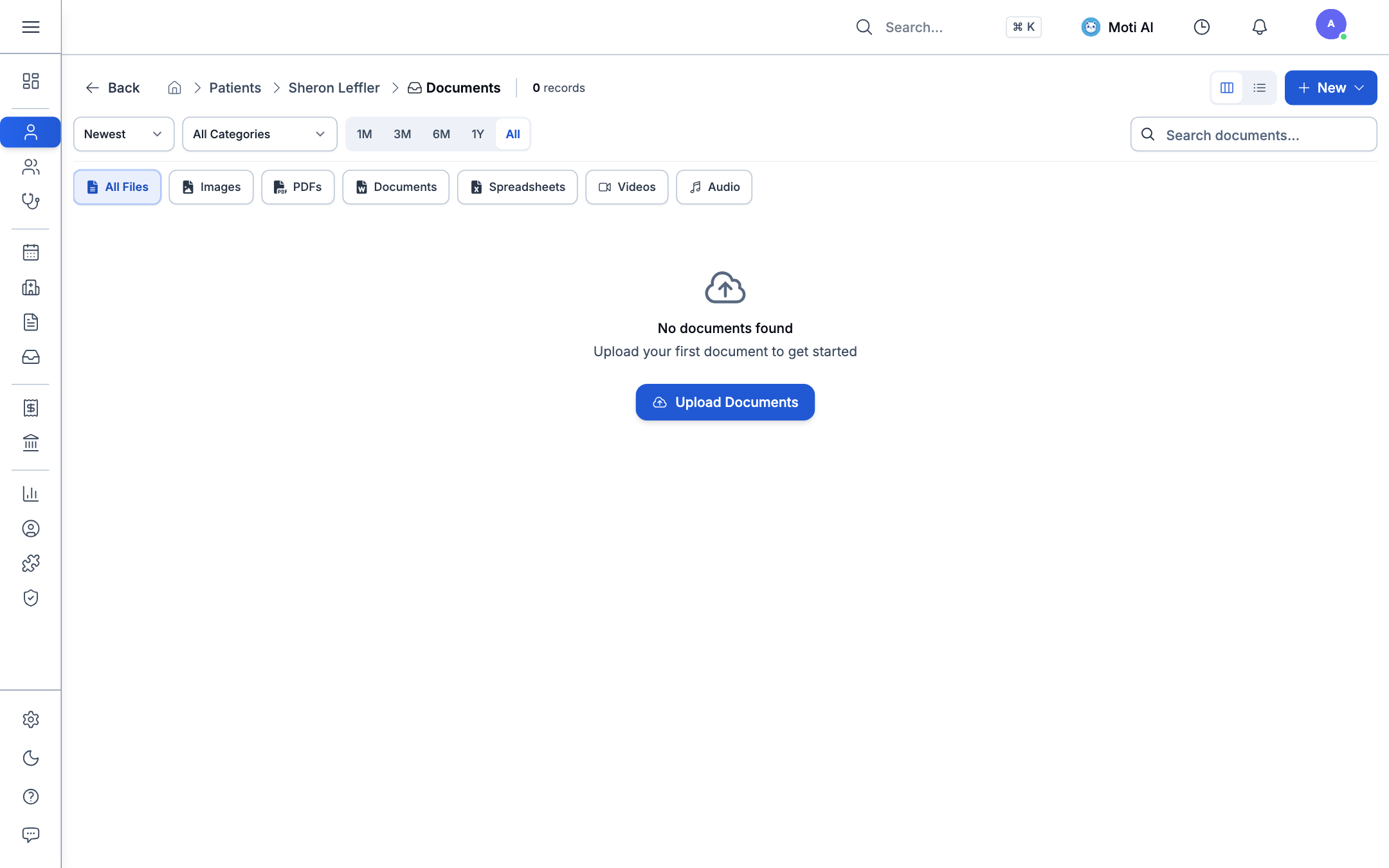
Document Archive (/documents)
Upload and view patient scans, PDF summaries, clinical photographs, and external records stored securely on Cloudflare R2:
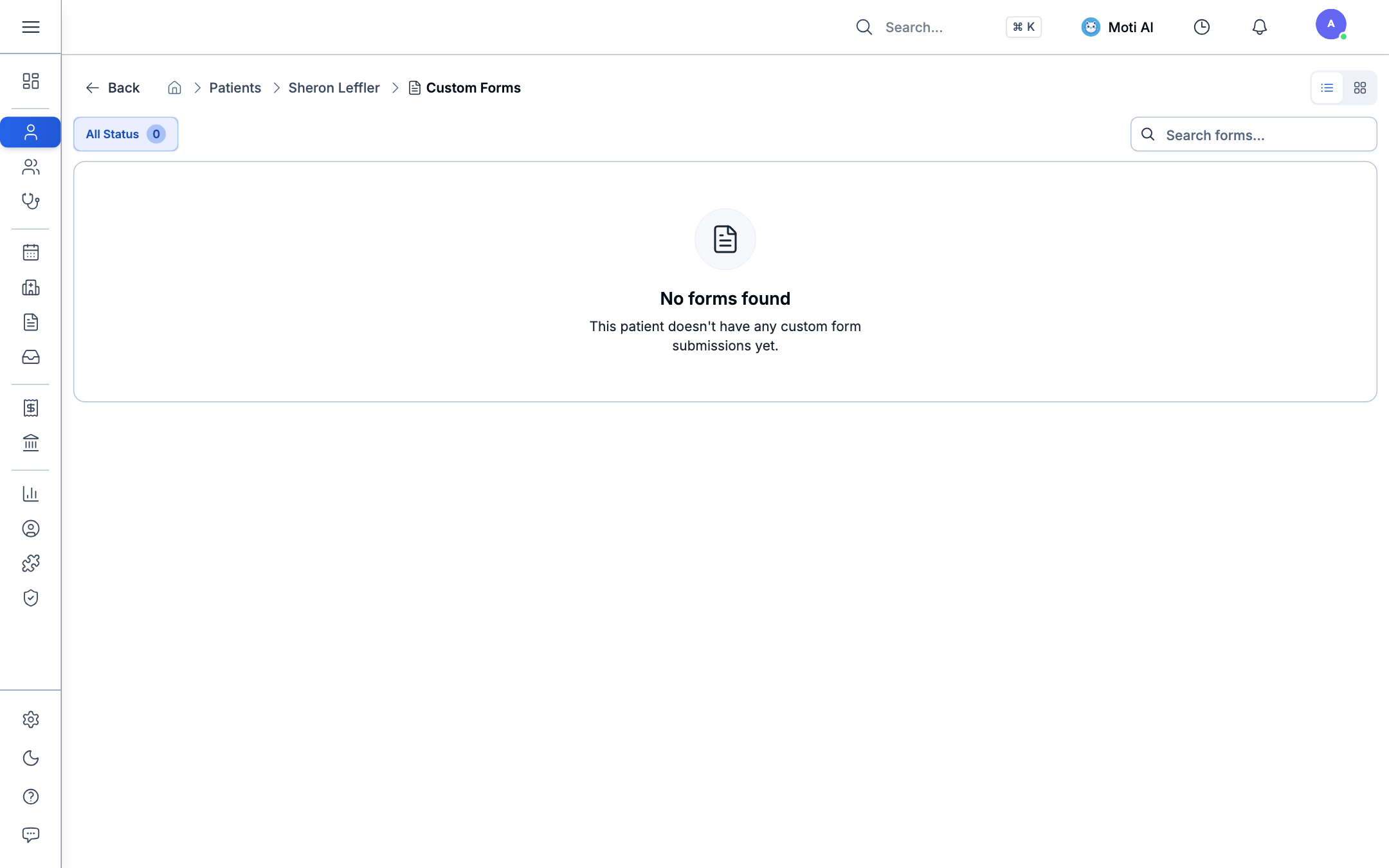
Custom Form Responses (/forms)
Review completed intake questionnaires, screening assessments, and specialty evaluation forms:
Was this page helpful?
Help us improve our clinical documentation with your quick feedback.
Security, Access Control & Audit Logs
Understand Medaius enterprise security standards, clinic workspace isolation, role-based access control, session protection, and compliance audit logging.
Longitudinal Patient Clinical Records
Review comprehensive clinical sub-records for patient care: allergies, chronic problem lists, active medications, immunization ledgers, surgical procedures, and diagnostic orders.