
Billing, Invoices & Point of Sale (POS)
Process patient checkouts, collect cash and card payments, manage invoice ledgers, and configure standardized clinic service fees.
Medaius features a unified billing and financial management system tailored for clinics, pharmacies, and outpatient centres. It combines a rapid counter checkout terminal (Point of Sale) with an audit-ready invoice and accounting ledger (Billing).
1. Processing a Checkout at the Point of Sale (POS)
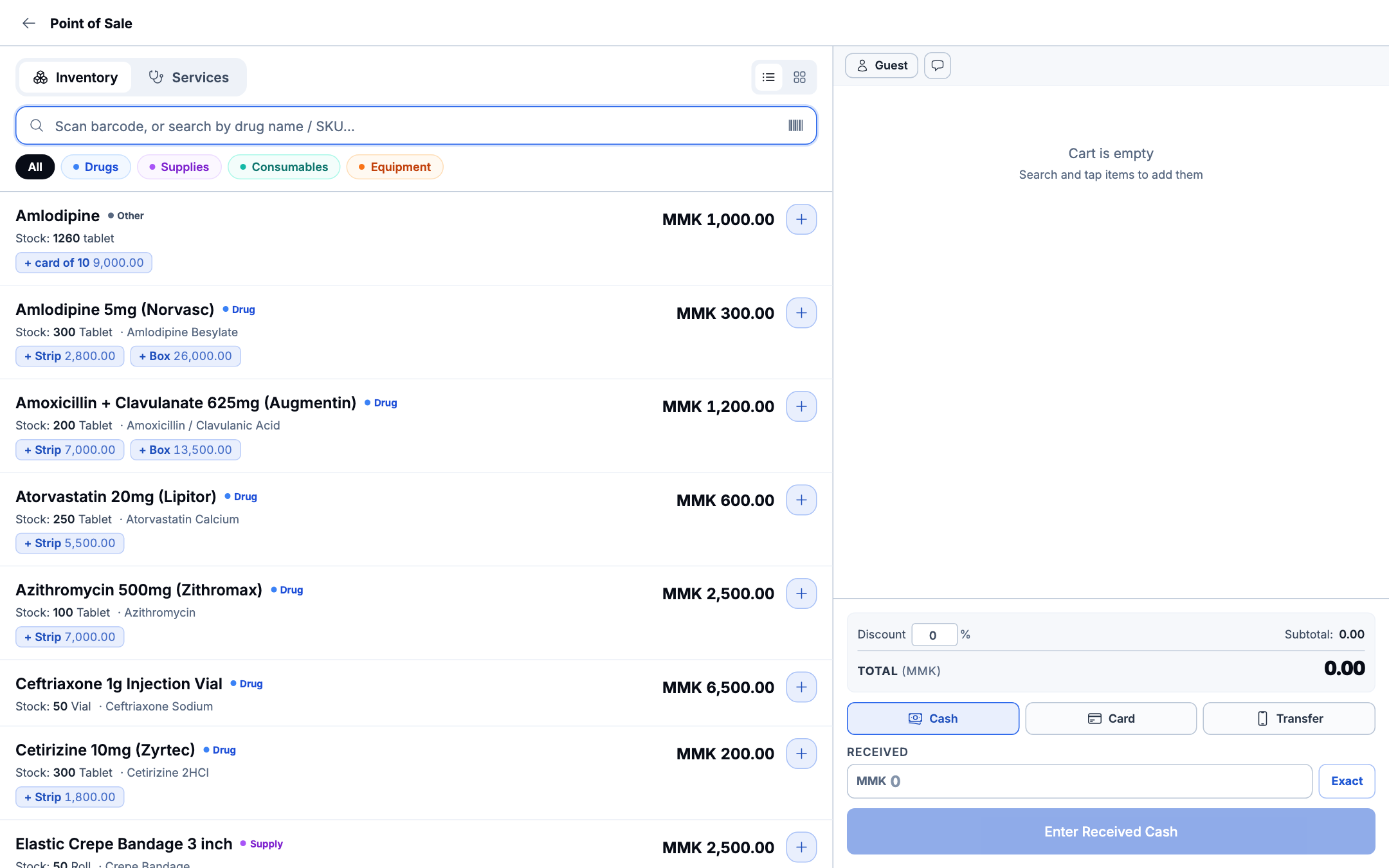
Cashiers and dispensary staff use the Point of Sale terminal to check a patient out in seconds:
- Open Point of Sale from the main navigation.
- Add items to the cart:
- Scan a barcode directly, or search by brand/generic name.
- Use the category pills (Drugs, Supplies, Consumables, Equipment) to narrow the list.
- For medications, pick the packaging shortcut that matches what you're dispensing — single unit, + Strip, or + Box — and the price auto-calculates (e.g., Amlodipine 5mg: + Strip 2,800 MMK, + Box 26,000 MMK).
- Link the sale to a patient: search by name or ID and select an existing chart (e.g., Alex Morgan). Skip this and the sale is recorded against Guest by default.
- Apply a discount if needed — enter a percentage and the subtotal recalculates automatically.
- Choose the payment method: Cash, Card, or Transfer.
- For cash, type the amount received to see the change due instantly, or click Exact if the patient is paying the exact total.
- Click Complete & Print Receipt to finalize the checkout.
2. Finding and Managing an Invoice
Every checkout, draft order, and consultation charge lands in the Billing hub as an invoice:
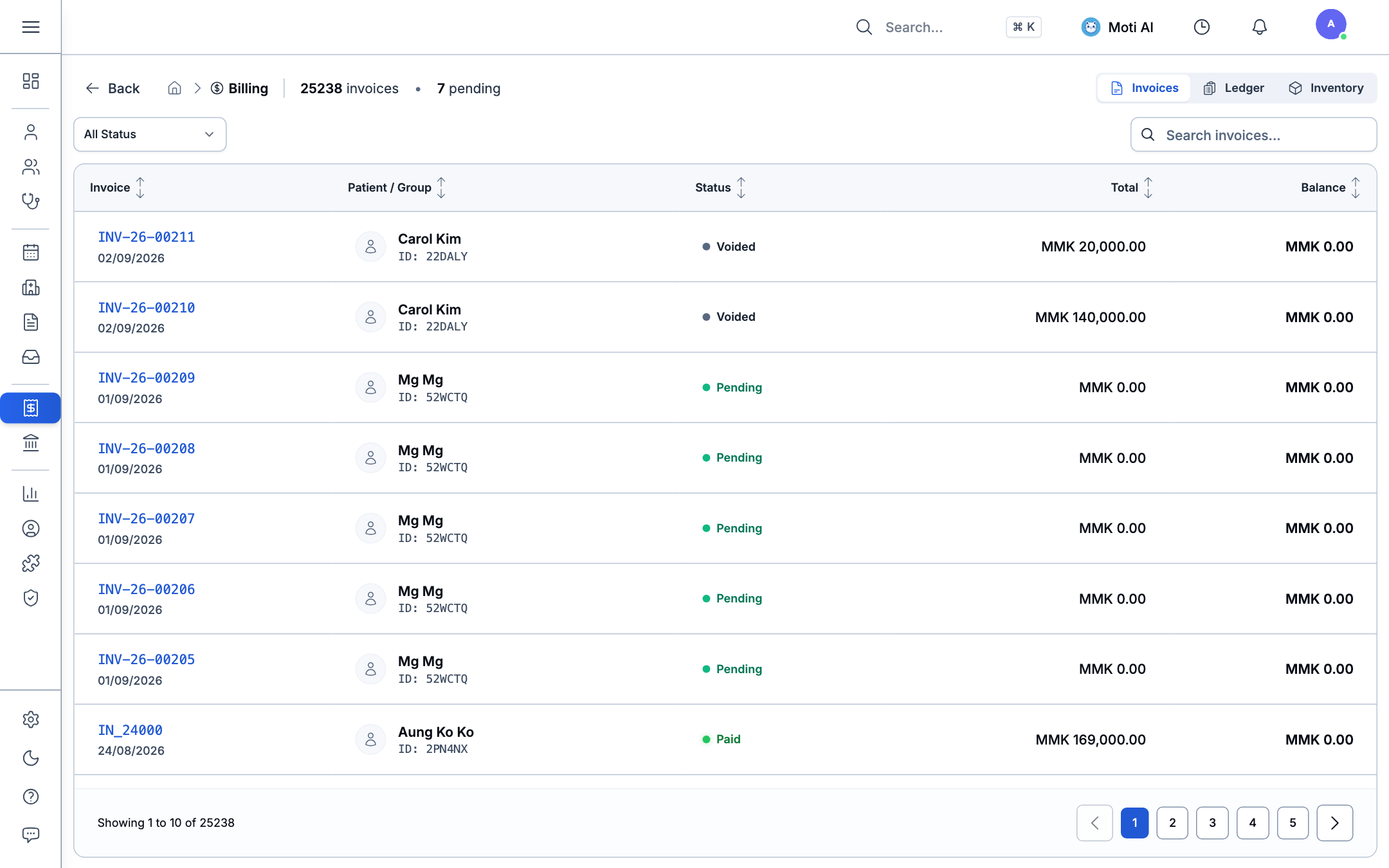
- Open Billing from the main navigation to see the full invoice list, with total volume and outstanding payments at a glance (e.g., 25,238 invoices, 7 pending).
- Check the status column to see where each invoice stands:
- Paid — settled in full.
- Pending — outstanding or queued for collection.
- Voided — cancelled, with a complete audit trail kept.
- Click a patient's name (e.g., Alex Morgan or Sarah Chen) directly from any invoice row to open their full billing history and running account balance.
- To hand a patient a receipt or file one for your own records, open the invoice and click Export (download) or Print — both include clinic branding and tax registration details.
3. Setting Up Standardized Service & Consultation Fees
Set your clinic's price list once, under Fee & Inventory, so it's ready everywhere billing happens:
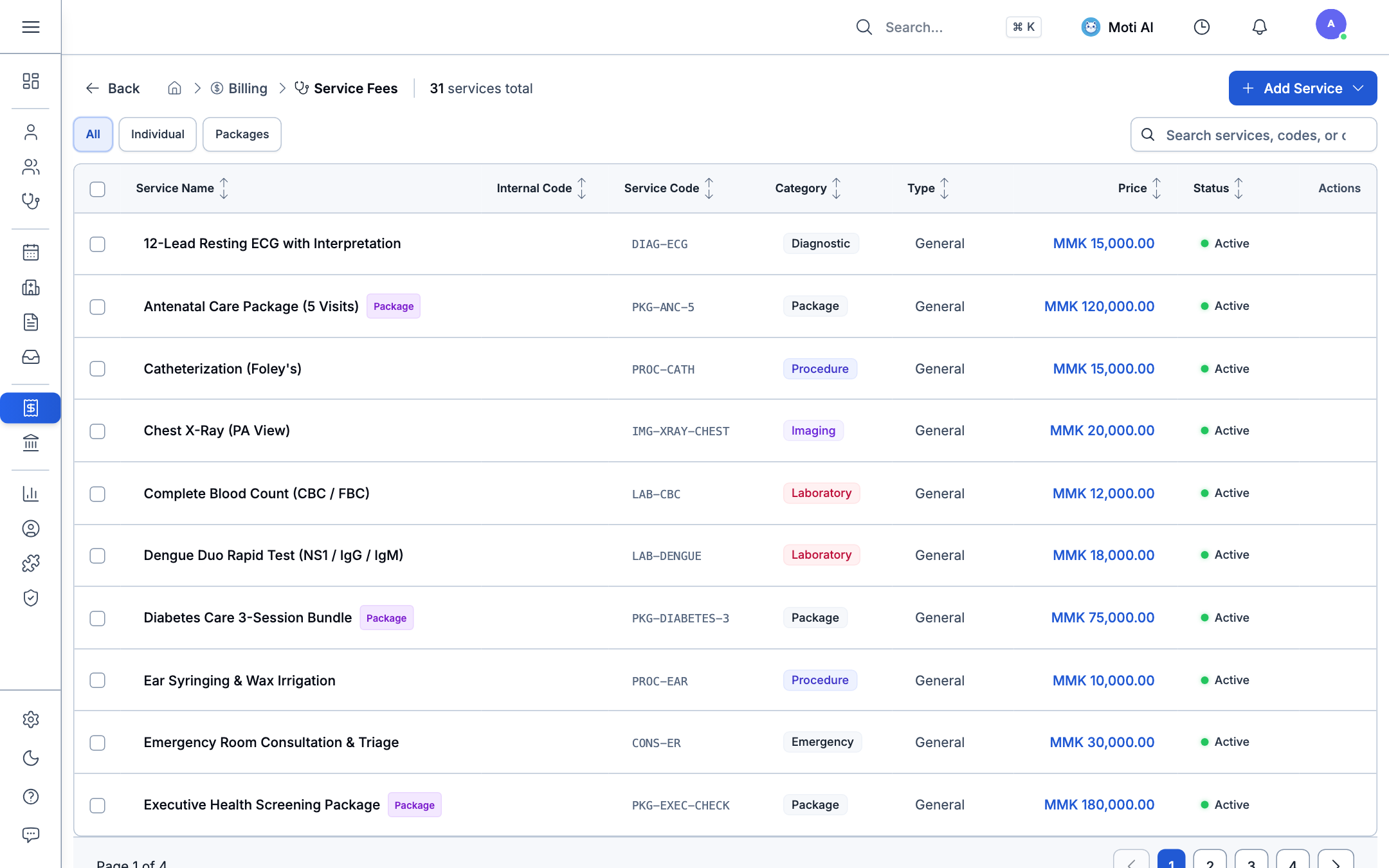
- Go to Fee & Inventory > Service Fees.
- Click Add Service and enter the rate for a consultation, diagnostic test, procedure (e.g., wound dressing), or lab panel.
- Assign the service to a category (e.g., Consultation, Laboratory, Procedure) so it groups correctly in reports and invoices.
- Save — the service is now selectable immediately from the POS terminal and from a doctor's consultation order sheet, with no further setup needed.
4. Related Guides & Next Steps
Inventory & Stock Management
Set up the medication and supply catalog that POS checkout and service fees draw from.
Sponsor & NGO Program Management
Learn how sponsored/subsidized patients are billed and split between patient copay and sponsor claim.
Clinic Configuration
Configure tax registration details, receipt branding, and clinic-wide financial settings.
Was this page helpful?
Help us improve our clinical documentation with your quick feedback.
Group Therapy & Cohorts
Manage patient cohorts, register guest participants, schedule group sessions, track attendance rosters, and link specialized assessment forms.
Inventory & Stock Management
Track pharmacy medications and clinical supplies, monitor batch numbers, manage expiration alerts, and automate stock deductions.