
Review Submissions & EHR Synchronization
Triage incoming patient form responses in the Custom Forms Inbox, verify and link respondents to patient profiles, approve submissions, and automatically sync clinical data into the EHR.
Once clinical staff or patients submit custom forms, Medaius provides a centralized triage pipeline. Clinic staff can review incoming responses, link unlinked submissions to master patient charts, and automatically commit mapped measurements (e.g., vitals and vaccines) directly into the Electronic Health Record (EHR).
1. Centralized Submissions Monitoring
Clinicians and reception staff can monitor incoming public and intake submissions from two primary locations:
A. Clinic Dashboard Quick Alert
The main clinic dashboard features an active Pending Form Submissions indicator. A real-time badge shows how many submissions are currently waiting for triage:
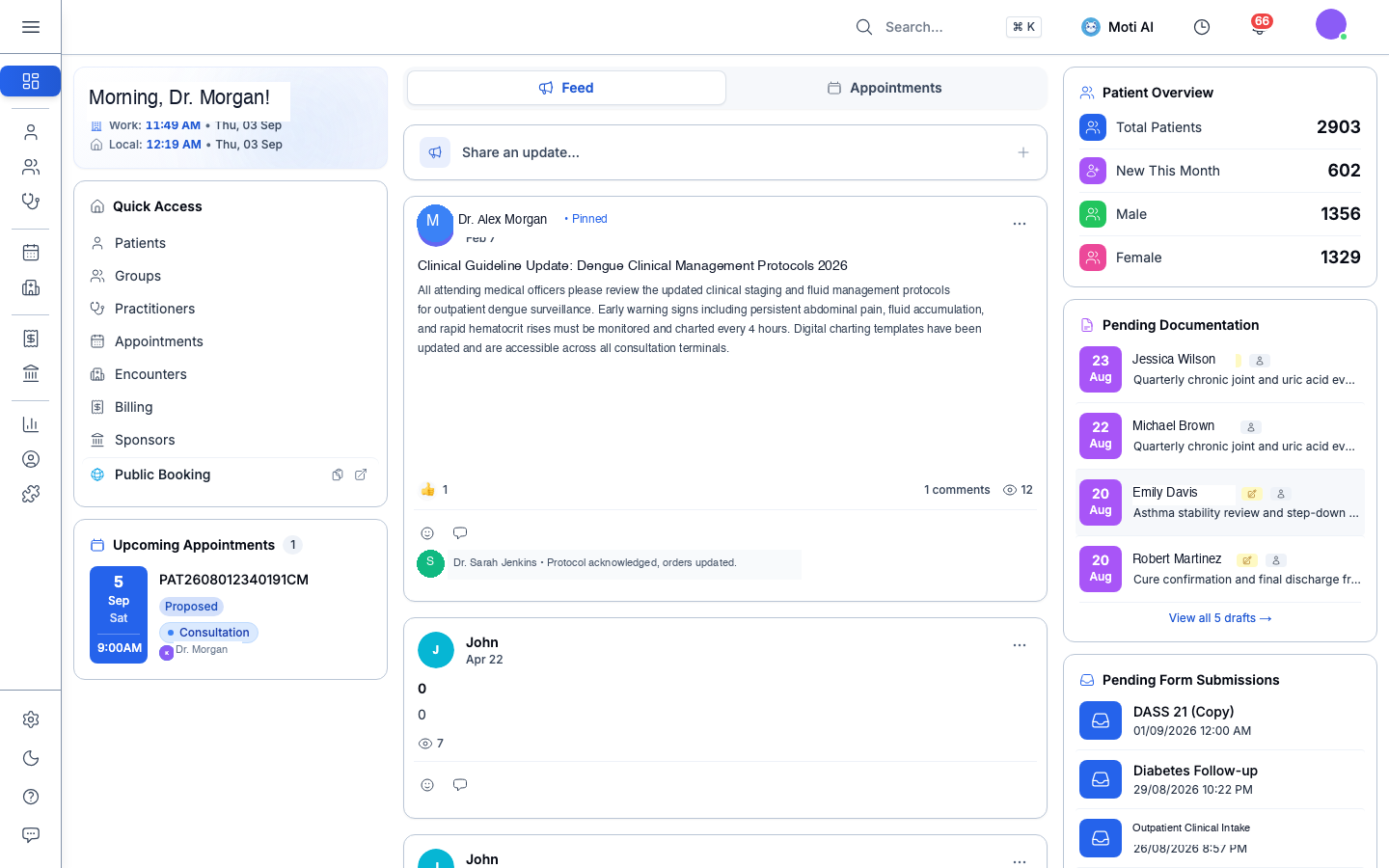
Clicking the card navigates directly to the triage inbox filtered by pending status.
B. The Custom Forms Triage Inbox (/custom-forms/inbox)
The dedicated inbox is the mission control for all form submissions:
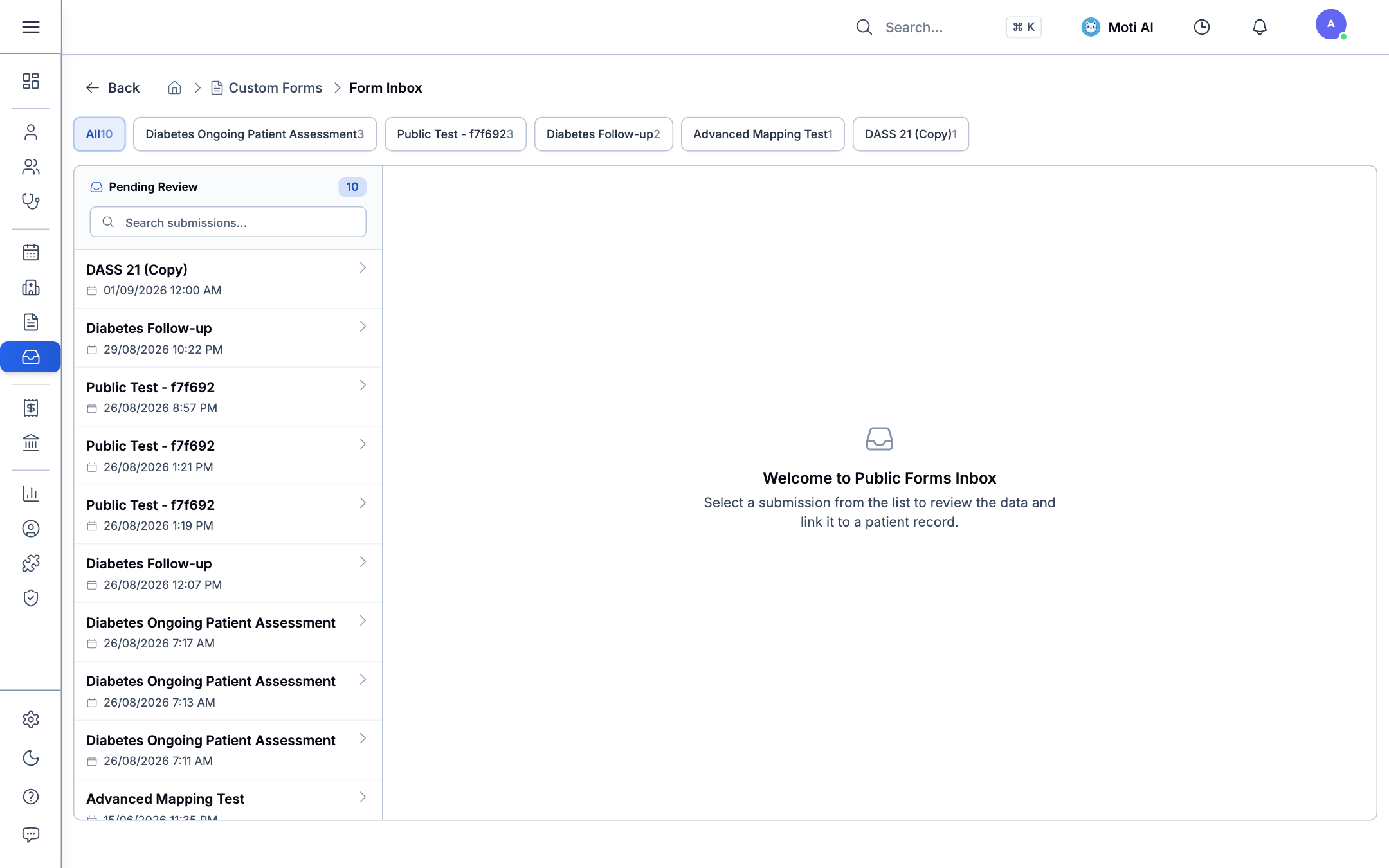
- Filter Bar: Filter submissions by template name, submission date range, review status, or patient name.
- Status Pills:
Pending: Newly arrived submission awaiting clinical inspection.Reviewed: Inspected by triage staff or nursing.Finalized / Linked: Approved and committed to the patient's EHR record.Rejected: Flagged as duplicate, spam, or invalid.
2. Identity Verification & Patient Linking
When a submission arrives, the system handles patient identification based on the distribution channel used:
A. Pre-Linked Submissions (from Targeted Links)
Submissions that originated from Targeted Links or internal clinical encounters already carry an authenticated patient ID token.
- The respondent's name, avatar, and record number appear with a verified green badge.
- No manual linking is required. The response is automatically associated with the patient's master record.
B. Unlinked Submissions (from General Public Links)
Submissions from general website links or waiting-room QR codes arrive unlinked:
- Open the submission details drawer in the inbox.
- The system compares the submitted name, phone number, and date of birth against your clinic master patient index:
- Option 1: Link to Existing Patient: If a matching record is found, click Link to Patient. The form response immediately attaches to their ongoing chart.
- Option 2: Create New Patient: If the respondent is a first-time visitor, click Create New Patient. Medaius opens the patient registration drawer with demographics (Full Name, Phone Number, Date of Birth, Gender) automatically pre-filled from the form answers, eliminating manual data re-entry.
3. Clinical Review & Approval Workflow
Clicking any row in the inbox opens the full Form Response Drawer:
- Answer Sheet Review:
- Inspect all answered questions, numeric observations, and narrative text.
- Review uploaded files, clinical sketches, or signed consent agreements.
- Calculated fields (e.g., BMI or risk scores) are highlighted with their evaluation results.
- Attribution & Timestamps:
- Inspect submission metadata: submission timestamp, IP origin, respondent device, and authenticated practitioner (if completed internally).
- Approval Actions:
- Approve & Finalize: Confirms the submission and triggers automatic EHR resource synchronization.
- Mark as Reviewed: Indicates the form was seen by nursing while awaiting attending physician consultation.
- Reject: Archives the submission with an optional rejection note (e.g., "Duplicate test submission").
4. EHR Resource Mapping & Automatic Chart Sync
The most powerful feature of Medaius Custom Forms is Resource Mapping. When a form template is created with mapped fields, approving a submission automatically extracts and commits those values directly into the patient's longitudinal EHR:
| Field Mapping Target | Automated EHR Action |
|---|---|
| Observation / Vital Sign | Creates standardized observation records with LOINC codes (Systolic BP, Diastolic BP, Pulse, Temperature, Glucose, SpO2, BMI). |
| Immunization / Vaccine | Appends administered or self-reported vaccines directly into the patient's immunization ledger. |
| Condition / Problem List | Adds confirmed diagnoses or active chronic conditions to the patient's problem list. |
Example: Vital Signs Sync
When a patient or triage nurse submits blood pressure (125/80 mmHg) and heart rate (72 bpm) in a custom intake questionnaire, approving the form immediately plots these measurements on the patient's longitudinal vital sign trend graphs under Patient Profile > Charts (/patients/[id]/charts).
5. Historical Record Access in Patient Files
All approved and linked form responses remain permanently archived in the patient's digital chart:
- Navigate to Patients and select any patient.
- Open the Forms tab (
/patients/[id]/forms). - Clinicians can view the complete chronological history of every questionnaire the patient has ever submitted, complete with dates, reviewers, and original answer sheets.
- Click Print / Export PDF to generate an official hard copy for medical records or external specialist referrals.
Related Guides
Step 1: Form Generation & Builder
Learn how to design interactive forms with text fields, dropdowns, scales, and conditional logic.
Step 2: Form Distribution & Portals
Learn how to generate general public links, targeted invites, and waiting-room QR codes.
Was this page helpful?
Help us improve our clinical documentation with your quick feedback.
Form Distribution & Patient Portals
Distribute clinical forms internally to consultation notes, or externally via general public links, targeted pre-authenticated links, QR codes, and patient self-service portals.
Telehealth & Virtual Consultations
Launch virtual video visits, share consultation links, and transcribe online calls with the AI Scribe.