
Form Distribution & Patient Portals
Distribute clinical forms internally to consultation notes, or externally via general public links, targeted pre-authenticated links, QR codes, and patient self-service portals.
Once you have created and published a form template, Medaius provides multiple distribution pathways. Forms can be attached directly to doctor consultation charts or distributed to patients outside the clinic via smartphones, tablets, or waiting-room kiosks.
1. Distribution Scope: Internal vs. Public vs. Both
Every custom form in Medaius has a defined Usage Scope (configured during Step 1 of the Form Builder):
| Usage Scope | Intended Audience | Access Location | Key Clinical Use Cases |
|---|---|---|---|
Internal Only | Doctors, Nurses, Medical Staff | Active Consultation Note Editor & Patient Chart | Physical examination notes, nursing handover, surgical checklists, specialty evaluations. |
Public | Patients, Family Caregivers | Web browser (/?formId=...), SMS/WhatsApp link, QR code | Pre-visit intake forms, medical history disclosures, satisfaction surveys, screening questionnaires. |
Both (Dual Scope) | Clinicians & Patients | Consultation note drawer AND shareable web links | PHQ-9 depression screening, pediatric asthma milestones, lifestyle questionnaires. |
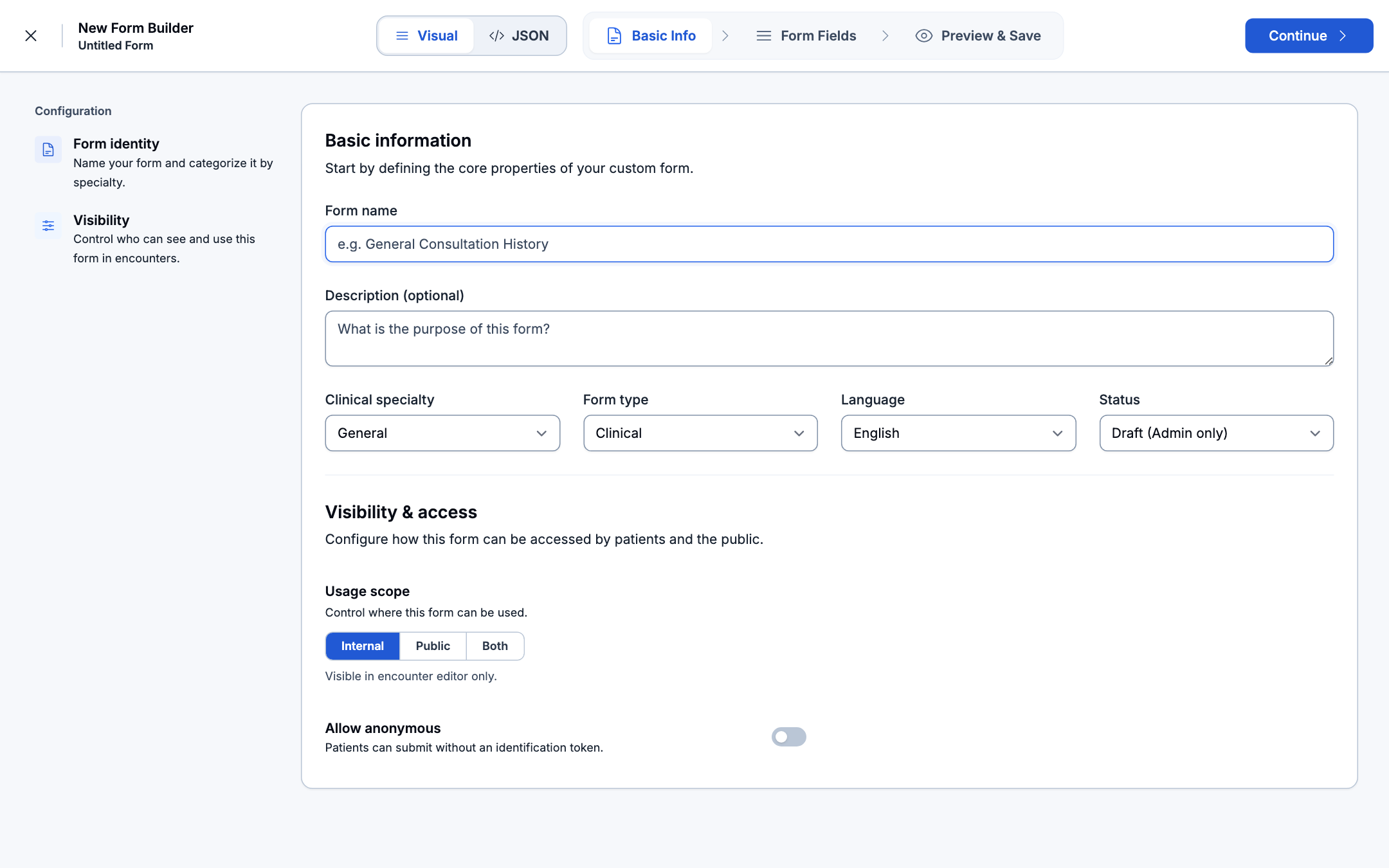
2. Channel 1: Internal Clinical Distribution
For forms scoped as Internal or Both, clinical staff can access and complete them directly inside the EHR workspace:
- Active Consultation Note (
/encounters/[id]):- Inside the clinical encounter note workbench, open the Forms sidebar tab.
- Filter templates by clinical tags (e.g., Psychiatry, Assessment, Clinical) or search by questionnaire title.
- Click any clinical template (such as PHQ-9 Depression Assessment, DASS-21, or OBGY Antenatal Care) to attach and fill it directly while consulting with the patient.
- Answers mapped to clinical measurements automatically write into the patient's vitals and observations ledger upon saving.
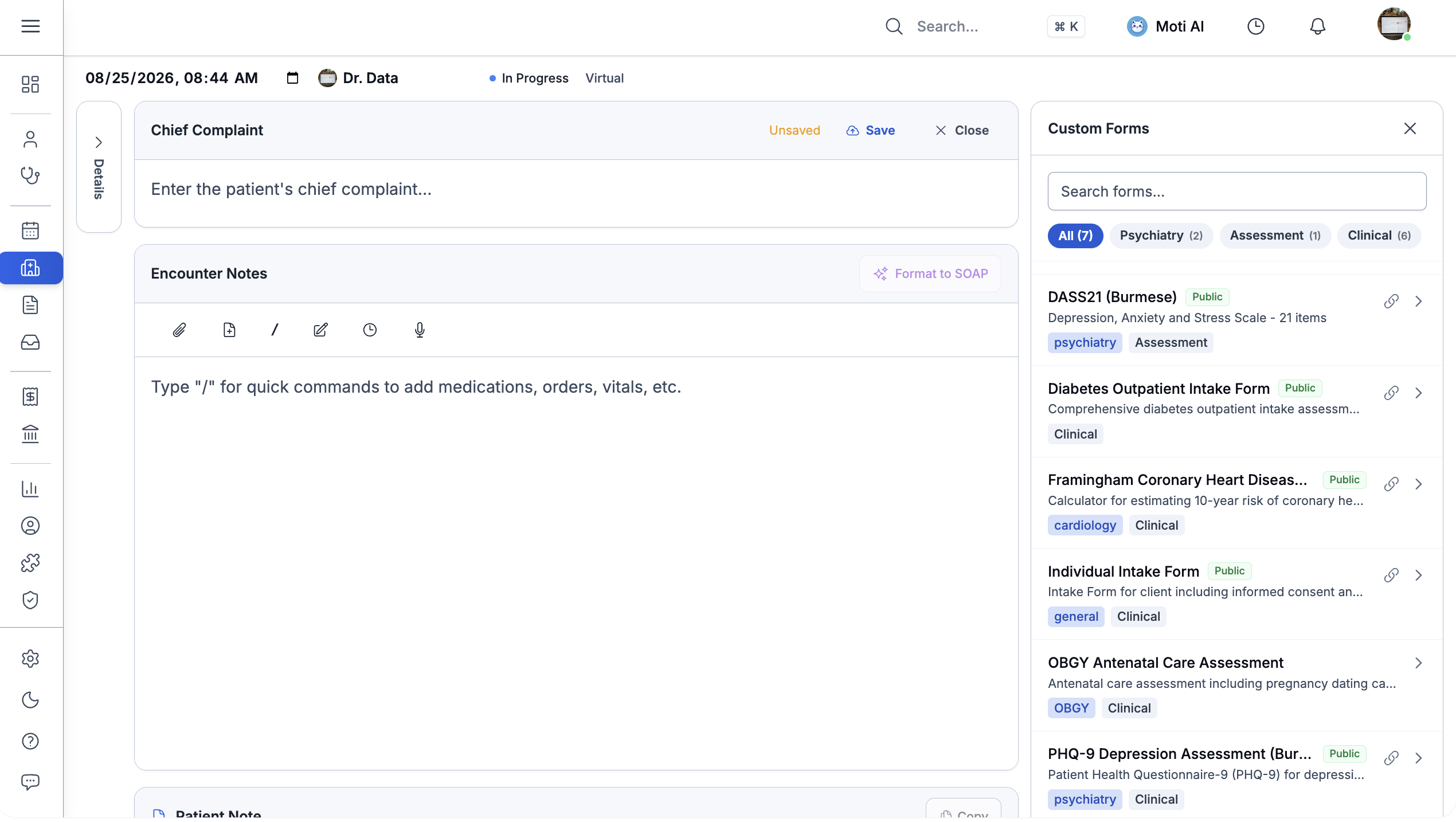
- Patient Profile Form Tab (
/patients/[id]/forms):- Clinicians can open any patient file, navigate to the Forms tab, and click + Fill Form to record an out-of-encounter assessment.
3. Channel 2: General Public Links (Website, QR Codes & Kiosks)
Forms scoped as Public or Both receive a permanent public slug and can be distributed universally:
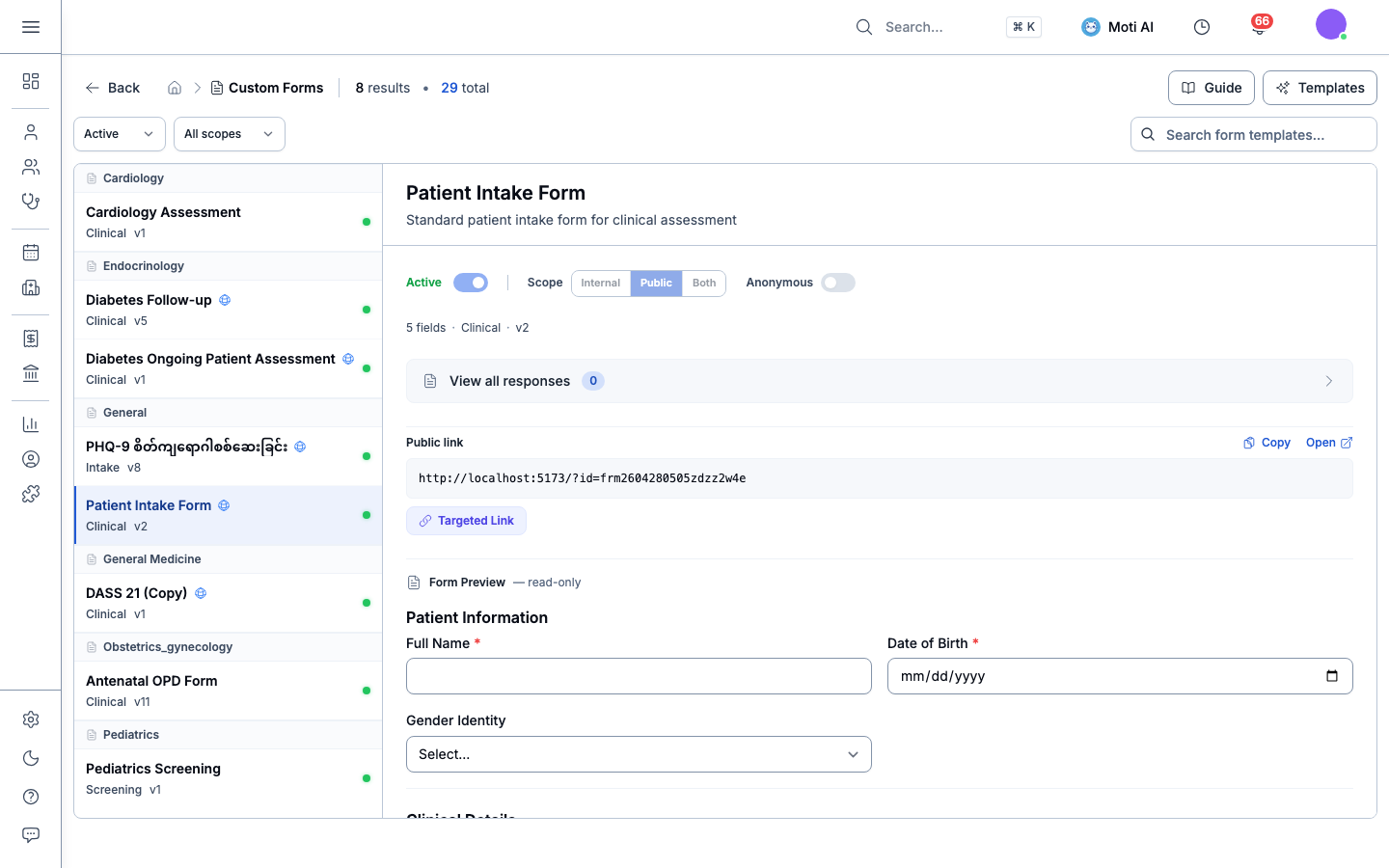
A. Copying General Public Links
From the Custom Forms catalog, select the template to open its details drawer, then copy the public URL:
https://<your-clinic-subdomain>/forms?formId=<form_id>B. Deployment Methods
- Clinic Website: Embed the link on your website (e.g., "Complete New Patient Registration Ahead of Your Visit").
- Waiting Room QR Codes: Print a physical poster with the QR code at your reception desk or triage station. Arriving walk-in patients can scan and complete their intake while seated.
- SMS & Messaging Invitations: Automatically send public intake links in booking confirmation messages.
C. Anonymous vs. Identified Submissions
- Anonymous Mode Enabled: Submissions require zero patient identity info. Ideal for patient satisfaction surveys, incident reporting, and public health community screenings.
- Anonymous Mode Disabled: The form prompts the respondent for essential identity fields (Full Name, Phone Number, Date of Birth) to ensure accurate matching in the clinic triage inbox.
4. Channel 3: Targeted Pre-Authenticated Links (Patient & Cohorts)
To prevent duplicate patient records, avoid identity mismatches, or collect responses for specific group therapy sessions, use Targeted Links:
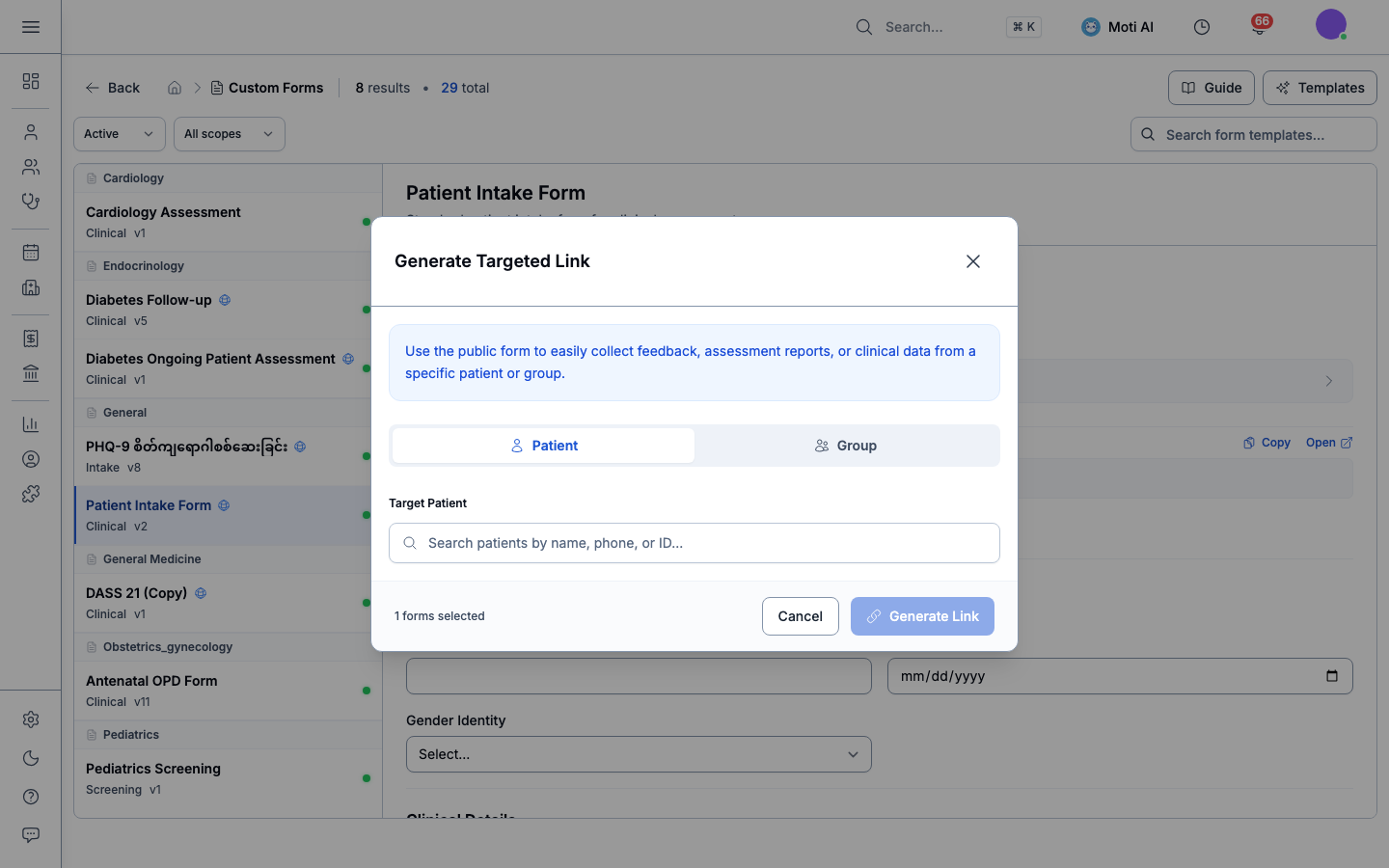
How Targeted Links Work:
- Open the form in Custom Forms and click Targeted Link (or click Share Form directly on an open patient chart).
- Choose your recipient target:
- Individual Patient: Search registered patients by name (e.g., Alexander Hall, Sarah Chen), phone number, or chart UID.
- Group Therapy Cohort: Select an active group therapy session to distribute links to all cohort participants at once.
- Click Generate Link.
- The system generates a cryptographically signed, pre-authenticated URL. When opened, the patient's identity is securely bound to the form session.
[!TIP] Zero Duplicate Patient Risk: Because targeted links are pre-bound to a specific patient ID, submissions automatically associate with that patient's master chart without manual staff intervention.
5. The Patient Self-Service Experience (medaius-public)
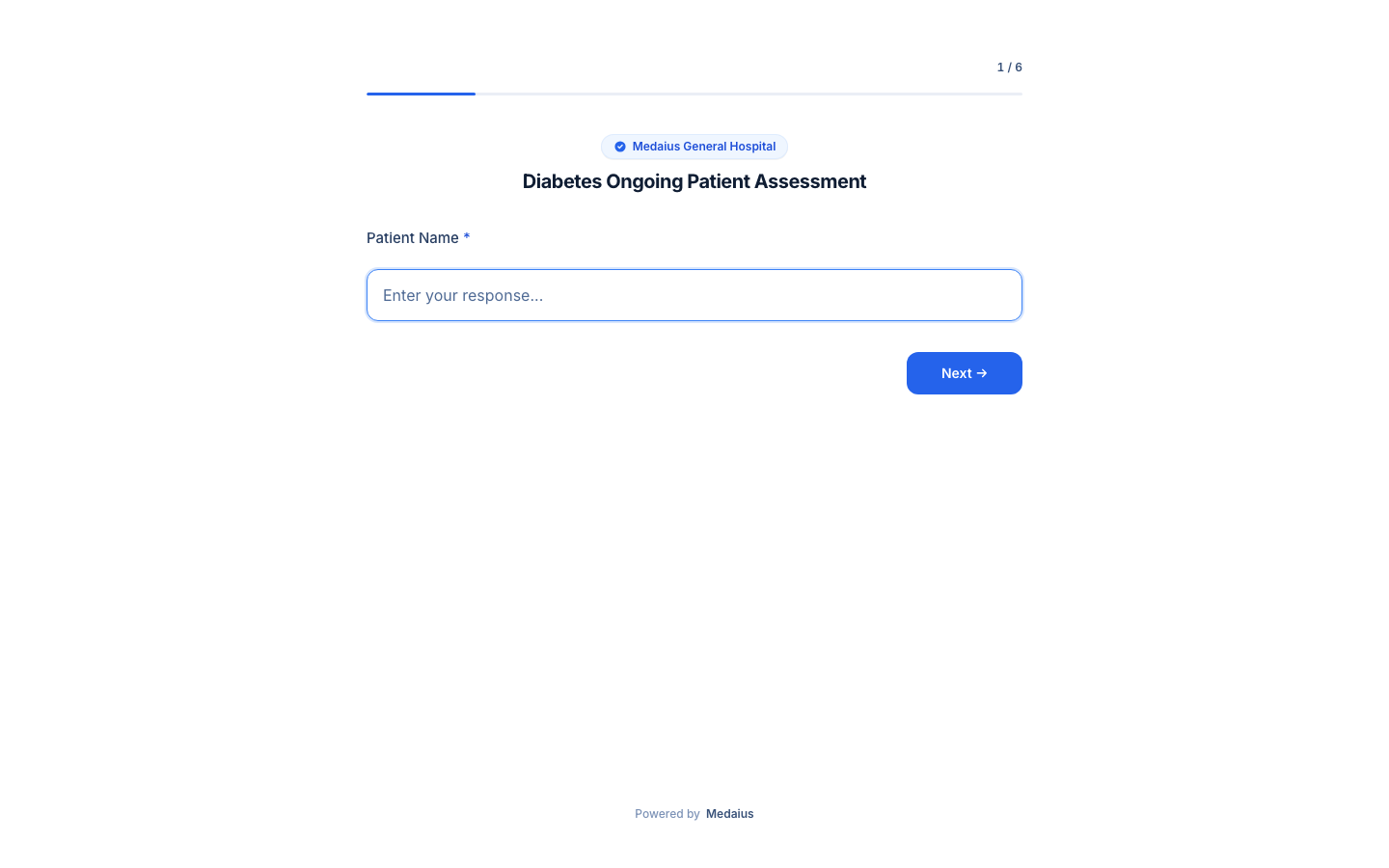
When a patient opens a form link on any smartphone, tablet, or desktop browser, the interface loads instantly with zero sign-in friction:
Desktop Patient View
Features clean typography, grouped sections, clear progress tracking, and inline input validation:
Mobile-Optimized Touch Intake
Designed specifically for mobile browsers with thumb-friendly controls, responsive date/time dials, large selection cards, and clear submission buttons:
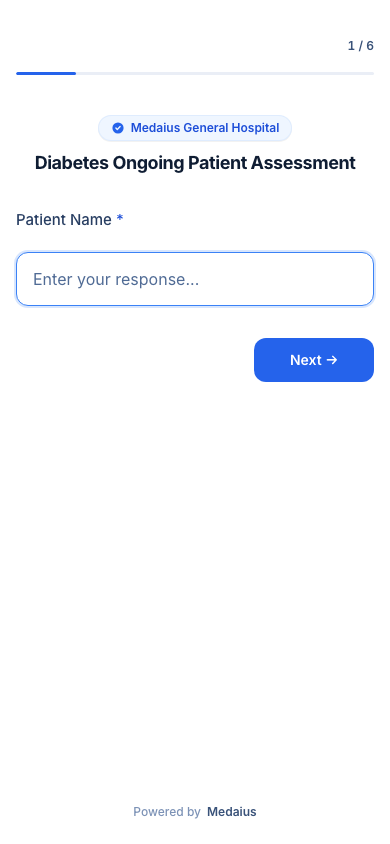 Mobile Responsive Patient Form Layout
When the patient taps Submit Questionnaire, their responses are encrypted and delivered directly to the clinic's triage queue.
Next Step in the Lifecycle
Once patients or staff submit responses, proceed to review, verify, and synchronize them into the EHR:
Step 3: Review Submissions & EHR Synchronization
Triage incoming submissions, link unlinked responses to patient charts, and automatically sync clinical observations.
Step 1: Form Generation & Builder
Review how to design forms using the Visual 3-Panel Builder or AI Prompt Generator.
Was this page helpful?
Help us improve our clinical documentation with your quick feedback.
Form Generation & Visual Builder
Generate clinical forms with AI prompts, review and refine fields using the 3-panel Visual Builder, configure all 18 field types, set formula calculations, and implement skip logic.
Review Submissions & EHR Synchronization
Triage incoming patient form responses in the Custom Forms Inbox, verify and link respondents to patient profiles, approve submissions, and automatically sync clinical data into the EHR.